 Shannon McGarry
EAGLE users can move to Fusion for familiar PCB workflows, native BOM and design rules, ECAD-MCAD integration, 3D PCB design, and easier migration of existing designs.

Elevate your design and manufacturing processes with Autodesk Fusion
For many electronics designers, EAGLE has been a familiar workspace, a trusted tool, and the place where countless schematic and PCB designs have taken shape. You know the commands, the file structure, the libraries, the workflows, and the small habits that make everyday design work feel efficient.
As electronic products become more connected, compact, and dependent on precise mechanical integration, PCB design is increasingly tied to the broader product development process. Collaboration, documentation, and manufacturing readiness now require electrical and mechanical teams to work together in connected workflows rather than in isolation.
Fusion builds on the EAGLE foundation you already know, while bringing electronics design into a more connected product development environment.
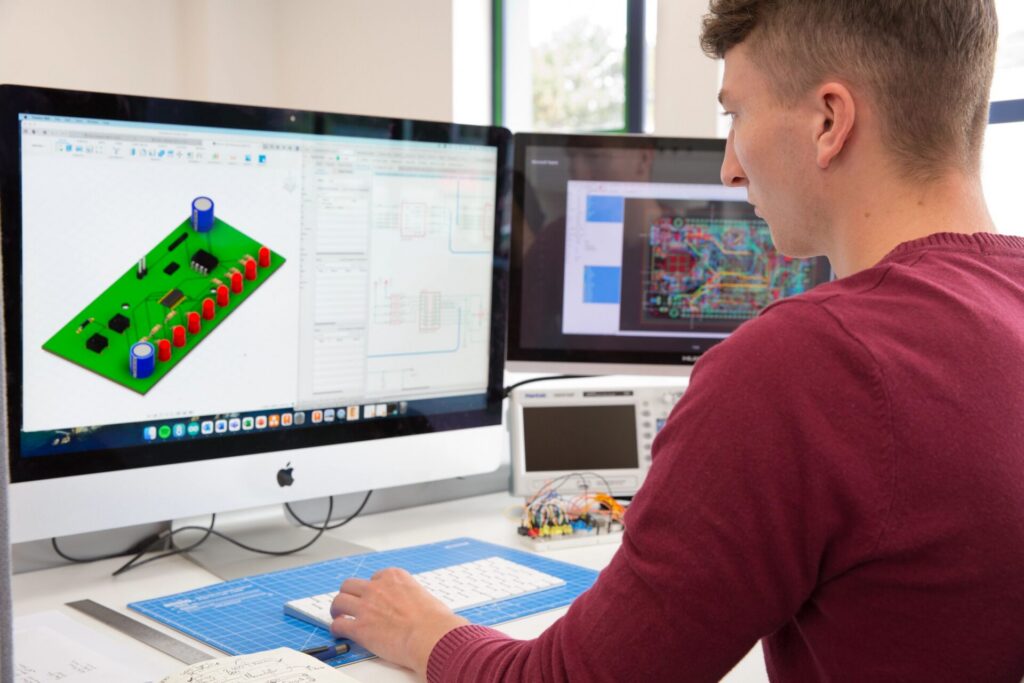
Fusion keeps the EAGLE foundation, but moves it forward
PCB and circuit design still feels familiar in Fusion. The schematic environment clearly carries forward the EAGLE experience. Many of the commands and workflows users already know are still available.
Moving from EAGLE to Fusion is less about abandoning the way you design. It’s more about learning where familiar tools now live inside a broader platform. Commands that used to sit in vertical toolbars have been reorganized into Fusion’s toolbar and menu structure, generally following the order of a typical design workflow: place components, connect them, modify, validate, document, and manage libraries.
If you prefer typing commands, Fusion also keeps the command line available, making it easier to adjust to the newer interface.
Designs connect more intentionally
One of the biggest differences between EAGLE and Fusion is how schematic, board, and 3D PCB data connects. In EAGLE, the schematic and board were linked implicitly as long as they had the same name and lived in the same folder. In Fusion, that relationship is explicit through an electronics design file.
That electronics design file acts as the connection point between the schematic, PCB, and 3D PCB. It gives Fusion a more flexible structure for associating design data, supporting differently named schematic and board files, simplifying reuse, and enabling newer workflows such as electronics drawings and native BOM access.
This is a shift in file management, but it also creates a stronger foundation for connected design work. Instead of treating electronics files as independent pieces that link, Fusion treats them as part of a managed electronics design.
Common EAGLE workflows are now built in
Many workflows were previously handled through ULPs or separate commands in EAGLE are now native in Fusion.
Bill of materials is one example. In EAGLE, many users relied on the BOM ULP. In Fusion, BOM functionality is built directly into the electronics design experience. You can organize the BOM by values or components, adjust variants, and work with built-in fields for attributes such as manufacturer information.
Renumbering is another example. What was once handled through a ULP is now native functionality in Fusion. You can renumber references, preview the changes, group numbering by sheet, skip selected items, and manage the process directly in the product.
Teardrops are also built in. Instead of relying on a teardrop ULP that could be difficult to undo once applied, Fusion includes teardrop functionality as part of the design rules environment.
These changes reduce dependence on separate utilities and make important PCB tasks feel more integrated and easier to manage.
Component placement and search are easier
Fusion also improves the component placement experience. The traditional ADD command is still available, but Fusion streamlines component selection with the newer Place Components panel. It provides a more modern way to search, browse, and insert parts, making component placement faster and easier to manage as designs grow in complexity.
In EAGLE, you often needed wildcard searches to find parts efficiently. In Fusion, search behaves more like modern search tools. You can search in a more natural way and still get relevant component results. The panel also provides component previews, including package, footprint, 3D model, description, and datasheet information where available.
This is a practical improvement for everyday design work. It helps reduce the friction of finding, evaluating, and placing components, especially if you’re managing larger libraries or unfamiliar parts.
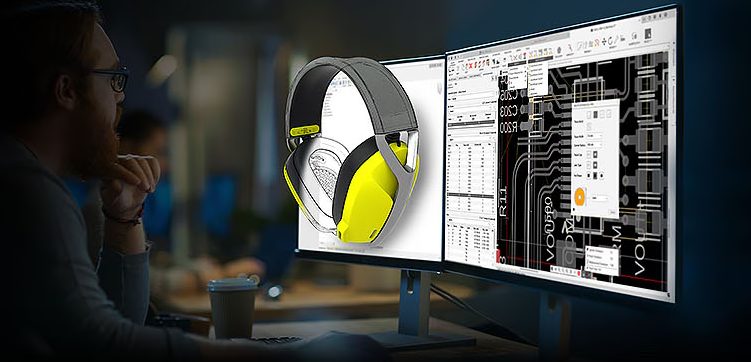
Fusion gives PCB designers more advanced rule control
The design rules system is one of the biggest upgrades for EAGLE users. EAGLE supported a more limited rule structure, primarily through design rules and net classes. Fusion expands that with a more flexible system that supports general and custom rules.
In Fusion, rules can be scoped more precisely. You can apply rules to net classes, specific nets, specific components, specific signals, or even signals on specific layers. Fusion also supports different rules for inner and outer layers, and you can create as many rules and net classes as needed.
Fusion also introduces minimum and preferred values for rules. A minimum value can reflect manufacturing tolerance, while a preferred value can reflect what the designer wants for a specific design intent, such as a wider trace for power. The routing engine can then use those rule values while routing.
If you’re designing more complex boards, this gives much more control than traditional EAGLE rule workflows.
Routing and layout workflows are more capable
Fusion includes both manual routing and assisted routing tools. Quick Route replaces the older Follow Me router concept from EAGLE, with options to route a single airwire, route a whole signal, route multiple signals, smooth routed traces, or guide routing along a designer-defined path.
Fusion also expands push-and-shove behavior. In EAGLE, push-and-shove was tied to routing. In Fusion, it works more broadly as an environment behavior. This means move operations can also push and make space around obstacles.
For PCB designers, this means layout edits can feel more interactive and adaptive, especially when refining dense areas of a board.
Fusion connects electronics and mechanical design in one place
Fusion extends PCB design beyond the board itself by tightly connecting electronics and mechanical workflows in a single environment. Board outlines are driven directly by enclosure geometry, ensuring the PCB fits the product from the start. Mechanical reference geometry can also be shared with the PCB layout. This helps designers position components accurately and validate placement decisions earlier in the process.
This level of ECAD-MCAD integration represents a significant evolution from traditional EAGLE workflows. Rather than moving designs between separate PCB and mechanical tools and manually coordinating changes, Fusion creates a connected workflow. Information can flow between the schematic, 2D PCB, 3D PCB, and mechanical assembly within the same product development environment.
For teams developing electronics for enclosures, industrial equipment, consumer products, or connected devices, this connected approach helps identify fit and clearance issues earlier, reduces the risk of costly redesigns, and provides greater confidence before moving into prototyping and production.
Fusion supports better documentation workflows
Fusion also includes dedicated electronics drawing capabilities that help PCB designers create manufacturing documentation directly from their designs. Teams can generate PCB drawing views, create top and bottom board documentation, control view scaling, manage silkscreen visibility, and include layer stack information and tables as part of the documentation package.
Because drawings are connected to the electronics design environment, documentation becomes a more integrated part of the overall workflow rather than a separate downstream task. As drawing capabilities continue to expand, Fusion provides a centralized way to create, manage, and maintain design documentation alongside the PCB itself.
For EAGLE users, this creates a more streamlined path from design to manufacturing documentation, helping reduce manual effort, improve consistency, and keep documentation aligned with the latest version of the design.
Moving EAGLE data into Fusion is straightforward
Fusion provides a migration path for existing EAGLE schematics, boards, and libraries. To bring in schematic and board files, users upload the files and select the option to create an electronics design. Fusion detects matching schematic and board files using the same same-name, same-location rule EAGLE used, then links them inside the electronics design structure.
For local libraries with no 3D content, you can upload them into Fusion. For libraries stored in library.io, the recommended workflow is to import them into the Fusion Hub through the Library Manager. Fusion can consume library.io parts so existing designs do not break, but you need to import libraries into Fusion Hub if you want to continue editing and developing them.
Why EAGLE users should consider Fusion now
EAGLE helped define what accessible PCB design could look like. Fusion carries that history forward, but expands what electronics design can do when it is connected to mechanical design, documentation, collaboration, and manufacturing workflows.
For longtime EAGLE users, the move to Fusion offers:
- Familiar schematic and PCB workflows with a modernized interface
- Native BOM, renumbering, teardrops, and design management tools
- More flexible design rules and routing control
- Stronger ECAD-MCAD collaboration
- 3D PCB and mechanical assembly integration
- Better documentation workflows through electronics drawings
- A clear path for bringing existing EAGLE designs and libraries forward
The transition may require learning where familiar commands now live and adjusting to a more cloud-connected design structure. But the payoff is a more capable, integrated environment built for the way modern products are designed.