 Richard Stubley
This post is also available in:
Assembling components in Autodesk Fusion has never been so easy. Our new method for connecting components lets you build relationships on even the most complex geometry. That means you can assemble features faster, more effectively, and most importantly, keep your design fully parametric.
What are Constraints in Autodesk Fusion?
In Fusion, Constraints are a new way of defining the relationships
between components. Different from joints, constraints let you define
individual relationships, face to face, axis to axis, edge to vertex, and build them up step by step. Joints work brilliantly if there is a snap point in the right location; if not, you are normally left manually measuring and making offsets.
Constraints let you break down complex motions or positions into smaller, more intuitive definitions, and they give you full control over how components interact, rather than just where they end up.
Where to find Constraints in Fusion?
You can access Constraints from the Fusion toolbar.
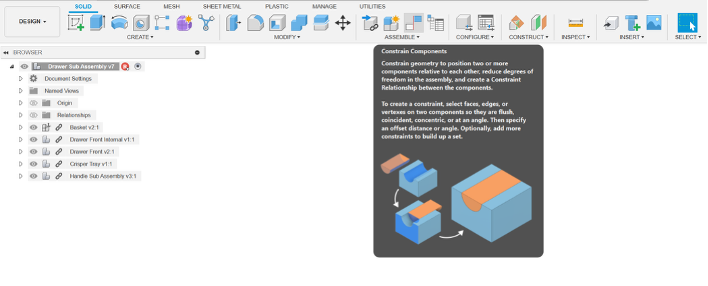
At the top of the command dialog, you’ll see the current constraint type. Right now, we support two:
- Align
- Angle
But that’s just the beginning—we’re already working on expanding the list of constraint types in upcoming releases.
Aligning features, your way
The Align constraint is more versatile than you might expect. You can align:
- Faces
- Edges
- Axes
- Vertices
- Construction geometry
This gives you a wide range of ways to describe how components should relate to one another. For example, aligning a cylindrical face to an edge lets you quickly constrain a shaft into a bearing
Understanding the constraint table
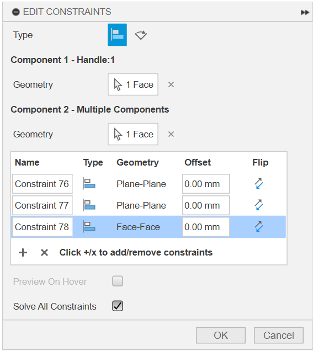
A unique part of this workflow is the constraint table. Each row in the table represents a single constraint between two pieces of geometry. You can build up multiple rows to fully define the relationship between two components—one row for aligning an axis, another for setting a face-to-face offset, and so on. This makes the process both transparent and easy to adjust later on. You can even edit constraint sets after creation to refine or complete them.
And here’s something powerful: a single constraint set doesn’t have to be limited to just two components. As your design evolves, you can build up one-to-many relationships, constraining geometry across several parts in a single cohesive set. For example, you might start by aligning a handle to the outer drawer, then continue adding rows to relate it to the inner drawer.
That flexibility allows you to describe exactly how parts should interact
without having to split logic across multiple commands.
Real-time previews
Another powerful feature is the full preview. As you build constraints, Fusion will show you how the components will behave before you commit to placing them. This takes into account any
previous constraints or joints you’ve already made, giving you a fully
representative preview of the final result.
Don’t want the entire assembly to update while you’re making selections? No problem, you can toggle preview off if you’re working with small or isolated geometry.
Constraints across assemblies
One of the most exciting things about Constraints is how they behave across multiple levels of assemblies.
For example, you can constrain part of a mechanism inside a sub-assembly, and then finish constraining it once it’s inserted into the top-level assembly. This makes it easier to design large systems incrementally, while still keeping relationships clear and editable.
Try constraints in Fusion today
Now you’re ready to jump into Fusion and try out the new Constrain Components command. This is just the beginning for Constraints in Fusion. We’re already working on expanding the types of constraints available and refining how they work with motion and parametric behaviors. Stay tuned for more updates, tutorials, and deep dives. As always, thanks for reading, and catch up again soon.