 Cyan Perry
This post is also available in:
Discover how Fusion enables real-time, multi-user collaboration with a unified data model and intentional versioning for clearer, faster product development.

Elevate your design and manufacturing processes with Autodesk Fusion
Fusion is an end to end platform for Design to Make workflows and as laid out in this blog post, we’ve been working towards improving collaboration workflows for teams so you can bring products to market faster. At its core, Fusion is designed to support modern product development and collaboration across disciplines, locations, and tools.
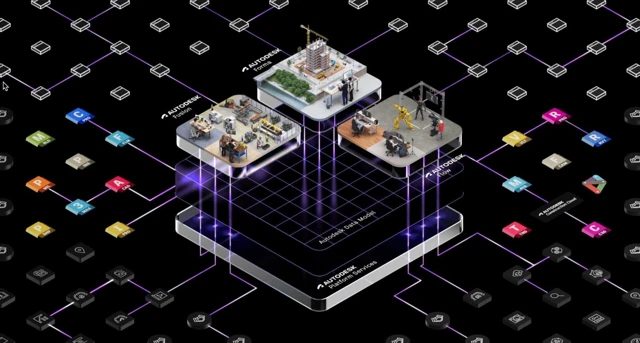
A unified data model for teams
The Autodesk Platform brings together industry cloud solutions on a shared data model, providing connections with other CAD apps, 3rd Pty services, and other capabilities.
Product development and manufacturing is a team sport, and effective collaboration depends on how seamlessly teams can access and act on shared data. To enable many users and services to act on data in a secure and coordinated way, Fusion employs a flexible data model that reshapes how data flows across the platform.
Unlike traditional systems that lock data in rigid, file-based structures, behind the scenes Fusion’s data architecture represents complex products in discrete, manageable components. This approach efficiently and flexibly organizes design, manufacturing, simulation, lifecycle, and other data into an information graph. The data structures are not bound to hierarchy or inheritance. Components are defined by the entities they contain. This allows aspects of the model to be modified independently with fewer fixed dependencies. For example, an engineer in Los Angeles can update the geometry of a component in an assembly while a manufacturing specialist in Shanghai can start working on toolpaths without data conflicts or locking issues. This is a fundamental shift away from traditional file-based paradigms. Teams are free to collaborate seamlessly across disciplines, locations, and devices.
This data model runs on a distributed hybrid architecture to further expand flexibility. It uses processing ‘at the edge’ plus an array of scalable cloud services for compute and collaboration. Interactive modeling work utilizes local computing power. Meanwhile, AI automation, simulations, and multi-user collaboration scale to cloud workers for large-scale computing and data exchange orchestration.
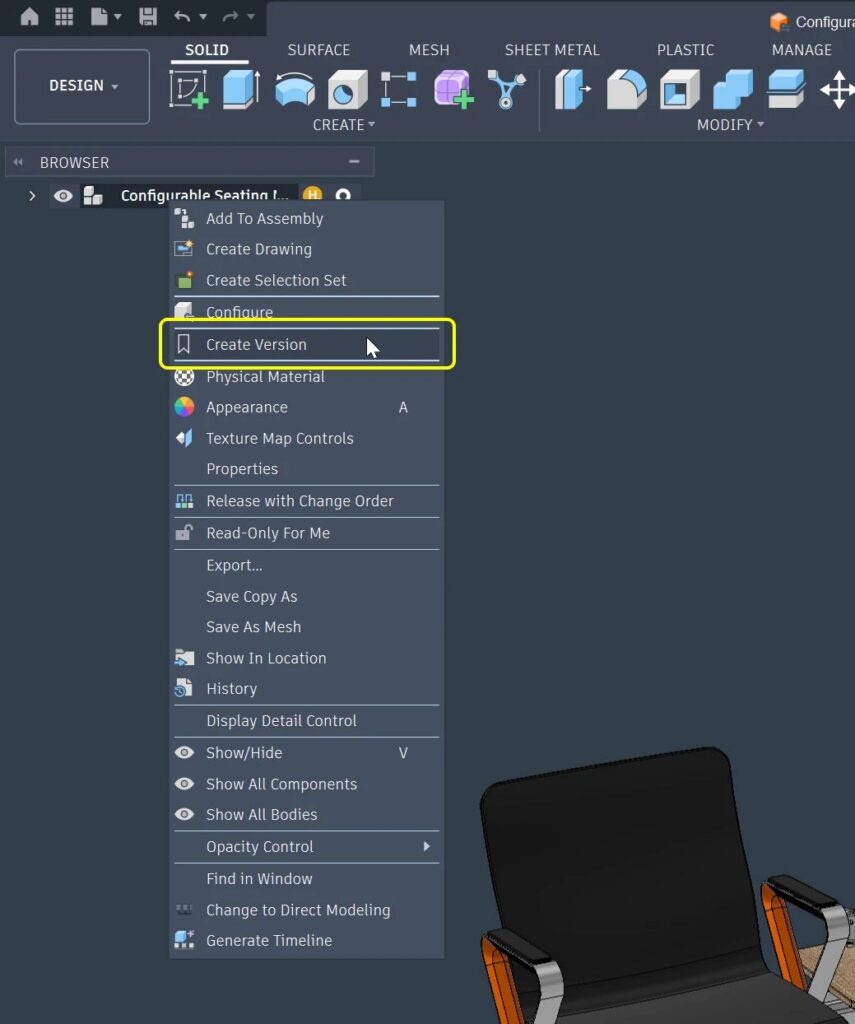
As we enhance Fusion with better connectivity to other platforms with the core Digital Thread of BOM and build better integrations to other systems with cloud APIs, the saving and versioning in Fusion had to evolving to better support modern, collaborative, and concurrent workflows. Saving changes to Properties, BOM or your design captures the changes in cloud but now, you decide when something is version-worthy using the Create Version action.
Why this change
Fusion is evolving to support collaborative workflows with live concurrency, where multiple people and systems can contribute to a design at the same time. In this environment, meaningful changes don’t always happen in a single, discrete moment.
Important updates can occur across the design without a traditional save, including:
- Property updates (e.g., materials, metadata)
- Part number changes and approvals
- BOM structure edits
- Other non-geometric changes across the design
Becuase work is happening continuously and across contributors, tying every save to a version no longer reflects the full state of the design. In some cases, it can be incomplete or even misleading.
What stays the same
- You can (and should) continue saving frequently to capture your ongoing work.
- Each save is recorded in your design history with a timestamp.
- You can add descriptions to saved changes via the history panel to improve traceability.
What’s new (and better)
- Intentional versions: Create a version only when you want to mark a meaningful state (ex. key handoff).
- Cleaner history: No more sifting through long sequences of auto-created version numbers.
- Clarity and communication: Add a description to each version, so teammates instantly know what it represents.
Benefit: Lower cognitive load, clearer tracking, and better alignment across teams.
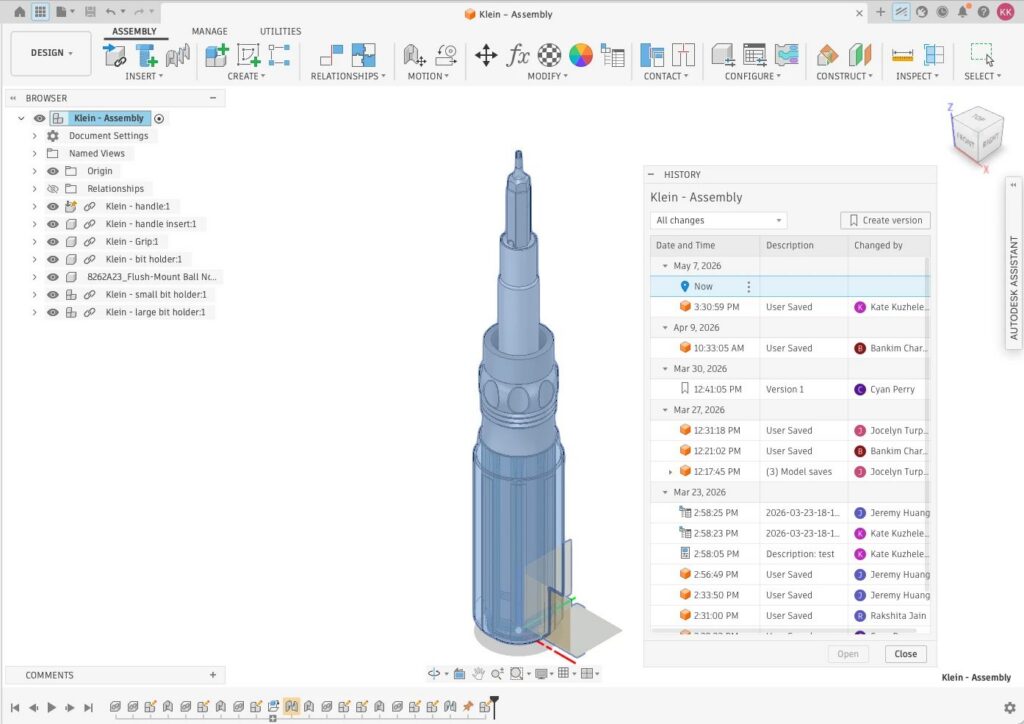
How saving vs. versioning works now
Save
- Captures in-progress changes
- Appears in design history with timestamp
- Optional save description in history panel
- Does not create a version
Create version
- Marks a meaningful, shareable design state
- Intentionally created by you or your team
- Supports a version description
- Formerly called a “milestone”
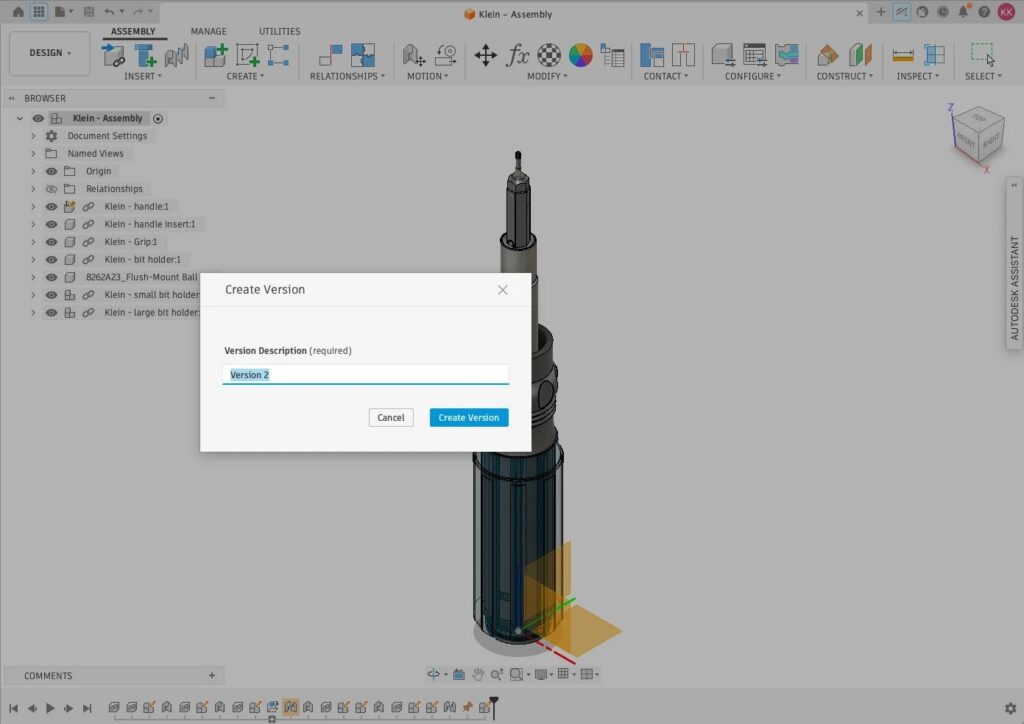
When to use Create Version
Create a version when you want to mark a meaningful, shareable state in your design.
Create a version when:
- Before a design review: Capture a clear state for stakeholders.
- At a release checkpoint: Lock in a version for manufacturing, procurement, or documentation.
- At a major decision: Record alternatives and trade-offs you may need to revisit.
- During a handoff: Provide a stable, labeled reference for downstream teams.
Examples:
- Geometry + Properties update: You’ve updated a housing and synced part numbers with ERP → create a version to capture the complete state.
- BOM restructuring: You’ve reorganized subassemblies to reflect the manufacturing flow → create a version to anchor the new structure.
- Finalized design: You’ve completed a major iteration and are ready to share → create a version like “Version 1 – ready for review”.
Tips for smoother collaboration
- Name versions clearly (e.g., “Phase B – Supplier Review”)
- Use save descriptions for day-to-day progress to keep history informative without creating extra versions
- Align as a team on on when to create versions, such as reviews or major decisions
Looking ahead
This shift to intentional versioning is a step toward more collaborative workflows, where your design history reflects meaningful events. Now that we’ve shared how Fusion is evolving, rest assured that we’ve heard you and understand how important continuity and traceability are. Based on your feedback, we are updating the experience.
- Restoring and surfacing version numbers on legacy data (saved prior to CE hub) so you can more easily map past work into the new experience. For legacy designs, those numbers were generated on every save – going forward, saves won’t be numbered, and only intentionally created Versions will include an auto-assigned version number (shown in the version description) for traceability.
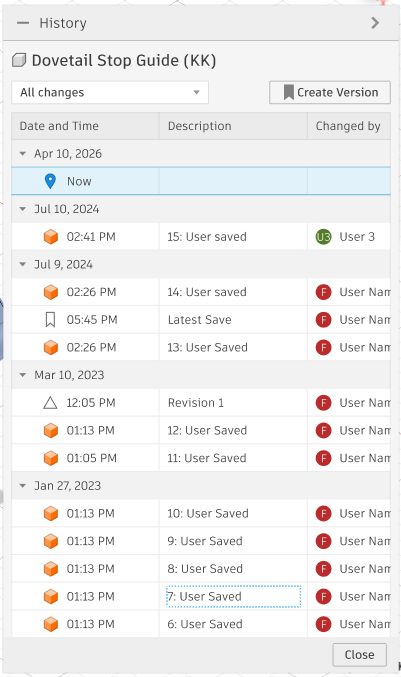
- Enhancing export traceability, so exported data and deliverables can more easily reference the design states they came from.
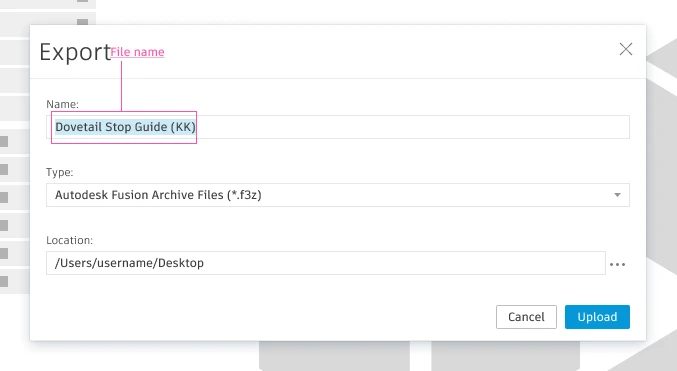
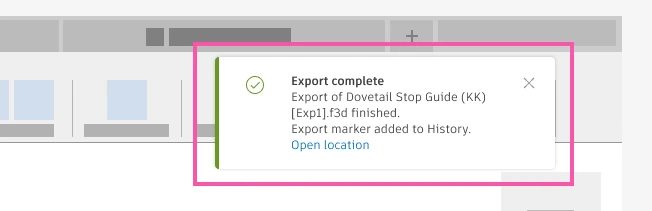
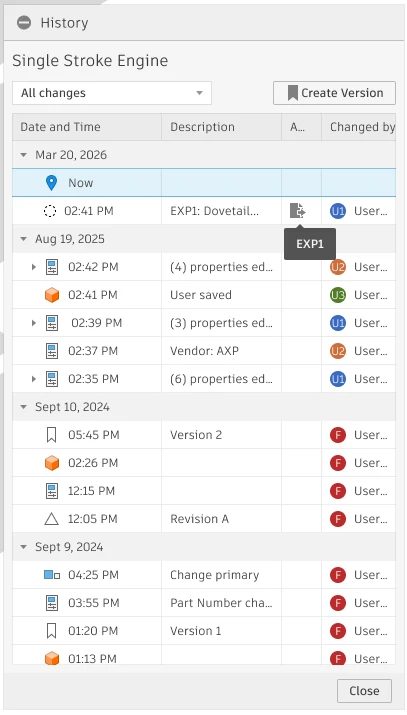
- Ability to Create Version of a Configured Design in a Collaborative Editing Hub so that you can capture a meaningful state of a Design without any workarounds.
As Fusion continues to evolve, you can expect improvements that make it easier to track changes, share context, and stay aligned across teams – while maintaining the level of traceability you rely on today.
Quick start: Try it now
- Save your current work and add a short description in the history panel
- Choose a natural checkpoint (e.g., pre-review) and click Create Version
- Add a clear version description and share it with your team