 Annaka Ketterer
Fusion’s May update introduces connected data enhancements, faster 3D Pocket machining, Electronics Python API support, expanded AI-assisted workflows and more.
Minor Updates
Our latest minor update brings several important fixes and improvements to enhance your experience. Click to learn more.
v.2703.1.20 – June 8, 2026 (Minor Update)
Usability
- Fixed an issue where the Properties panel could fail to load in the in-canvas experience.
- Fixed an issue on macOS where an “ADPSDKUtil.app is damaged” message could appear when launching Fusion.
Data & Collaboration
- Fixed an issue where new users joining an existing hub could be unexpectedly signed out.
Design
- Fixed an issue where configured parameters were not displayed in the Insert > Select Configuration dialog.
Rendering
- Updated Fusion to use Local Rendering as the default render option.
Electronics
- Fixed an issue where adding a component to an existing group or editing a component from a 2D PCB file could result in an error.
- Fixed an issue where newly added variants in a Team Library were not immediately visible to other users in the same hub.
Stability
- Fixed a crash that could occur when selecting a sketch midpoint while creating an Axis Perpendicular to Face at Point construction axis.
Highlights
v.2703.1.11 – May 27. 2026 (Major Update)
Fusion’s May update focuses on practical workflow improvements across design, assemblies, collaboration, Electronics, and manufacturing.
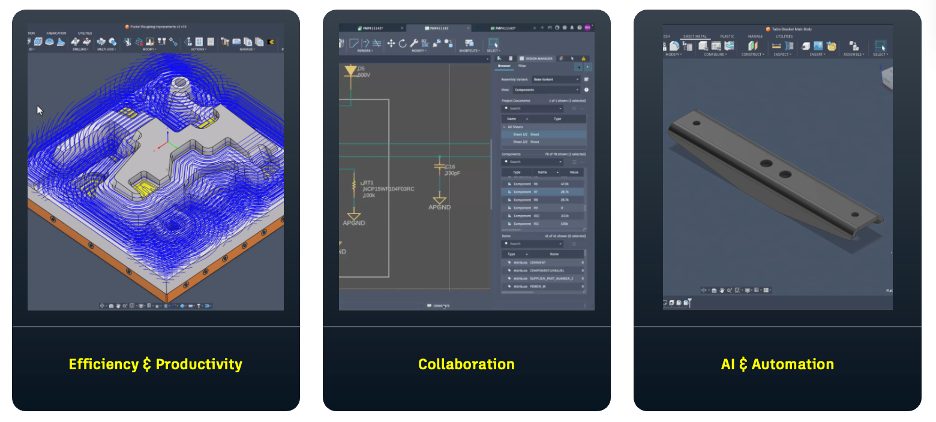
Many of the updates in this release focus on refining the workflows you use every day, including performance improvements for large and complex designs, expanded Collaborative Editing capabilities, assembly workflow enhancements, more efficient machining workflows like improved 3D Pocket flat area detection, and new Python API support for Fusion Electronics.
This release also includes updates across manufacturing, additive, drawings, configurations, and sketching workflows to help reduce manual cleanup, improve predictability, and make common workflows feel more efficient.
Some of the highlights in this release include:
- Faster performance across large and complex designs
- Expanded Collaborative Editing and connected data workflows
- Improved assembly references and motion controls
- More efficient 3D Pocket machining workflows
- New Python API support for Fusion Electronics
- Updates to drawings, configurations, and sketching usability
Usability
A Smoother, Faster Fusion
Performance and responsiveness continue to be a major focus as Fusion workflows grow in complexity. Whether you’re opening large assemblies, navigating dense designs, managing configured components, or moving through everyday modeling workflows, even small delays can add up and interrupt momentum.
This release includes continued performance improvements across core workflows to help Fusion feel faster, smoother, and more predictable, especially when working with larger and more complex datasets.
Some highlights include:
- Open: Up to 66% faster on selected complex design files.
- Save: Up to 50% faster on selected complex design files.
- Close: Up to 11x faster on selected complex design files.
- Apply Appearance: Up to 75x faster on models with many faces.
- Get All Latest: Up to 40% faster on out-of-date configured components.
Performance improvements also extend across a range of everyday assembly and modeling workflows to help interactions feel smoother throughout day-to-day work.
Additional highlights include:
- Large Assembly Navigation: up to 42% faster constrained orbit and up to 26% faster zoom during selection workflows
- Copy/Paste and Component Workflows: up to 38% faster copy-paste preview and up to 21% faster component preview rotation
- Joint, Edit In Place, and Timeline Workflows: improved responsiveness across delete joint, Edit In Place, timeline movement, and Compute All workflows
- Import and Open Performance: up to 15% faster STEP opening and up to 11% faster local design opening workflows
These improvements were measured using representative customer datasets, and performance gains may vary depending on workflow and design complexity.
Data Management
As teams work across increasingly connected workflows, this release continues to improve how data, properties, BOMs, and shared designs are managed within Fusion.
Learn more about Collaborative Editing (CE) enhancements.
Improved Bill of Materials (BOM) experience
Build cleaner, more trustworthy BOMs with greater control over what’s included and how costs are calculated.
Remove components from all BOMs
Fusion’s BOM now lets you hide supporting geometry, such as casings, fixtures, or reference-only parts, from all BOMs. When you hide these components, Fusion also excludes their physical properties and estimated cost from rollup calculations. This keeps manufacturing BOMs clean and focused on only the components that need to be produced or ordered, while maintaining accurate quantities, costs, and physical properties. Because this happens directly in the BOM, you can clean up downstream outputs without changing how you model your designs.
Work with BOM global overrides.
Estimated Cost value override
Estimated Cost value override and rollup calculations give teams more control over cost planning in Fusion BOM. You can now review the Estimated Cost rolled up unit and total values and as well as adjust Estimated Cost at any BOM level to better reflect real-world material, labor, and manufacturing expectations. Those calculations and overrides carry through BOM views, exports, and downstream processes, helping keep cost data consistent and traceable.
Work with properties in the Bill of Materials.
More flexible data management
Manage distributed product data more efficiently with smoother hub access and richer metadata.
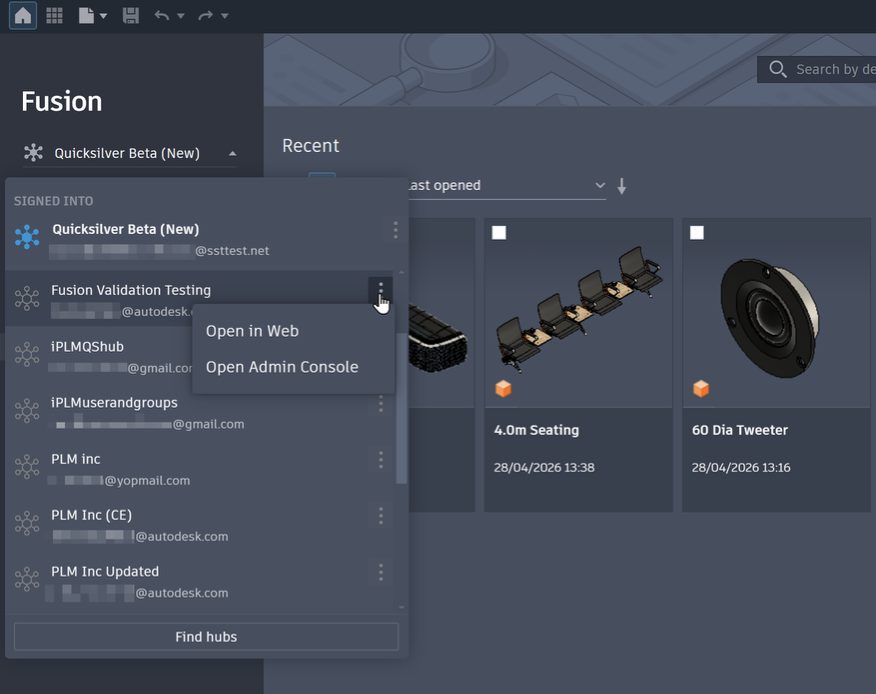
Improved Home Tab hub switching experience
We refreshed the hub switcher in Home Tab to create a more consistent experience with the Data Panel, making it easier to access data across hubs. You can now accept invites to new hubs directly in Home Tab, so you can keep moving without breaking your workflow.
Updated Start-up and Document Close Behavior
In a recent release, we updated Fusion’s startup and document close experience to support launching directly into Home.
After the release, many of you shared feedback that staying in the design workspace and keeping quick access to the Data Panel is an important part of your workflow. We heard you, and we’ve restored the previous document close behavior for users who prefer the Default Design Type Start-up Experience option.
The updated behavior has 2 Start-up options:
Start-up Experience = Home: Fusion launches directly to Home with no document open. When you close your last document, Fusion returns to Home.
Start-up Experience = Default Design Type: Fusion launches with a new blank document open. When you close your last document, Fusion automatically opens a new blank document, keeping the Data Panel accessible from the Grid icon in the Quick Access Toolbar.
You can update this behavior at any time by going to My Profile > Preferences > General and setting your Start-up Experience to Home or your preferred default design type.
Additional custom property field types (Fusion Manage)
Fusion now supports additional custom property field types, making it easier to capture component details beyond text and numbers. You can now use currency and date fields to better structure and manage your product data.
Moving to Collaborative Editing? Here’s what to expect
Collaborative Editing rollout
We are rolling out Collaborative Editing progressively across Fusion hubs. Before your hub transitions, admins will receive an email and all users will see an in-product notification with the rollout date. Once the update is complete, everyone will need to restart Fusion to access the new experience.
What you get with Collaborative Editing
Editable Bill of Materials and Properties. Edit properties directly in the BOM or Properties panel. Changes are saved to the cloud, visible to teammates in real time, and tracked in design history.
Shared part numbers. Manage multiple model variations under one shared part number to keep your BOM and property data aligned across the team.
Versioning and history. Granular design history now tracks property and BOM changes alongside your save history.
Collaborative Editing also unlocks extended property search in Home Tab, Autodesk Assistant Tech Preview, and Custom Properties.
Want to learn more about Collaborative Editing? Check out:
Design
Improved silhouette projection for sketches
Silhouette projections now generate more accurate, topologically consistent results, producing closed, constraint-ready profiles by default. This reduces the need for manual cleanup and improves first-pass success when creating downstream features.
Extrude entire sketch
You can now select an entire sketch directly from the browser or timeline when using Extrude. This reduces repetitive selection effort, especially for complex sketches and sketch text, improving overall workflow efficiency and reducing time spent preparing sketches for feature creation.
Select sketch plane
You can now quickly highlight and select the sketch plane directly from the browser or timeline. This makes it easier to locate and work with sketches without needing to manually identify their original plane.
Easy toggle for sketch line types
Sketch line types can now be changed directly from the Sketch Palette. This removes the need to return to the toolbar and makes switching between line types faster and more consistent with other sketch tools.
Assembly
New Assembly References
This release simplifies one of the more complex parts of top-down assembly design: how assembly contexts and external references are managed between components.
Fusion now manages references automatically during Edit In Place, removing the need to manually create assembly contexts and allowing work to continue without interruption. The experience becomes more predictable and streamlined, especially when editing components in the context of an assembly.
Assembly contexts are also no longer stored in the timeline by default. This means the latest representation of the model is always shown, without needing to create new contexts as the assembly evolves. The result is fewer stale references, less confusion around outdated geometry, and improved performance. For workflows that require point-in-time context behavior, this can still be enabled through a preference at General > Design > Assemblies > Assembly Reference Timeline Dependency. This provides flexibility to use the new default behavior for simpler, more robust references, or opt into timeline-dependent references when needed.
Changing this preference only affects new references going forward and does not modify existing ones.
Assembly Constraint Limits
This release builds on the constraints improvements introduced last July by adding two important motion controls: limits and rest positions. Together, these make constrained mechanisms feel much more realistic and predictable.
Limits let users define the allowed range of motion for a constraint. For example, a hinge or rotational movement can be restricted between -45° and 45° so the component cannot move beyond its intended travel. This is useful for representing real mechanical stops, reducing unrealistic movement, and making kinematic demonstrations clearer.
Rest positions add another layer of behavior by letting users define where a component should return after being dragged. Instead of leaving the component wherever it was last moved, the system can snap it back to a chosen position. This is especially valuable for interactive review, concept demonstrations, and mechanisms that need a default state.
Limits and rest positions can also be combined to approximate spring behavior. While this is not a dedicated spring command, it gives users a practical way to represent spring-like motion using the constraint tools they already have. This is a strong workflow enhancement for customers building mechanical assemblies, motion studies, or product demonstrations.
Configurations
Configuration Rules: Range Operator (Design Extension)
In the previous release, we introduced Configuration Rules as part of Design Extension. In this release, we’re adding a Range Operator to the Getter and Setter blocks to make it easier to define valid ranges for numeric parameter values. You can enter Minimum, Maximum, and Increment values to fully define a range.
In any Getter or Setter block for a numeric parameter:
- Expand the operator list and select the new Range option.
- Enter a value for Minimum, Maximum, or both. Leave either of these blank to set no limit in that direction.
- Click the Settings icon to expand the mutator and morph the block. Check Minimum, Maximum, and Increment to include each field, or uncheck to exclude it.
Learn more about Configuration Rules.
Configuration Rules: Drag and drop support (Design Extension)
In this release, we’re also adding drag and drop support to Block From Object Mode in Configuration Rules.
- From the Configuration Rules dialog, use the Block From Object tool to enter the mode.
- Click any highlighted object in the browser, feature in the timeline, or header in the configuration table.
- In the toolbox flyout, locate the block you want to use, then drag and drop it into the Rules canvas.
Note: You can still single-click a block to add it to the Rules canvas.
Learn more about Configuration Rules.
Additional Improvements
Preselection support for Hole command
The Hole command now supports preselection of multiple points. You can select points individually or through selection sets before launching the command, avoiding the need to reselect inputs.
Optical Overrides in Render workspace
Dielectric Priority Control is now accessible directly within the Render workspace. This makes it easier to control how light interacts with overlapping transparent materials without switching contexts.
Improved decal editing behavior
Editing decals from the browser now rolls the timeline back to the correct state. This ensures more predictable results and prevents issues caused by selecting geometry that does not yet exist in the timeline.
Drawings
View-linked sketches
You can now create sketches that stay associated to a drawing view so that if the view moves or scales everything moves or scales with it. This keeps sketch intent aligned to the view and removes the need for manual adjustments as drawings evolve.
Sketch geometry can reference edges, vertices, curves, and dimensions from the view, with full support for constraints. Because dimensions are defined relative to the view scale, sketches remain consistent and accurate without additional recalculation.
Export splines as splines in DXF
DXF export now includes an option to preserve spline geometry as true splines, rather than converting them to polylines. This keeps the original shape intact and ensures more accurate geometry when working in downstream CAD systems. The result is more reliable file exchange, with fewer issues on import and less need for cleanup or rework
Electronics
Python API for Fusion Electronics
Fusion Electronics now provides initial Python API support for accessing core electronics design data, enabling programmatic interaction with Schematic, Board, and Library content through the existing Fusion API framework. This first step introduces read-only support in the Fusion API, but stay tuned for more!
With this release, you can:
- Access core electronics data from schematic, board, and library documents
- Traverse hierarchical design structures programmatically
- Begin building automation and scripting workflows for Electronics using Python instead of relying only on manual operations or ULP-based approaches
This release lays the groundwork for broader Electronics automation scenarios, including design analysis, batch operations, and integration with external tools and workflows.
Commenting and markup support for Electronics
You can now add comments directly within schematic and 2D PCB documents in Fusion Electronics. Comments support snapshots, tagging project members, and synchronized collaboration between desktop and web workflows, making it easier for teams to review and communicate design feedback.
Selection-Aware Command Execution
Fusion Electronics now allows commands to be started directly from your current selection, making workflows faster and more consistent.
Right-clicking on the canvas now shows actions for the current selection, rather than just the object under the cursor. This makes it easier to work with multi-object selections without requiring precise cursor placement.
This update also reduces reliance on multiple interaction patterns, with right-click providing more direct access to commands and helping create a more consistent experience across Fusion workspaces.
Progressive Selection for Traces, Nets, and Polygons (Schematic / 2D PCB)
Fusion Electronics now supports progressive selection for supported wire- and polygon-based objects in Schematic and 2D PCB, making it easier to grow or reduce selection scope without restarting selection.
Use Shift+Right Arrow to expand the current selection and Shift+Left Arrow to step back. You can also use Shift+Click on an already selected supported object to advance to the next selection scope with the mouse.
View supported progression types and behavior
2D PCB traces and other wire-based PCB objects:
- Segment
- Segment to nearest connector
- Layer trace
- All layers
- Full signal
Schematic nets:
- Single net line
- To junction
- To connector
- Through components
- Whole net
Polygons:
- Boundary edge / contour segment
- Whole polygon (including cutouts)
- All polygons on the same layer
Additional behavior:
- The shortcut applies to all supported objects in the current selection and ignores unsupported ones.
- If both wire-based objects and polygons are selected, wire progression takes precedence.
- Unavailable stages are skipped automatically.
- In 2D PCB, some objects such as lines and arcs also participate if they are implemented as wires.
- In Schematic, progressive selection applies only to nets and polygons.
- Progressive selection works for any number of selected traces/net lines or polygon edges. Each group of connected objects initially selected by the user is treated as a separate selection and progresses independently.
Improved electronics migration workflows
Migration workflows have been improved to make it easier to bring libraries and designs into Fusion and transition to managed data.
You can now import all missing private libraries in a single operation, upload all packages within a library directly into your hub, and import EAGLE libraries into Fusion. These updates reduce manual cleanup and simplify the migration process.
The multi-swap feature also allows designs to be quickly updated to use Fusion-managed libraries instead of private ones, helping standardize components and maintain design consistency.
Detailed Undo/Redo History with Command Names and Icons
Undo and Redo in Fusion Electronics now provide a more informative history, showing recent actions with meaningful command names and matching icons, consistent with the familiar experience in the Mechanical workspace.
Previously, Undo/Redo offered limited visibility into what action would be reverted or restored. With this update, you can now review the recent action list before committing to an Undo or Redo step, making it easier to navigate complex editing sessions with confidence.
This improvement helps reduce mistakes, especially in dense designs where many changes may happen in quick succession.
Base Variant in 3D PCB & Drawings
When your PCB uses custom variants, 3D PCB and ECAD Drawings now label nodes as “Design : Base Variant” with a dropdown showing all variants and a tooltip for any that must be opened in Electronics Design. This makes it clear that these views currently display the base variant only. Designs with only a base variant stay clean and uncluttered.
Autodesk Assistant for Electronics
Autodesk Assistant can now work directly with your Electronics designs, bringing AI-assisted workflows into the ECAD workspace. Ask questions about your Schematic or 2D PCB and get contextual answers about your design, components, and connectivity.
With Autodesk Assistant, you can:
- Summarize your design, review BOM details, or look up component information
- Understand and troubleshoot DRC errors with guided explanations
- Trace net connectivity and check pin assignments and reference designators
- Review design structure, hierarchy, and sheet organization
For the May release, Autodesk Assistant can analyze your design and answer questions, but it does not make changes directly to the design.
Manufacturing
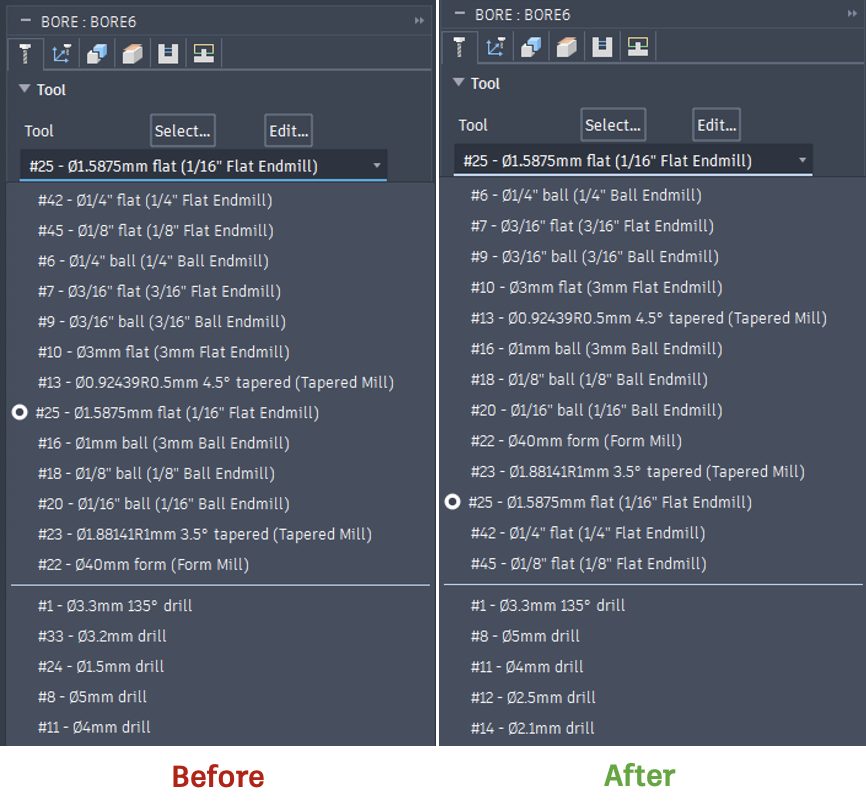
Tools in dropdown now ordered by name
Tools in the dropdown are now ordered by name, making tool selection easier and more intuitive.
Improved flat area detection in 3D Pocket
Flat area detection in 3D Pocket has been enhanced to machine flat regions individually at their respective levels, rather than cutting the entire Z-level slice at once. This allows the toolpath to focus only on the areas that require machining.
This is especially useful for parts with multiple flat features at different heights, where traditional slice-based cutting can introduce unnecessary tool motion.
By reducing unnecessary passes, the toolpath contains fewer segments, improves ramping behavior, and results in faster cycle times and more efficient machining.
Improved tool search in Hole Template Editor
You can now define acceptable ranges for parameters such as a drill’s tip angle, a milling tool’s corner radius, or a chamfer tool’s taper angle. These parameters are context-sensitive and only appear where relevant—for example, the drill tip angle is available only when a drill tool could be selected. In addition, there are new ways to define feeds and speeds for template operations. You can choose to use the selected tool’s default preset, prioritize tools with a specific named preset, require a tool with a named preset, or specify feeds and speeds manually.
Additive Manufacturing
Interference Analysis for additive workflows
Collision Detection has been improved and renamed to Interference Analysis, offering a more effective way to detect interferences between components in an additive setup. This is especially useful for users who print many parts at the same time as interferences can prevent them from being separated after printing. Each analysis is stored in the browser within a folder under the existing Additive Analysis folder, allowing users to manage, edit, and regenerate the interference checks. Selecting an analysis highlights interfering components in orange for clear visual identification.
Learn more about Interference Analysis.
Improved MPBF simulation result loading
MPBF simulation results now load faster and are stored directly with the project, making it easier to revisit and review results without rerunning the simulation.
This is especially useful when working with large or complex simulations, where recomputing results can be time-consuming. By keeping results available within the design, it improves iteration workflows and makes simulation data more accessible throughout the process.
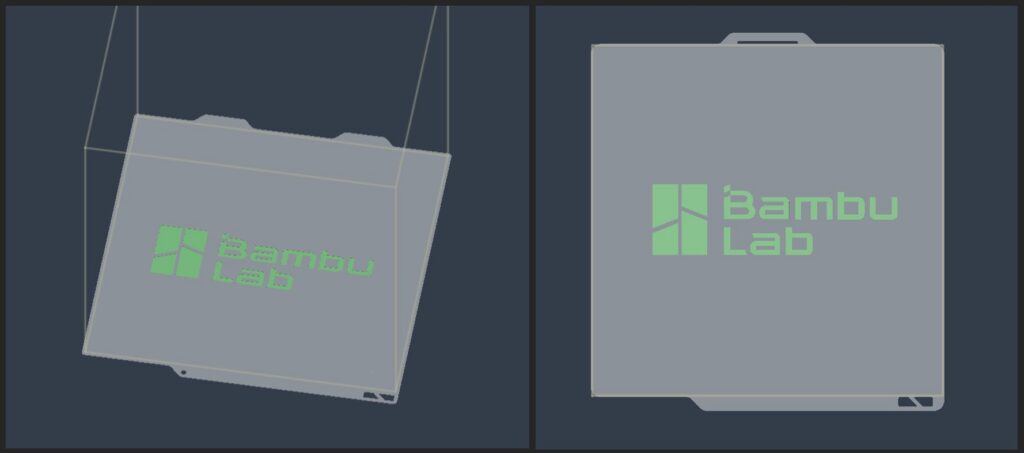
Platform mesh color support
Platform meshes imported from 3MF files can now display embedded color information within the Additive workspace, making it easier to visually distinguish different regions of the build platform.
This is especially useful for identifying machine constraints such as no-go zones or overlap regions directly in the workspace, improving clarity without relying on external references. It also enables more customized and informative platform setups.
Only color data is supported; textures are not, and this enhancement does not affect toolpath generation.
Improved Duplicate command
The Duplicate command UI has been redesigned to improve usability and clarity. The Place Copies options now use icons instead of a drop-down, and the overall layout has been refined, particularly for the Along XYZ workflow. Additionally, a new duplication control has been introduced: Symmetric and One Direction. This allows you to explicitly choose whether components are duplicated symmetrically along an axis or in a single direction.
Learn more about duplicating components.
Binder Jetting support enhancements
We have enabled the Volume support and Delete support operations for Binder Jetting setups. Users now have more functionality and control when generating supports for their Binder Jetting builds.
API
Find meshes along a ray
A new API method allows you to detect meshes intersecting a ray. This enables new automation scenarios for analysis and selection workflows.
API support for User Coordinate System
The User Coordinate System now includes API support. This allows UCS to be used in automated workflows and scripting scenarios.
Release Notes
To see more fixes, minor enhancements, and keep up with the latest check out our Release Notes for more information on changes to Fusion and Fusion web client.
Insider Program
Do you want to engage more with the Autodesk community? Check out the Fusion Insider program to use exclusive previews, and test out the latest build before it’s released to the public.
As a member, you’ll gain inside knowledge of updates and a first look at new features. You’ll also be able to join exclusive events and try pre-release functionality. Plus, you can give feedback directly to the product teams.