 Muna Idriss
Sync 3D designs between Vizcom and Autodesk Fusion to connect visual concepts, engineering detail, and stakeholder storytelling.

Elevate your design and manufacturing processes with Autodesk Fusion
Autodesk Fusion and Vizcom are partnering to bridge the gap between imagination and production. Conceptual design is where ideas take shape, trade‑offs are explored, and product intent is defined—but it’s also where most workflows break on the way through engineering to manufacture. By connecting Vizcom’s AI‑powered conceptual design and visualization directly with the Autodesk Fusion integrated design, engineering, and manufacturing platform, teams can move fluidly from early ideas to precise, manufacturable outcomes. The result is faster iteration, clearer design intent, and better decisions made earlier—reducing rework, preserving creativity, and helping customers bring better products to market, faster.
Today, we’re excited to announce a new integration between Autodesk Fusion and Vizcom that streamlines how teams move between concept design, engineering, and manufacturing. Fusion users can now send 3D models to Vizcom and bring concepts into Fusion with a connected, round-trip workflow—reducing manual exports, cutting version confusion, and helping teams move from idea to approval faster.
To celebrate the launch, Vizcom is offering Autodesk Fusion users one month free of the Vizcom Pro plan. Use the coupon code AUTODESK1MO when you sign up for Vizcom Pro to unlock advanced features and explore the full integration with Fusion at no cost for the first month.
In this post, we’ll walk through how Fusion users can:
- Send 3D models from Vizcom into Fusion for detailed design work
- Export designs from Autodesk Fusion back into Vizcom for richer storytelling and collaboration
All while keeping your teams aligned around a single source of truth.
Why connect Vizcom and Autodesk Fusion?
For many product teams, the workflow looks like this:
- Early concepts and narratives are developed in Vizcom
- Detailed engineering models are built and refined in Fusion
- Feedback, approvals, and go-to-market stories live across both worlds
Without a seamless integration, your team spends time:
- Exporting and re-exporting files
- Renaming, re-uploading, and re-linking assets
- Hunting for the “latest version”
The Vizcom integration is designed to streamline that experience:
- Industrial designers and concept artists work in Vizcom without manually juggling files from engineering
- Engineers work in Fusion without worrying about how assets will be presented downstream
- Stakeholders see consistent, up-to-date designs—from early exploration to final sign-off
And with the one-month free Vizcom Pro offer for Fusion users (code: AUTODESK1MO), teams can pilot this connected workflow end to end before committing.
From Vizcom to Autodesk Fusion: Bring visual concepts into engineering
Vizcom is often where early ideas take visual shape. When it’s time to validate those ideas with engineering detail, you can push 3D models directly into Autodesk Fusion.
Step 1: Connect Fusion to Vizcom
From within Vizcom:
- Open Settings → Plugins
- Connect your Autodesk Fusion account to your Vizcom account
- Approve the connection when prompted
Once connected, Vizcom can send 3D content directly into your Fusion hubs and projects—no ad-hoc exports required.
Tip: On Vizcom Pro, teams can standardize shared spaces, templates, and workflows that pair naturally with Fusion projects—ideal for multi-disciplinary product teams taking advantage of the launch offer.
Step 2: Choose the 3D model to send to Fusion
Inside Vizcom:
- Open the workbench containing the 3D model you want to move forward
- Open the specific 3D model you’ll be exporting
This is typically the point where product or design teams are ready for engineering input—materials, constraints, manufacturability, and more.
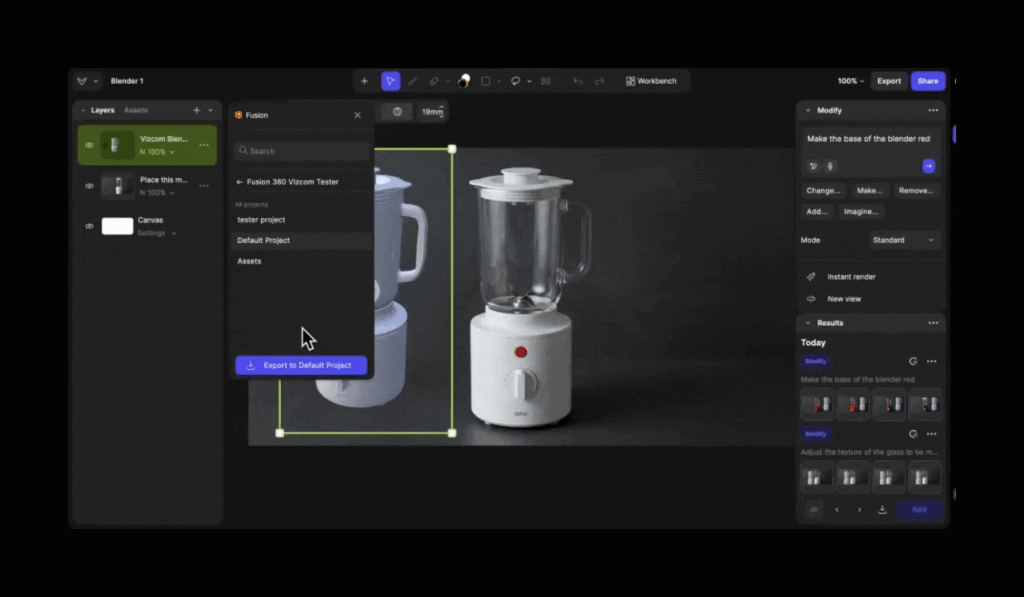
Step 3: Export to Autodesk Fusion
With your model open in Vizcom’s 2D Studio:
- Use the Export to Autodesk Fusion option from the Layers panel
- Vizcom will fetch your Fusion hub details
- Select:
- The hub
- The project: where the model should live in Fusion
- Confirm export
While the export runs, work in Vizcom continues uninterrupted. You can keep manipulating the 3D model or refining your visuals.
A quick constraint to note:
- This export flow supports 3D models only
- The Export to Fusion option is available in the Layers panel in 2D Studio
What happens behind the scenes?
To keep things simple for Fusion users, Vizcom handles format conversion:
- The 3D model is converted to an OBJ file
- That OBJ is sent into Autodesk Fusion
- Fusion then converts the OBJ into a Fusion design, ready to open, edit, and iterate
For engineering teams, the result is straightforward: a design object in Fusion that can be treated like any other Fusion model.
From Autodesk Fusion to Vizcom: Turn designs into stories
Once engineering work is complete, or ready for review, you can send your Fusion designs back into Vizcom to power presentations, reviews, and stakeholder conversations.
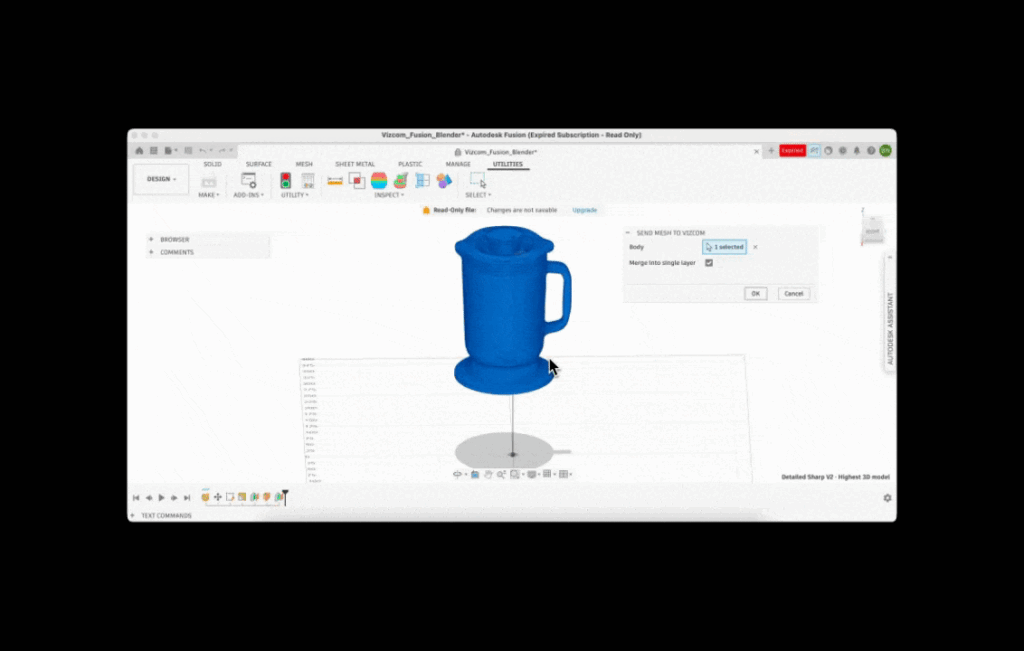
Step 1: Sign in to Vizcom from Fusion
Inside Autodesk Fusion:
- Open the Vizcom add-in
- Sign into your Vizcom account within the add-in
This connects your engineering workspace in Fusion directly to the visual storytelling environment in Vizcom.
Step 2: Choose where to send your Fusion design
From the Vizcom add-in inside Fusion:
- Select the Vizcom workspace where the design should go
- Pick the specific drawing or destination within that workspace
- Choose the Fusion design you want to export (for example, a single design file)
- Start the export
Behind the scenes, that design is sent directly into a layer in Vizcom, so visual teams can immediately bring it into storyboards, flows, or stakeholder decks.
Step 3: Quickly find your exported design in Vizcom
To streamline the handoff from engineering to storytelling, a few best practices help:
- Keep the target layer open in Vizcom when exporting : The simplest path is to have the destination layer already open—when the export finishes, your design appears exactly where you’re working.
- Use the workbench view if needed: If the layer wasn’t open:
- Navigate to the workbench in Vizcom: Find the drawing you exported to
- Maintain clean naming and thumbnails: Make it easy for collaborators to find the right file by:
- Keeping thumbnails representative
- Using clear, up-to-date names for drawings
This helps PMs, marketers, and stakeholders quickly identify the right file without pinging engineering for links.
A connected workflow for product teams
By integrating Vizcom with Autodesk Fusion, you create a connected loop across your product development lifecycle:
- Concept and narrative in Vizcom: Product, design, and marketing teams explore ideas and build visual stories.
- Detail and validation in Fusion: Engineers refine designs, validate feasibility, and prepare for production.
- Review and alignment back in Vizcom: The latest Fusion designs are pulled into Vizcom to align stakeholders, collect feedback, and support go-to-market.
The result is a smoother path from “What if?” to “Ship it.”
Fewer manual exports. Less version confusion. More time spent designing and deciding.
And with one month free of Vizcom Pro for Fusion users using the code AUTODESK1MO, teams can trial this connected workflow with full-featured Vizcom capabilities—ideal for running a pilot project or onboarding a cross-functional squad.
How Fusion teams can start using this today
If your organization already uses Vizcom alongside Autodesk Fusion, you can start benefiting from this integration with just a few actions:
From the Vizcom side:
- Connect your Autodesk Fusion account via Settings → Plugins
- Standardize on 3D models you’ll be sending into Fusion
- Agree on naming conventions for workbenches, drawings, and layers
- When upgrading, apply the coupon code 9CUILK2S to get one month of Vizcom Pro free and fully explore the integration
From the Fusion side:
- Install and open the Vizcom add-in
- Sign into your Vizcom account from within Fusion
- Decide which workspaces and projects will serve as your “shared surface” with Vizcom
Once set up, exporting becomes a natural part of your workflow—not a one-off operation.
By connecting Autodesk Fusion and Vizcom, teams no longer have to choose between visual speed and engineering rigor, or translate endlessly between the two. Visual concepts flow smoothly into engineering detail, and validated designs flow just as easily into stakeholder-ready stories. The result is shared clarity across design, engineering, and the business, fewer handoff gaps, and faster decisions at every stage. From first sketch to final approval, keep everyone aligned around work that’s not just technically sound, but easy to understand, review, and move forward.