 Annaka Ketterer
As we set our sights on 2026, let’s take a moment to reflect on the transformative journey Fusion has embarked upon over the past year.

Throughout 2025, we continued to break new ground, harnessing the power of flexible, connected data from design to production. This approach empowered teams to make informed decisions, collaborate seamlessly, and unlock meaningful productivity gains. Your feedback, ambition, and relentless pursuit of excellence have been the compass guiding our path.
Let’s take a look at some of the amazing new features and enhancements we released in 2025.
Table of Contents
- A fresh look for Fusion
- Data Management
- Design
- Drawings
- Electronics
- Manufacturing
- Cheers to a new year
A fresh look for Fusion
Dark and light modes are now here
Last year we brought a whole new visual experience to your workspace. Whether you’re a night owl or a daylight designer, you now have the ability to tailor Fusion to your ideal vibe while keeping everything sleek, unified, and easier on the eyes.
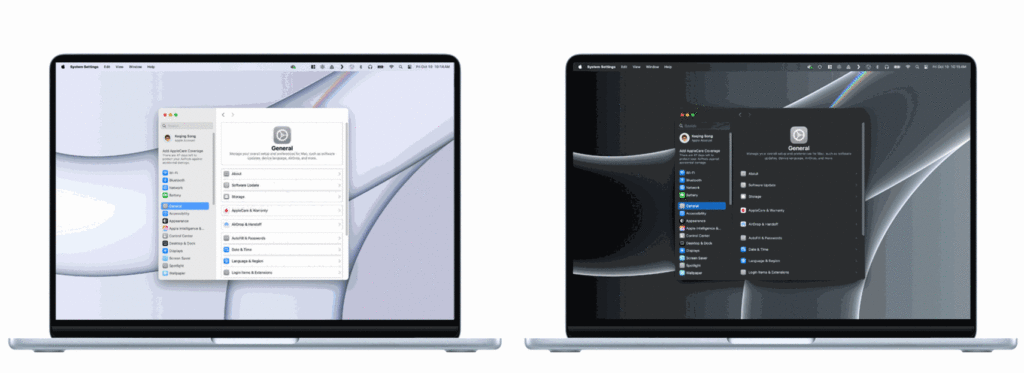
Learn more about Fusion UI themes.
Your canvas, your way
Preferences > Material > Exposure
We also made significant improvements to your modeling canvas experience. We started by increasing the default brightness of all canvas environments, bringing a new level of clarity and detail to your workspace. Following this, we introduced an adjustable exposure slider, allowing you to customize the brightness of your canvas environment to perfectly suit your personal preference.
Data Management
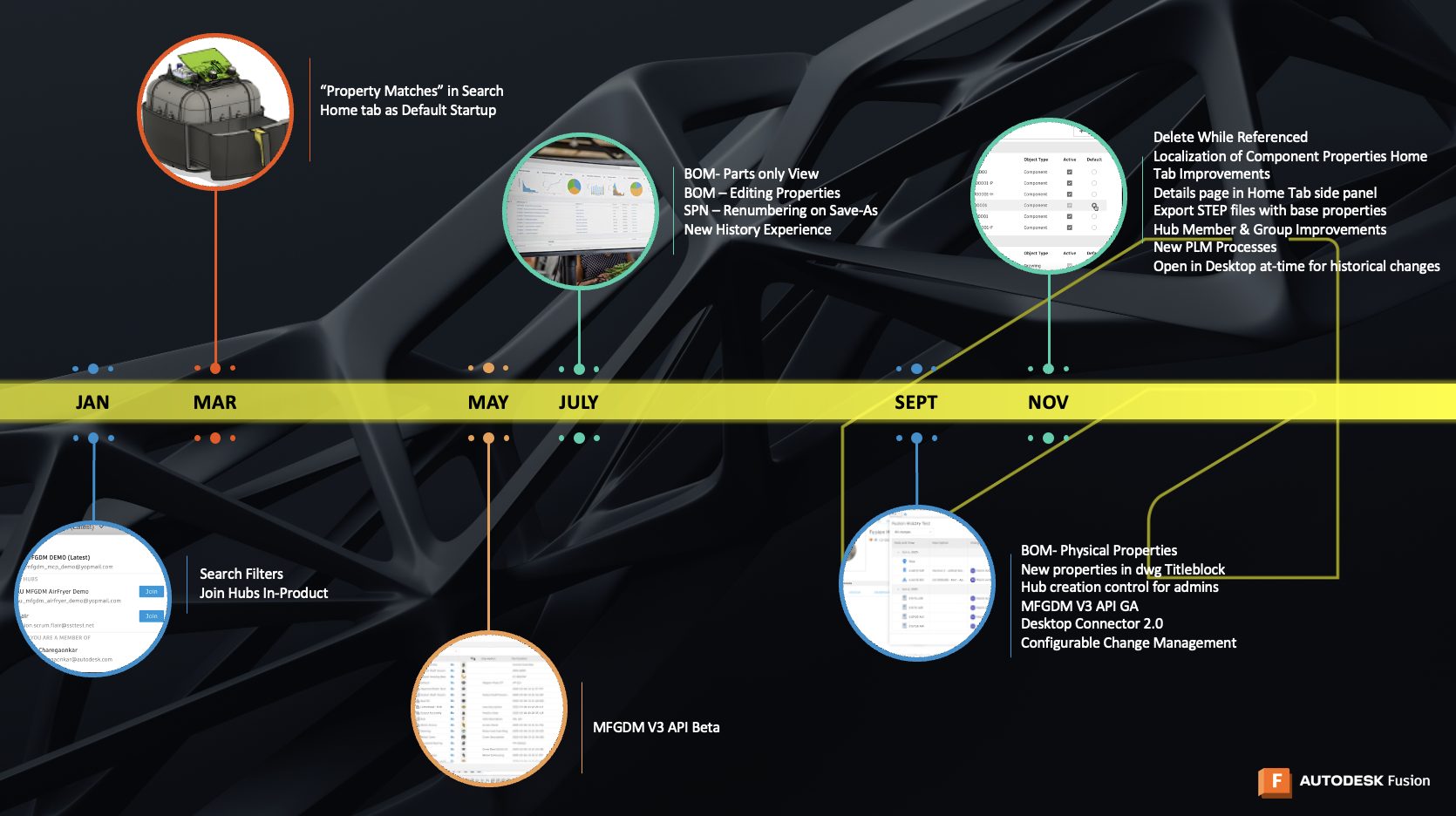
Within Data Management we worked tirelessly to make an experience that reflected your feedback, built on a foundation of trust, flexibility, and collaboration.
Advancing property and BOM management
Last year we focused on advancing property and BOM management, to give teams more clarity and control across collaborative editing hubs. More than twenty new component, project, and summary properties were added to help teams capture richer data, all designed to support the new collaborative editing workflows available in both the Property panel and the BOM. Powered by Autodesk’s Platform Services (APS) data platform, these capabilities ensure a unified source of truth across Fusion Desktop and web clients.
BOMs became more informative and flexible, with new physical property columns such as mass, volume, area, length, width, height, and density, all with accurate rollups that match the precision seen in the Fusion canvas. Additionally, a new Parts Only view provided a clean, quantity-driven look at components to support purchasing and planning.
Expanding what is possible with integrated cloud PLM
As data capabilities inside Fusion continued to grow, integrated cloud product lifecycle management (PLM) grew right alongside them. Through Fusion Manage, teams gained access to a powerful template library and expanded process support. This gave organizations ready to use frameworks for portfolio planning, new product introductions, supplier collaboration, and quality management. Together with Fusion’s built in data management, these capabilities helped teams share the same live product record from first idea to final release making product development more connected, predictable, and scalable.
Learn more about integrated PLM.
Improving administration and collaboration across hubs
Fusion also made meaningful progress in how teams and permissions are managed, bringing simpler administration and stronger security to every Hub. The updated member management experience gives admins clearer tools for inviting people, assigning roles, tracking activity, and understanding who belongs to which groups. A new centralized groups experience makes it easier to create groups, manage membership, and keep collaboration organized across your entire Hub. With new capabilities like the ability to merge Hubs, teams can stay connected and aligned with far less overhead.
Learn more about groups.
A better experience for managing referenced designs
Fusion gives you the freedom to work however you like, whether everything lives in one model or you’re building with distributed designs and external references. As more teams embraced external references, we kept hearing the same thing: deleting referenced designs needed to feel clearer and more consistent. Previously, if a design was tied to any past or present drawings, models, or manufacturing files, it often couldn’t be deleted at all, which protected your data but didn’t always make for the smoothest workflow.
So we improved it. Now, when you try to move a referenced design to the trash, Fusion tells you what is connected to it, explains what the move means, and lets you decide whether to proceed on both desktop and web. It is a small but meaningful step toward making data management in Fusion feel more intuitive, transparent, and in your control.
Additional Enhancements
Beyond these highlights, many more improvements helped shape the year. See what else we released.
Learn More.
- Improved search capabilities across Fusion, including enhanced filters, clearer scope selection, and property-based search results that help explain why specific files appear in results
- Continued refining the Home tab experience, showing more data at once and making it faster to access recent designs, projects, and folders
- Localized key component, project, and summary property descriptors, allowing teams to view and manage properties in their preferred language
- Improved access to details and properties across Fusion Desktop and the Fusion web client, making it easier to view and edit design information directly from the property panel
- Ensured more consistent access to design data across Fusion Desktop and the Fusion web client, so collaborators can view the same up-to-date information regardless of where they are working
Design
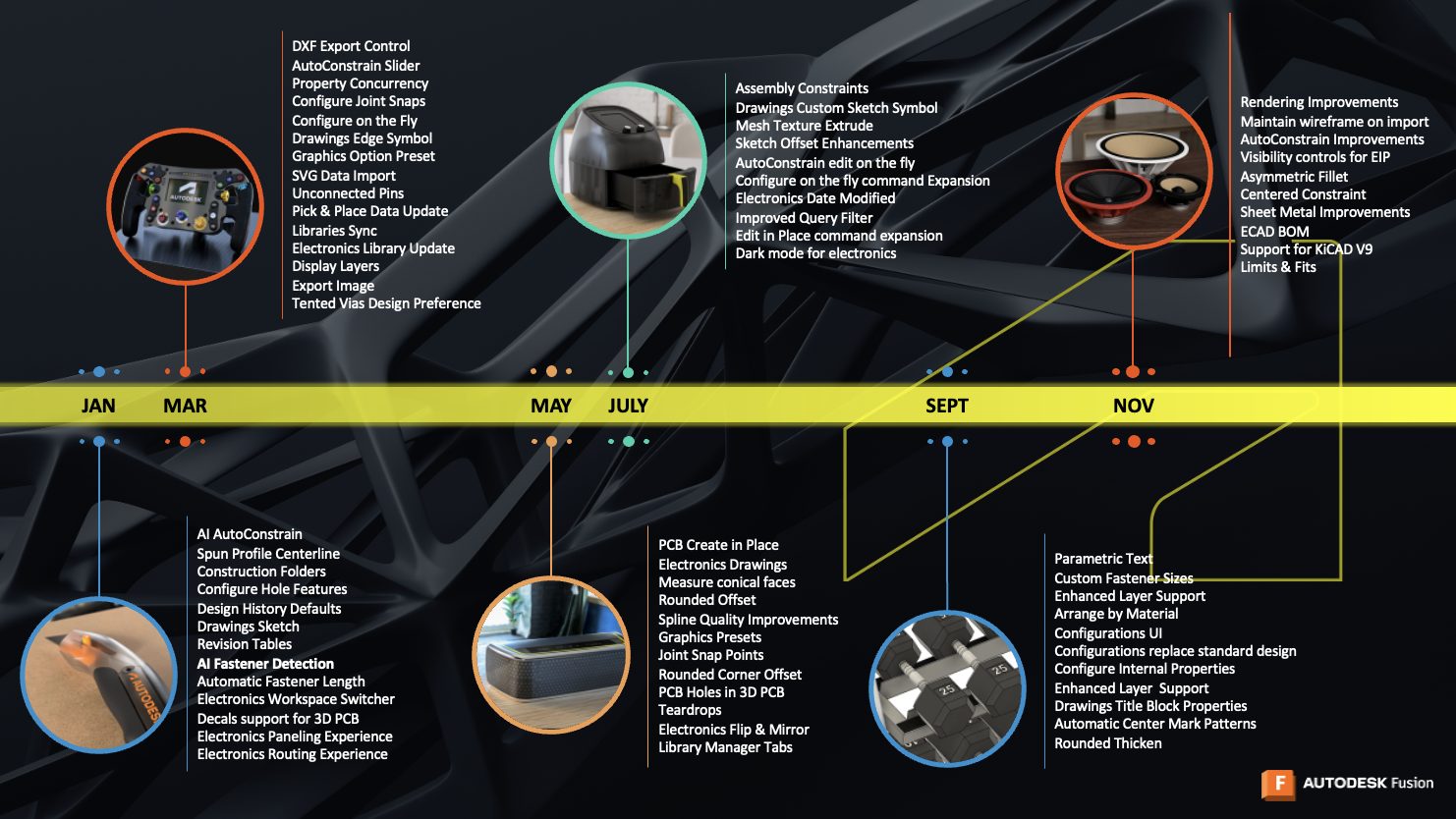
This year also brought meaningful improvements to how designs are created, refined, and assembled.
Constraints mark a new chapter for assembly design
Assembly work in Fusion took a major step forward this year with the introduction of Constraints. This offered a more flexible and intuitive way to define how components relate to each other. Instead of relying on the one-to-one nature of joints, you can now create multiple connections in a single command, keeping your relationships organized and making complex assemblies much easier to manage.
Later in the year, Constraints grew even more capable with the addition of the Center constraint type, which lets you center one component between two faces of another without the need for construction geometry. The faces you select do not even need to be parallel, giving you greater freedom in how you position and align parts. For designers coming from Inventor or other CAD tools, these workflows feel familiar and natural.
Learn more about Constraints.
Bringing AI-assisted precision to sketching
Last year, Fusion took a big step toward faster, more intuitive sketching with the introduction of AutoConstrain. This AI powered helper suggests smart ways to fully define your sketch, whether you are starting from scratch, adding details, or tracking down missing constraints.
Later in the year, AutoConstrain grew even more capable by detecting and correcting small geometric issues like tiny gaps, off-axis lines, and near-tangent arcs. When corrections are needed, you receive a clear results card and simple controls for adjusting tolerances or fine-tuning each constraint type, giving you full control over the final outcome. Together, these updates make sketching feel smoother, more accurate, and a lot easier to manage, so you can stay focused on bringing your ideas to life.
Learn more about AutoConstrain.
Text becomes parametric
Fusion also took an important step forward in how text is handled across your designs. You can now create and use text parameters in sketches, features, and configurations, giving you a consistent and organized way to manage the words that appear throughout your work. Text parameters can be created automatically as you sketch or added directly through the Parameters dialog, then referenced anywhere you need them, including in the Configuration Table. It may seem like a small change, but it opened the door to cleaner customization, fewer manual edits, and the more automated, text-driven workflow that many of you have been asking for.
Learn more about text parameters.
Configurations
Configuration workflows saw meaningful refinement this year, making complex design variation easier to manage and scale. Text parameters can now be configured directly, making it simple to drive things like labels, IDs, or engraved text across multiple configurations without duplicating sketch features. Assemblies also gained more flexibility with the ability to configure replacements for standard designs, allowing a single component instance to swap between different design options without complex workarounds. Alongside these workflow improvements, the Configuration Table itself received a modern refresh, with smoother interactions, clearer navigation, and quality of life enhancements that make working with large sets of configurations faster and more intuitive.
Learn more about configurations.
A new level of control with Asymmetric Fillet
Design work also benefited from finer control this year with the introduction of the Asymmetric radius type for both standard and Rule Fillet. You can now specify two unique radius values along a single edge, allowing you to shape transitions with far more intention and subtlety. This gives you greater freedom when refining form, smoothing edges, or exploring more expressive design language, all while staying in a familiar workflow within the Fillet command.
Learn more about Fillet.
Design starts with intent, now in preview
Design workflows also took an important step forward this year with the introduction of the intent driven design experience, now available as a preview. This new approach makes it clearer and more intuitive to start designs by letting you choose the right path up front, whether that is Part, Assembly, or Hybrid design. By guiding designers into a structure that matches their intent from the beginning, Fusion helps reduce early setup friction, improve performance, and support better collaboration and reuse as projects grow. It is a meaningful evolution that gives teams more confidence and flexibility from the very first click.
Learn more about intent driven design.
Additional Enhancements
The journey doesn’t end here. Explore more features and refinements from 2025.
Learn More
- Introduced the new Bounding Solid tool, allowing you to quickly generate solid components around selected bodies or components for measurement, stock definition, or downstream manufacturing workflows
- Added direct access to the Move tool in the Render workspace, making it easier to reposition components without switching back to Design
- Improved Decal accuracy, ensuring image-based decals respect embedded dimensions and preserve their original size and aspect ratio
- Expanded the Thicken tool with a new Rounded Thicken option for smoother transitions and greater control over form
- Enhanced Edit in Place workflows across Solid and Mesh modeling, enabling faster, more flexible editing within complex assemblies
- Improved the Physical Materials dialog with built-in search, making it easier to find and assign materials in large libraries
- Introduced Mesh Texture Extrude, allowing images to be used to generate textured mesh surfaces for advanced modeling workflows
- Added a new Fastener Micro Editor, giving you the ability to add, modify, or remove sizes within existing fastener standards to better match real-world hardware requirements
- Delivered continued Sheet Metal refinements, improving command clarity, regeneration behavior, and overall reliability when creating and editing flanges and related features
Drawings
As designs came together more smoothly, documentation followed right along with them.
AI-powered fastener detection for drawing automation
Drawing automation received a helpful boost with AI powered fastener detection. When creating automatic drawing sheets, Fusion can now identify fasteners in your design and omit them from the generated views, reducing clutter and speeding up the entire process. You can enable this behavior by turning on the Detect and Omit Fasteners option in your drawing template settings, giving you control over when the feature is used. With AI handling the fastener detection behind the scenes, your drawings stay cleaner, clearer, and quicker to produce, helping you stay focused on the parts of your design that matter most.
A smoother way to reuse designs and drawings
Branching and reusing designs also became easier with the ability to bring drawings along during Save As. When you create a new version of a design, you can now choose whether to include its associated drawings, and if you do, they stay fully associative with the new file. The drawings update automatically as the new design evolves, keeping everything aligned without extra effort. It is a small but meaningful improvement that keeps your documentation in step with your design process.
Electronics
Those same themes of connection and clarity carried through into electronics workflows.
A better flow between 2D and 3D PCBs
Fusion continued to strengthen cross-discipline data management this year by improving how 2D and 3D PCBs stay in sync. Previously, keeping these views aligned across electronics and mechanical contexts often felt cumbersome and prone to errors, which sometimes led teams to work from outdated information.
This workflow was realigned to use the familiar pull-based update system found throughout Fusion, making it easier to avoid data clashes and receive PCB changes directly in the context you’re working in, whether that’s a mechanical assembly or a 2D PCB, without manually regenerating the 3D PCB. It became a cleaner and more dependable way to keep every part of your design up to date.
Bringing your Bill of Materials to life
We also introduced a refreshed Bill of Materials experience that brought more clarity and flexibility to how you explore and manage components in your design. You can now view the BOM directly within the design file with live updates, so changes appear instantly without any extra saving steps. New sorting and grouping options make it easier to organize items by reference designator or individual components, and customizable views let you choose exactly which attributes to display. Cross selection between the BOM and the canvas adds another layer of convenience, allowing you to highlight components in one place and see them reflected in the other. And when you’re ready to share or document your work, exporting to Excel, CSV, or text is just as simple as before.
Learn more about Electronics Bill of Materials.
Bringing your electronics straight into your drawings
Fusion Electronics became more connected than ever this year with new drawing support that brings PCB documentation directly into the Fusion drawing environment. Instead of relying on copied screenshots that quickly went out of date, you can now generate PCB drawings that display accurate reference designators across all major view types, from base and isometric views to detailed and breakout views. Layer stack information can also be added directly to your drawings, giving you clear insight into signal integrity, power distribution, and overall board structure. It all comes together to create a unified workflow where your electronics data stays up to date, consistent, and tightly connected to the rest of your design.
Learn more about Electronics drawings.
A friendlier way to explore your libraries
We also made it easier to navigate with a more connected and discoverable library experience. You can now search for a component by name and instantly see every public library that contains it, making it simple to activate what you need and drop components directly into your design. The Library Manager itself was reorganized into clear tabs for hub libraries, public libraries, and private libraries, each with search tools that match the way you use them. The experience of finding, organizing, and managing your design data is now more intuitive, more connected, and noticeably easier.
Manufacturing
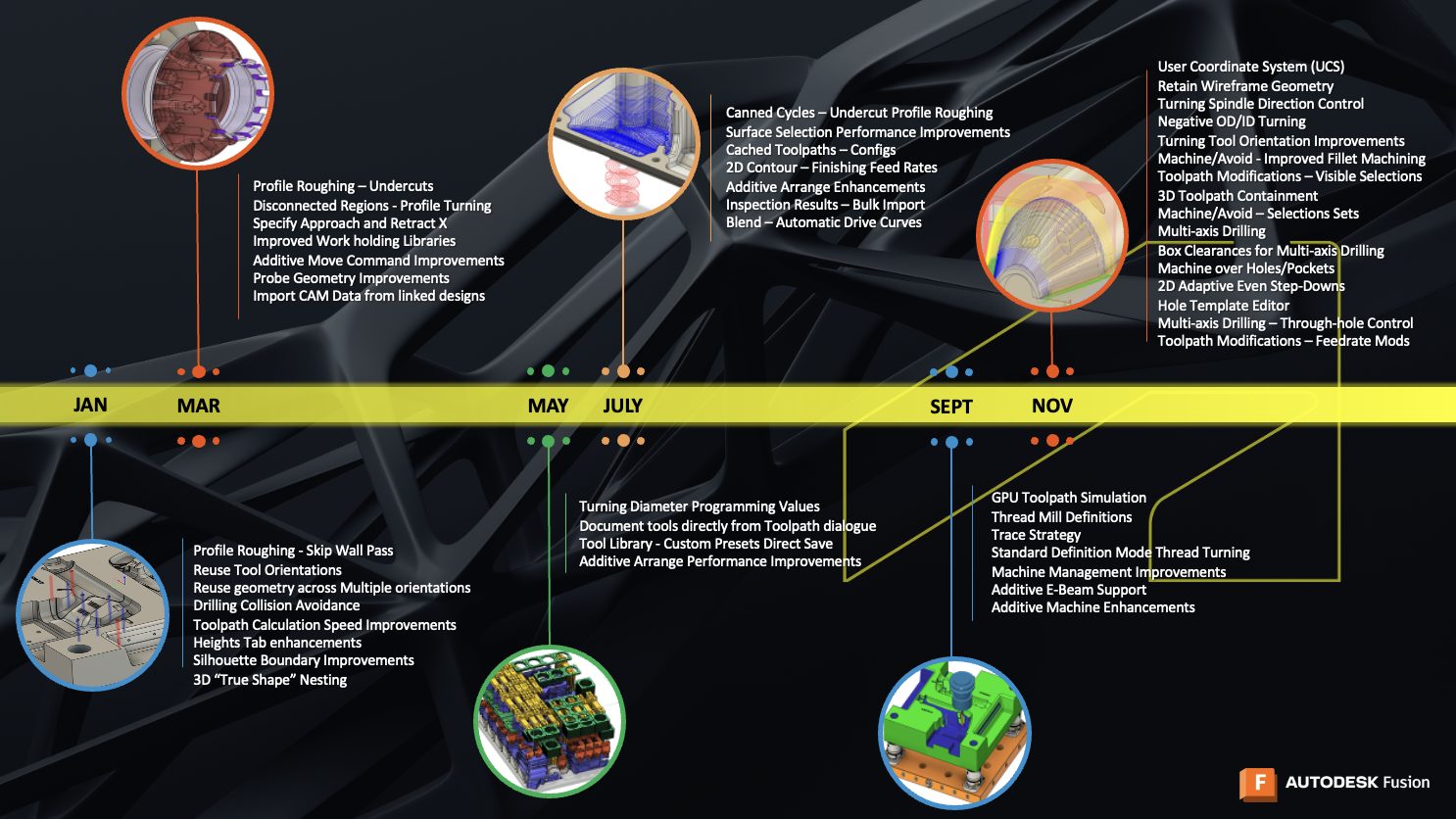
Manufacturing saw continued investment in speed, precision, and flexibility across a wide range of workflows.
Supercharging simulation with GPU performance
Back in September, we delivered a major leap forward in manufacturing performance with the release of GPU-based stock simulation for Windows. By moving simulation calculations to the GPU, what once took minutes or even hours can now be completed in a matter of seconds, giving you dramatically faster feedback as you refine toolpaths and validate machining strategies. It’s a powerful boost that helps you move from programming to production with far greater speed and confidence.
Smarter hole recognition and machining
Fusion also saw major improvements in hole handling and machining automation this year, giving you more control with far less manual prep. The new Hole Template Editor lets you build highly specific hole signatures using cylinder, cone, and torus segments, match holes by color, thread, or PMI data, preview matches directly on your model, and fine-tune template operations with clear tool assignments and priority settings.
At the same time, machining workflows became smoother with expanded support for Machine Over Holes and Pockets, which now works across all 3D toolpaths that use Avoid Machine Surfaces. When enabled, Fusion automatically caps selected surfaces, so holes and pockets are machined over without creating extra geometry. Together, these enhancements make hole recognition, setup, and machining more intelligent, more automated, and more aligned with the way you build real parts.
Learn more about hole recognition.
A smarter turning experience
Fusion brought a wave of improvements to Turning this year, making it easier to machine complex shapes with confidence. A new Turning Trace strategy lets the tool follow the true contour of your model, opening the door to more intricate geometries with less effort. Threading also became simpler with a new standard definition mode that allows you to program industry standard threads without manually entering parameters.
Workflow flexibility increased with enhanced spindle direction control, letting you set direction per operation rather than duplicating tools. Turning also expanded into new territory with support for machining on the negative diameter across key strategies like profile roughing, profile finishing, grooving, and threading, broadening the range of applications you can tackle in a single setup. Turning tools themselves became easier to orient with new options in the setup tab, giving machinists clearer control when preparing their lathe operations. The result is a Turning experience that’s more capable, more efficient, and more intuitive for everyday programming.
Learn more about Turning.
Advancing additive manufacturing
Fusion continued to grow its additive manufacturing toolkit this year with updates that offer more flexibility, clearer control, and broader technology support. A major milestone was the introduction of True Shape, a voxel based 3D nesting method that gives you fine control over part quantity, packing priority, and part rotation during arrangement. Building on that foundation, we added tools for more intentional part placement, a simple manual sorting workflow, and duplicate detection that spots repeated components before the arrangement step. Another highlight was bringing eBeam technology to Fusion for those using the manufacturing extension, expanding your options with a process similar to metal powder bed fusion that uses an electron beam to melt powder.
Additive machine setup became more adaptable with support for rounded platform corners, even enabling fully circular platforms through a simple radius adjustment. The move command was refreshed to match the familiar behavior in the Design workspace, and the updated Remove from Setup tool is now easy to find in the toolbar, making it simple to clear components that fall outside the build volume. It all comes together to create an additive experience that feels more connected and more powerful than ever.
Learn more about Additive manufacturing.
Additional Enhancements
These highlights tell part of the story. Discover the rest of what shaped Fusion this year.
Learn More
- Improved milling toolpath performance across Flat, Steep & Shallow, Blend, and Rotary strategies
- Added canned cycle output support for turning profile roughing with undercuts
- Expanded turning control with per-operation spindle direction and negative diameter machining
- Enhanced drilling safety with shaft and holder collision avoidance on cutting and linking moves
- Introduced multi-axis drilling support for more complex hole machining workflows
- Enabled direct tool selection and editing from within toolpath creation dialogs
- Added the ability to save custom cutting presets directly from toolpaths for easier reuse
- Improved tool library workflows to reduce navigation and streamline tool reuse
Cheers to a new year
As we close out 2025, we want to extend a heartfelt thank-you to our incredible Fusion community. Your ideas, creativity, and drive continue to shape the platform and push the limits of what’s possible in design and manufacturing.
The progress we’ve made this year is just the beginning. With even more innovation and integration on the horizon, we’re entering 2026 with bigger ambitions and a vision to keep helping you design and make anything. Stay tuned—our 2026 roadmap is just around the corner, and you won’t want to miss what’s next.