 Andreja Schneider
Learn how Shared Part Numbers work in Fusion Collaborative Editing hubs, why unexpected part linking can occur, and how to use the SPN Breakup Utility to restore independent part numbers.

Elevate your design and manufacturing processes with Autodesk Fusion
A better foundation for collaboration
If you’ve recently updated your Autodesk Fusion hub to collaborative editing (CE), you’re now working on a modern data management foundation — one designed to make versioning, properties, bill of materials (BOM) workflows, and part number management clearer and more collaborative. Whether you work alone or as part of a team, CE hubs bring meaningful improvements to how you manage parts, track changes, and share work, including property updates that can be edited across Fusion experiences and reflected without the old file-reservation and save-heavy workflow.
Properties become part of the shared, cloud-backed data model. Changes to supported properties are committed as users finish editing a field, can surface across the Properties panel, BOM, Drawings parts lists, and Fusion web experiences, and can be reviewed through the updated history experience.
How collaborative editing improves properties
- Immediate property updates — In CE hubs, supported property edits are saved instantly — no need to reserve the file, save, and close it. If a collaborator opens the same assembly, they see your update immediately.
- Consistent values across experiences — Property changes made in the Properties panel, BOM, Drawings, or Fusion web can be reflected across the other experiences, helping teams work from the same part information.
- Better visibility and traceability — Updated history and versioning experiences help teams review changes to designs, properties, and part numbers.
- Clearer part identity — Grouping components intentionally using the same Part Number, connect components that should share part-level metadata. When components should not share identity, separating the group restores independent part numbers and independent property control.
With these new capabilities, the collaborative editing hubs introduce new behaviors. One such area is Shared Part Numbers (SPNs) — and we want to help you better understand these new behaviors, their benefits, and separate the shared part numbers if you prefer to work with individual part numbers.
Part numbers and data updates
In a CE hub, the part number serves its intended purpose as the unique identifier for a component within the hub and becomes a part of a powerful feature in Fusion called Shared Part Numbers. It lets you intentionally link multiple components under a single part number — useful when you have parts that share identity across assemblies, configurations, or contexts. When used intentionally, SPNs keep your BOM clean, reduce duplication, and ensure that shared properties such as part descriptions and other part-level metadata propagate consistently across your designs. Component that carries and drives these metadata and BOM is called a Primary of a Shared Part Number group, while a Secondary inherits its shared metadata from the Primary, meaning any edits you make to its name or description will update the Primary and show across the entire group. You can edit the Primary assignment among members and you can review a list of members of a chosen SPN.
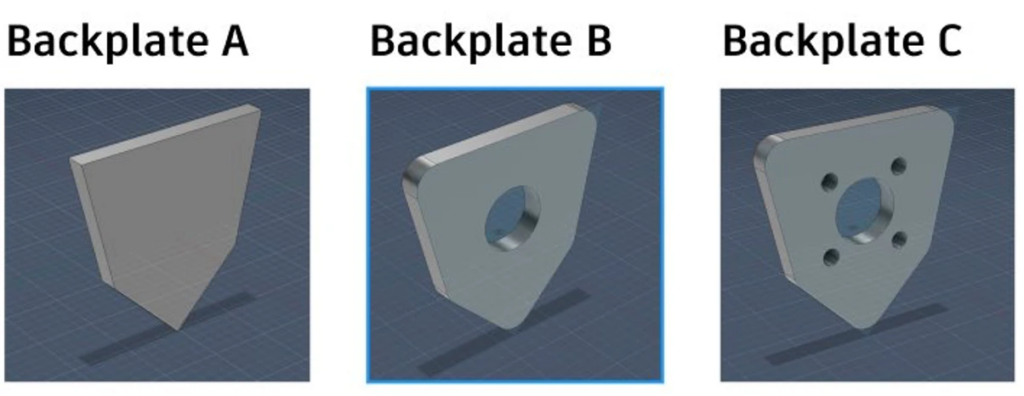
After update to collaborative editing hubs, if you’ve been assigning part numbers intentionally, you should expect:
- Your existing part number groupings carry forward — components that share a part number are automatically recognized as an SPN group
- Property edits to any group member propagate to all others instantly
- Your BOMs consolidate shared parts into single line items
However, not everyone used part numbers with this intent. In pre-updated hubs, Fusion defaulted the Part Number to match the Component Name — meaning two completely unrelated parts could carry the same part number simply because they shared a generic name like “Bracket”, “Cover”, or “Component 1”. These users never relied on part numbers for grouping or traceability, and many weren’t aware the field carried any functional significance.
After update, those legacy naming coincidences are now interpreted as intentional SPN groups. Components that happen to share a part number are treated as linked — sharing identity and properties — even when there was never a design relationship between them.
The result? You might notice:
- Properties or descriptions changing unexpectedly across parts
- Part names locked or overridden by another component’s metadata
- Errors when trying to edit a part number (“Could not save part number”)
- BOM entries showing incorrect names despite setting a component as primary
Collaborative editing makes property ownership and propagation more explicit: when parts share a part number, they can also share part-level metadata. That is beneficial for intentional reuse, but confusing when the grouping was created by legacy naming defaults rather than design intent.
Introducing the SPN Breakup Utility
We’ve built a dedicated self-service tool to put you back in control: the SPN Breakup Utility.
Before you start: know your SPN groups
Review each group before breaking it up. Ask yourself: did these parts share a part number by design, or because of the old copy workflow?
Most groups created during collaborative editing update will be unintentional — but if you use cross-project part numbering, or shared configurations, verify first. Breakup is all-or-nothing per group and cannot be selectively reversed.
Available to hub administrators, this utility lets you:
- Search for affected SPNs — Find specific part numbers or discover all SPN groups across your hub
- Inspect group members — See which components are grouped together, including those in your recycle bin
- Execute breakup — All secondary components are renumbered, including any items in your recycle bin
- Automatic legacy restoration — If pre-update part names and descriptions exist, they are restored automatically as part of the breakup — no separate step required
- Break up at scale — Process individual SPNs or execute bulk breakup across your entire hub
After breakup, each component becomes a standalone part with its own unique part number (your original Part Number plus a timestamp suffix for traceability — e.g., Bracket-2025-07-15-11-27-15-662). This is just a starting point: you can rename the part number to anything you want immediately after breakup, in component properties. Your historical data remains untouched — the utility operates only on the current version.
How to access the tool
The SPN Breakup Utility is available in your Hub Admin Settings in the Fusion web client. Navigate to your hub’s admin settings, and under Numbering tab, you’ll find the breakup tool ready for use.
Here’s a typical workflow:
- Open the SPN Breakup Utility from your hub admin panel (Admin / Numbering tab)
- Search for a specific part number — or browse all SPNs in your hub
- Review the members of any SPN group (including recycled components)
- Confirm and execute — all members are renumbered and legacy names/descriptions are restored automatically
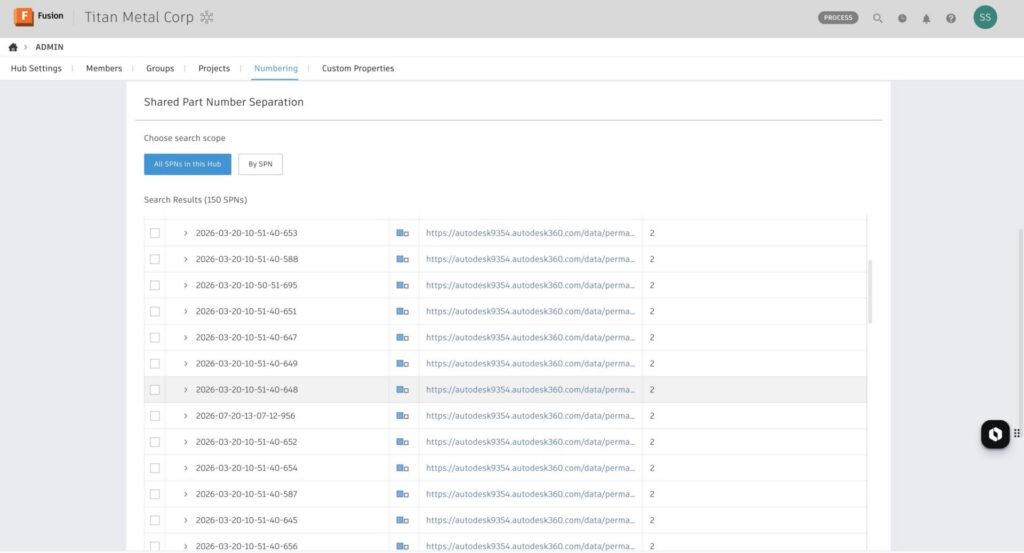
For large hubs with many affected groups, the breakup tool is asynchronous — you’ll see progress and can continue working while it completes.
Additional information
If you’ve updated and noticed unexpected part number behavior, know that this is a recognized scenario — and a solvable one. The SPN Breakup Utility is designed to give you full visibility and control.
For more details:
- What is a Shared Part Number?
- How to work with Shared Part Numbers
- How to separate an SPN group
- Collaborative editing hub update for Fusion
We’re committed to making the transition to collaborative editing as smooth as possible — and ensuring that your data reflects your design intent, not artifacts from the collaborative editing transition.
Have questions or feedback? Reach out to your Autodesk support contact or visit the Fusion Hub & Data Management forum.