 Jim Byrne
If you’re an engineer or designer who happens to own a Mac, then you might be surprised to learn just how simple it is to run Autodesk Inventor on a Macbook or other similar primarily MacOS-based device.
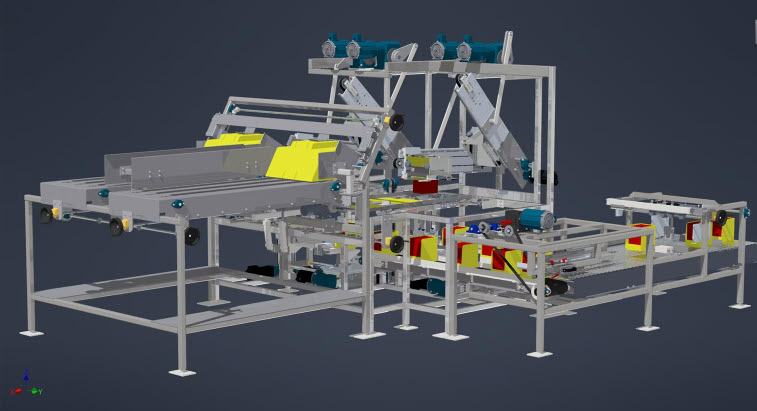
Inventor on Mac
Being an engineer and designer myself who has more of a hankering for the visual design space, Macbooks have always been my preferred cup of personal computer tea. That said, I’ve run into countless problems trying to get my engineering software to run seamlessly on Macs over the years, especially since there is no official Mac compatible version of Inventor, unlike AutoCAD for Mac which is fully supported.
I wanted to share a simple process to get any Windows-based software to run on a Mac. Frankly, after getting Inventor installed on my Mac and running it, there’s nothing I’m missing out on compared to having a Windows-based PC, other than maybe a few extra dollars in my pocket thanks to Apple’s enjoyable pricing structure… but I digress.
Let’s take a look at what you’ll need to do to get Inventor installed on your MacOS computer.
Introduction to CAD software on Mac
For engineers, architects, and designers, CAD software is the foundation of creativity and precision. But if you’re a Mac user, you’ve probably noticed that running Autodesk Inventor on a Mac isn’t as straightforward as downloading an app from the App Store. Since Inventor is designed for Windows, Mac users have to get a little creative to access this essential software.
Fortunately, there are several dependable methods for running Autodesk Inventor on a Mac. You can use Boot Camp to create a dedicated Windows partition, utilize remote access software to connect to a Windows system from your Mac, or set up a virtual machine such as Parallels. Each option has its own benefits and drawbacks, but they all enable you to use Autodesk Inventor on a Mac without losing any essential features for your CAD projects. In this article, we will explore these solutions, provide steps to get started, and guide you to the best support resource. This will allow you to concentrate on designing rather than troubleshooting.
Inventor system requirements
Before you start using Autodesk Inventor on your Mac, it’s crucial to ensure that your hardware and software are capable of handling the requirements. At a minimum, you should have a Mac equipped with an Intel processor or the newer Apple Silicon chip, and at least 8GB of RAM. However, for smoother performance—especially when dealing with large assemblies or complex simulations—16GB or more is highly recommended. A dedicated graphics card will also be beneficial for efficient CAD software operation.
Because Autodesk Inventor is a Windows-based application, you’ll need to install Windows on your Mac. This can be achieved through Boot Camp, which creates a separate Windows partition for dual booting, or by using a virtual machine like Parallels to run Windows alongside macOS. Whichever method you choose, ensure that you have sufficient storage space for both operating systems and your Inventor files.
Remember to download the latest version of Autodesk Inventor to utilize new features and compatibility enhancements. If you are using Apple Silicon, check for updates and notes from Autodesk regarding support and performance optimizations. If you notice your Mac struggling with demanding tasks, consider upgrading your RAM or CPU to maintain optimal performance. For the most current system requirements, always refer to the official Autodesk website before installing or upgrading.
How to run Autodesk Inventor on Mac
If you haven’t picked up on it yet, running Autodesk Inventor on a Mac requires that you run Windows on your computer in some way—there’s no getting around that. However, making this happen is actually quite straightforward.
Partitioning your hard drive
One tried-and-true method is by partitioning your hard drive and installing Windows on a dedicated portion of your computer. This approach enables a dual boot setup, allowing you to switch between macOS and Windows each time you restart your Mac. The largest benefit of partitioning your hard drive is that it boots the computer fully in each operating system, and it’s free. However, you can easily run out of partition space based on your Mac model’s memory capacity. The downside is the permanence of the partition and the need to restart your computer each time you want to load the other OS, which can be annoying. Be sure your Mac is compatible with the dual boot method before proceeding.
Parallels
A more preferable solution, at least for many users, is to run a program called Parallels. Parallels effectively allows you to run a “virtual” Windows operating system as a program within macOS. This means you can have a Windows desktop open as an app while still working in macOS. It’s highly convenient. Parallels also facilitates file sharing between macOS and the Windows environment, making it easier to move project files back and forth for a smoother workflow.
Note: When using Parallels, especially on Apple Silicon Macs, there may be limitations such as the inability to use eGPU or certain hardware features, and file sharing settings may require additional configuration.
The downside to Parallels is that it isn’t free, but it’s competitively priced at around $80 per year, which is reasonable for business software.
Downloading and setting up Parallels is straightforward. After installing Parallels, download and install Windows, then download Autodesk Inventor from your browser within the Parallels environment. Open the download file in Parallels’ Windows file explorer, execute it, and you’re good to go. Installing Inventor ensures its full functionality. This allows you to run Inventor on your MacBook with ease and no noticeable performance dips under normal design applications. Better yet, you can run Inventor as its own window within macOS, which is pretty cool. The functionality and interface of the Windows version of Inventor remain intact, so Mac users can access the same features as those on a native Windows machine.
How to install Parallels
If this sounds appealing, here’s a step-by-step process to get it done:
- Install Parallels on your Mac. There’s a free trial period if you want to test it out.
- Boot Parallels on your Mac.
- Download Autodesk Inventor through a browser in Parallels.
- Install Windows if you haven’t already, then install and run Inventor.
There you have it—Inventor running “inside” macOS.
Are there any drawbacks?
If you’ve read this far, you might be thinking that running Inventor on a Mac was too easy and can’t possibly work perfectly without partitioning your hard drive. It’s reasonable to be skeptical, but for 95% of use-cases, you’ll encounter minimal issues. Parallels operates by running Windows on a “virtual computer” within macOS, creating a minor software layer between Inventor and your device’s hardware. This can impact speed and overall performance, especially with large assemblies or complex workflows. Another option is using remote access apps to run Inventor on a Mac, but these can introduce lag, limited control, and dependence on internet stability, which can further affect speed and responsiveness.
While Inventor running in Parallels can accomplish most tasks, you may notice limitations with advanced features like automation and CAM, which may not perform as efficiently as on a native Windows machine. When creating and documenting designs, you might experience slower workflows or reduced functionality due to virtualization. Visualization capabilities, such as rendering or working with complex 3D models, can also be impacted, resulting in less fluid interaction or lower quality output compared to running Inventor natively.
If you want your Mac to be your sole engineering computer, consider using both options: partition your hard drive to boot Windows for robust applications while utilizing Parallels in macOS for day-to-day design work. To a Windows user, this might sound unconventional, but for engineers accustomed to the Adobe design suite and other Mac-optimized creative applications, this setup can save a lot of time and effort.
Troubleshooting and support for Inventor on Mac
Even with the correct setup, running Autodesk Inventor on a Mac can sometimes present unique challenges. If you encounter issues such as sluggish performance, trouble opening files, or quirks with virtualization—don’t panic. Double-check that your Mac meets the minimum system requirements and that you have the latest version of Inventor installed. Often, a simple update can resolve unexpected bugs or compatibility problems.
For more complex issues, the Autodesk support website offers a wealth of resources. You’ll find step-by-step tutorials, FAQs, and active user forums. Here Mac users share tips and solutions for running Inventor on a Mac. If you need personalized assistance, Autodesk’s support team is just a click away. What are you waiting for? Get started today.