 Monserrat Elaskar

Anyone who coordinates models knows the routine. You open a federated model and immediately need to focus on a specific slice of the project: ductwork on Levels 2–4, structural framing, a particular assembly code, or the systems involved in a coordination review.
The coordination decisions matter. Getting to the right content shouldn’t be the hard part. Yet on many projects, teams spend valuable time rebuilding the same filters, recreating the same selections, and navigating the same model scope over and over again before the actual coordination work can begin.
As projects evolve and scale, the need for standardized coordination becomes increasingly important. Teams need easy access to these standards so they can efficiently manage, reference, and apply them throughout coordination workflows. Having reliable, accessible standards helps reduce errors, improve consistency, and gives teams confidence that they are working from a trusted source.
Search Sets in Autodesk Forma help teams define that logic once and reuse it wherever it’s needed.
What are Search Sets?
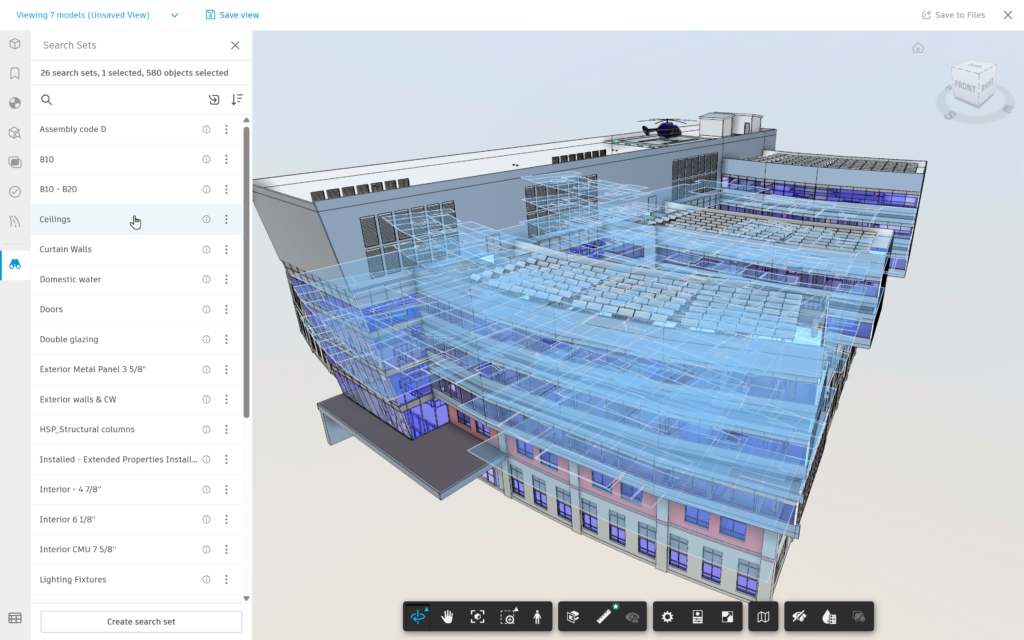
At their core, Search Sets are reusable queries that identify model objects based on their properties and metadata.
The concept is familiar to many BIM professionals. Search Sets have long been a foundational workflow in coordination platforms because they solve a common challenge: finding the right group of elements inside increasingly complex models and reusing these groupings across different models and projects. Instead of manually selecting objects every time, a Search Set stores the criteria used to find them and can be reapplied whenever needed.
Search Sets work the same way.
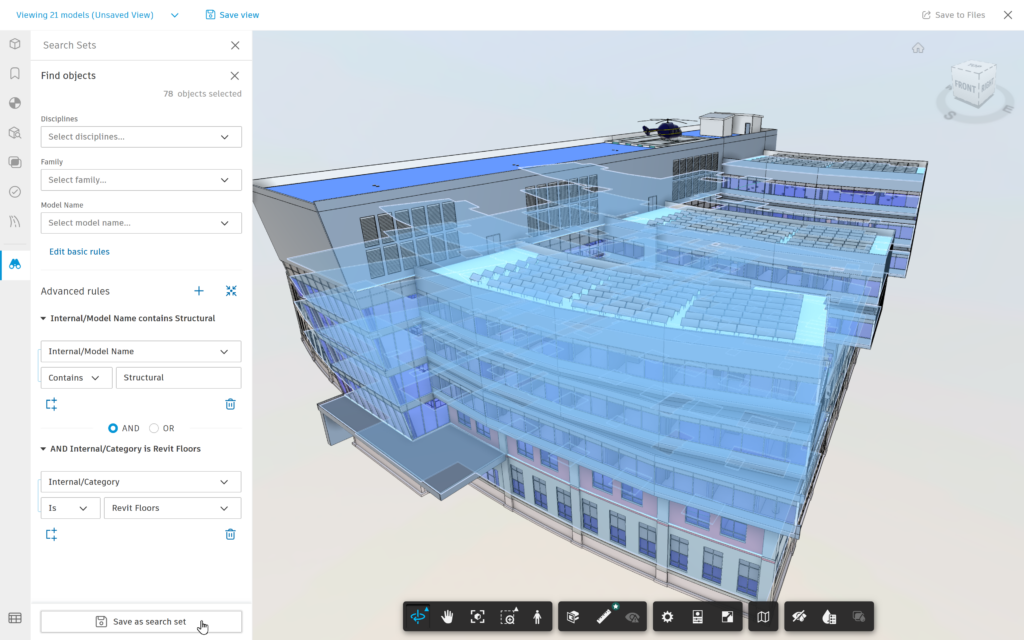
They allow teams to create dynamic groups of model elements using properties, values, and logical operators. Rather than saving a static selection, they save the rules behind the selection. As models evolve, the Search Set continues to identify objects that match those criteria.
For example, a team might create Search Sets for:
- All ductwork elements
- Objects with a specific assembly code
- Elements located on a particular level
- Systems that follow a defined naming convention
- Structural framing within a specific project zone
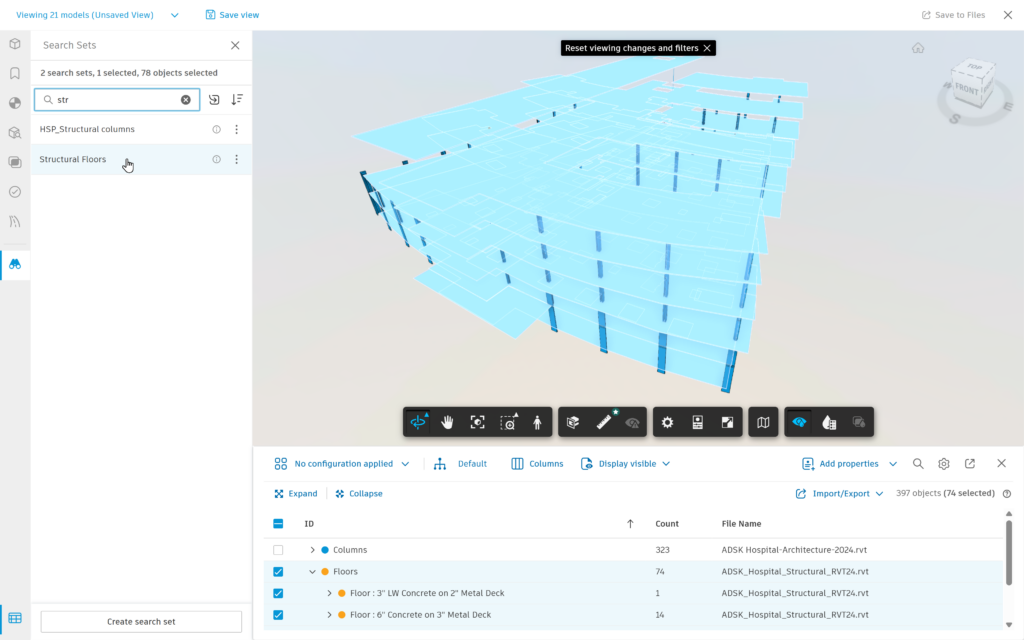
As the Search Set is built, matching objects are highlighted directly in the model viewer, providing immediate visual feedback and helping users validate the query before saving it.
Where Search Sets Pay Off in Real Coordination Work
1. Get to the Right Scope Faster
Most coordination sessions start with the same objective: Isolate the relevant part of the model so the team can focus on the discussion at hand.
Without Search Sets, that often means rebuilding filters or manually navigating model structures before every review.
With Search Sets, the scope is already defined.
Whether you’re reviewing MEP systems against structure, preparing a weekly trade coordination meeting, or focusing on a specific floor, zone, or phase, a saved Search Set lets you move directly into coordination instead of spending time preparing for it.
This is especially valuable when:
- Running recurring reviews by discipline
- Reviewing by level, zone, or construction phase
- Preparing consistent views for weekly coordination meetings
- Aligning multiple coordinators on the same model scope
Think of Search Sets as reusable coordination lenses. Once created, they can be applied whenever that scope needs to be revisited.
2. Validate Scope Before the Meeting Starts
One of the most common coordination questions is surprisingly simple:
“Are we looking at the right things?”
Search Sets help answer that immediately.
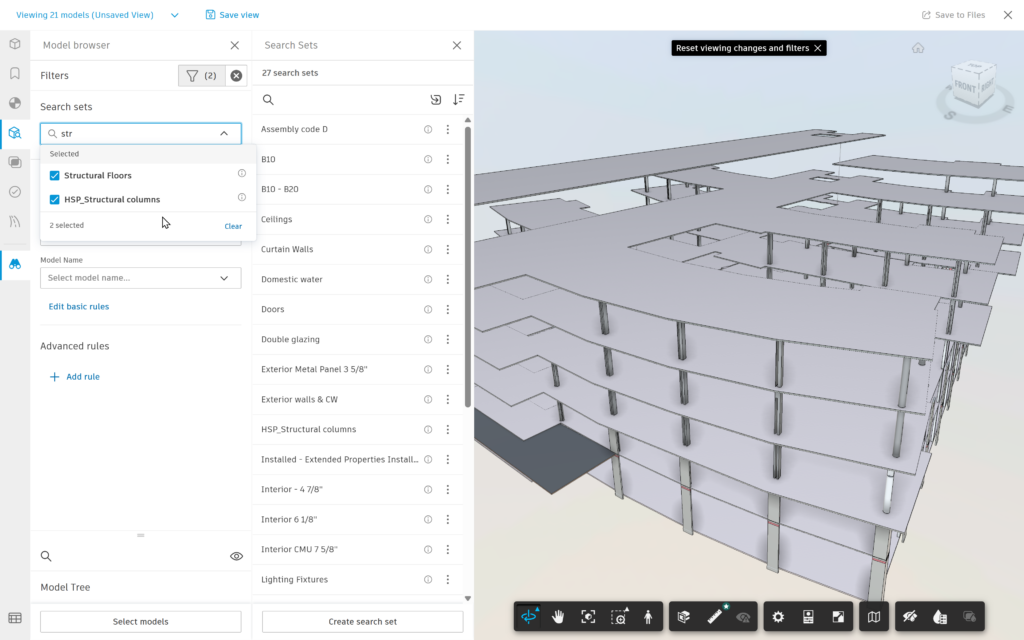
When a Search Set is selected, all matching objects are highlighted in the viewer. Coordinators can quickly verify that the intended systems, levels, or assemblies are included—and, just as importantly, identify anything that shouldn’t be there.
That visual validation step helps catch issues early, before the review begins
Teams can also combine multiple Search Sets to investigate related scopes together, such as:
- Supply Air Duct + Fire Protection
- Level 3 + Mechanical Room
- Structural Steel + Architectural Ceiling System
The result is a faster path from model navigation to meaningful coordination conversations.
3. Move from Model Selection to Model Intelligence
Coordination isn’t only about what you see.
It’s also about understanding what is in the model, how it is classified, and whether the data behind it supports downstream workflows.
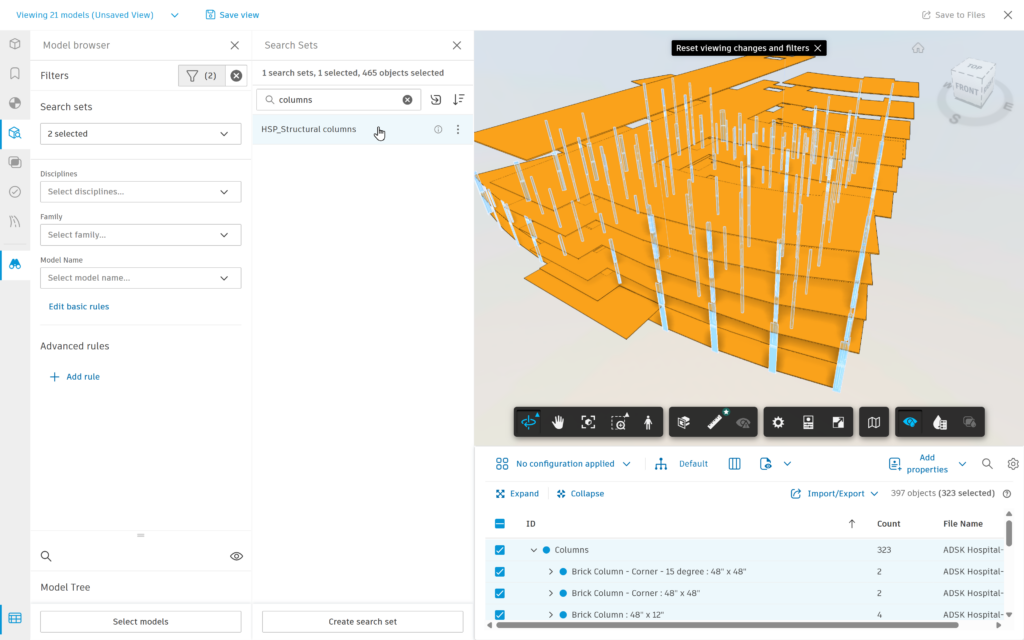
Search Sets work alongside the Object Table, allowing teams to transition from visual selection to structured model data.
This makes it easier to:
- Review object counts within a scope
- Verify parameter consistency
- Spot missing or incomplete properties
- Check classification standards
Validate naming conventions before clash grouping or issue assignment
Instead of searching through thousands—or millions—of model objects, teams can start with a Search Set and immediately focus on the information that matters.
Reuse Standards Across Teams and Projects
Many organizations already have coordination standards.
The challenge is that those standards often live in spreadsheets, personal notes, templates, or simply in the experience of individual coordinators.
Search Sets provide a practical way to turn those unwritten rules into reusable project assets.
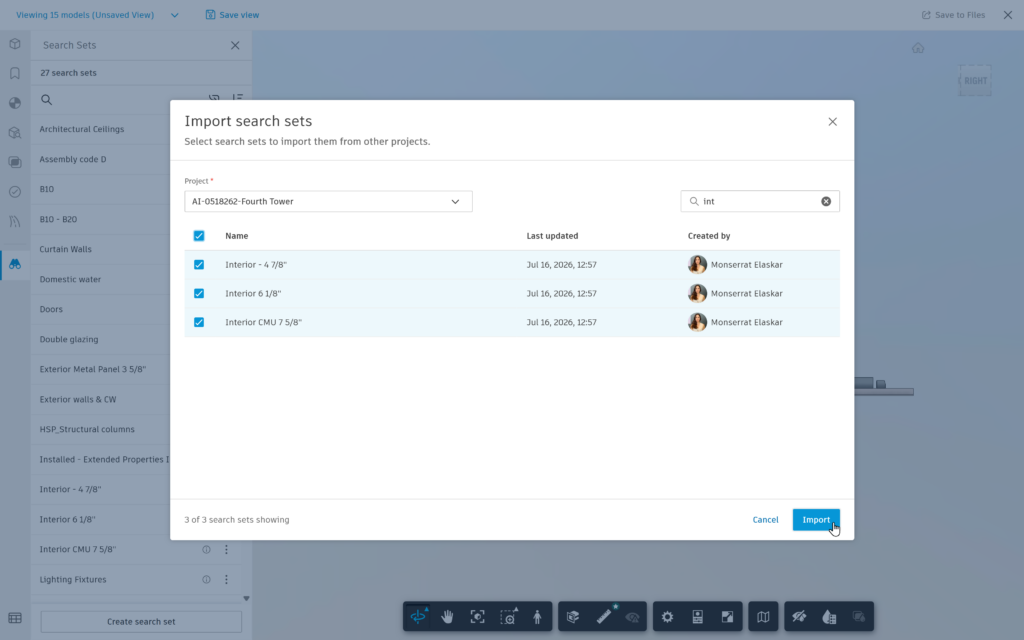
A shared library of Search Sets can help teams:
- Use consistent definitions across project
- Reduce variation between coordinators
- Standardize recurring review workflows
- Accelerate onboarding for new team members
- Reuse proven coordination setups instead of rebuilding them
Because Search Sets can be imported across projects, organizations can carry successful coordination practices from one project to the next rather than starting from a blank slate every time.
The result is not just efficiency—it is consistency.
Getting Started: Build Search Sets That Last
The most valuable Search Sets are the ones teams continue using months later.
A few simple practices help make that happen:
Start with stable properties
Build queries around properties that are consistently populated across authoring tools and disciplines, such as:
- System
- Category
- Level
- Discipline
- Assembly code
The more reliable the data source, the more reliable the Search Set.
Name them for the workflow
Good names communicate intent.
MEP | Ductwork | Levels 2–4 tells a coordinator exactly when and why the Search Set exists.
Duct Query v3 does not.
Validate before saving
Use highlighting to confirm the results match your expectations before adding the Search Set to your library.
A few seconds of validation can prevent weeks of confusion later.
Build a library, not a collection
The goal isn’t to create hundreds of Search Sets.
The goal is to create a focused set of reusable coordination tools that teams can easily understand, maintain, and apply.
A concise library of high-value Search Sets often delivers more value than a long list no one uses.
The Bottom Line
Search Sets may seem like a small feature, but they address a surprisingly common source of coordination friction: repeatedly finding the same model content.
By capturing selection logic once and reusing it across reviews, teams can spend less time preparing model views and more time resolving issues, validating design intent, and making coordination decisions.
Build the scope once.
Reuse it across views, reviews, meetings, and data workflows.
That’s where Search Sets deliver their real value.