 Casandra Armeanu
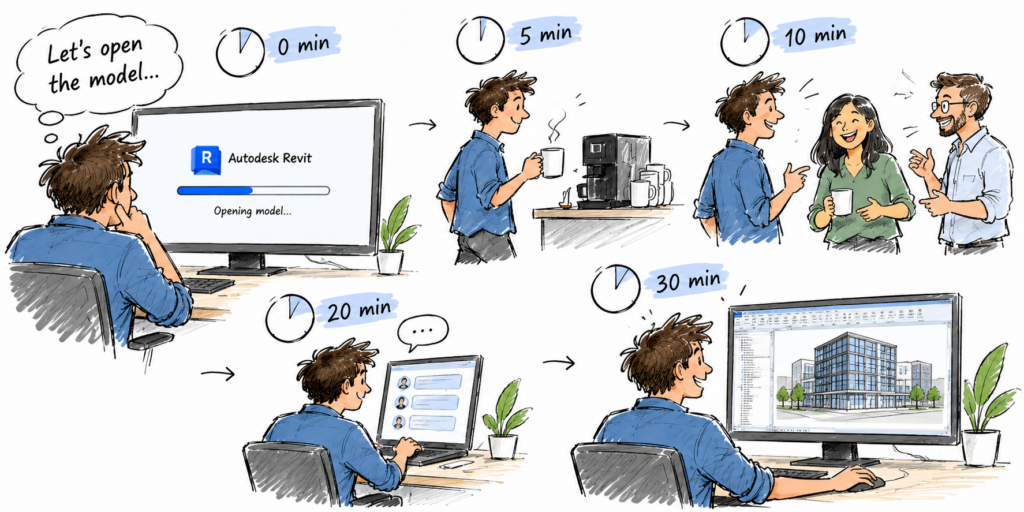
You open a Revit model, and then you wait. Ten minutes. Twenty. Maybe thirty. Your team has spent days purging unused families, deleting unnecessary views, and trying to reduce file size, yet the model still takes forever to open. Sound familiar? What if the problem isn’t how big your model is?
The reality is that model performance depends on much more than file size. Linked models, synchronization activity, local caches, hardware resources, and model complexity all contribute to how quickly Revit can open a project. And each potential bottleneck requires a different solution. The key to improving performance isn’t necessarily doing more cleanup; it’s understanding what’s actually slowing you down.
In this article, we’ll explore how to identify the real bottlenecks, avoid common optimization mistakes, and focus on the changes that can make the biggest difference.
Measure before you optimize
One of the most common mistakes when troubleshooting slow Revit models is trying to optimize everything without first identifying the problem.
Consider a model that takes 30 minutes to open. During that time, Revit may be downloading cloud model changes, creating or updating a local copy, opening the host model, loading linked files, regenerating model data, and displaying the starting view. Each of these operations contributes to the overall opening time, but they have very different performance characteristics.
If most of the time is spent downloading linked models, removing unused families from the host model is unlikely to make much difference. Similarly, if regeneration is the bottleneck, increasing the local cache size won’t necessarily solve it.
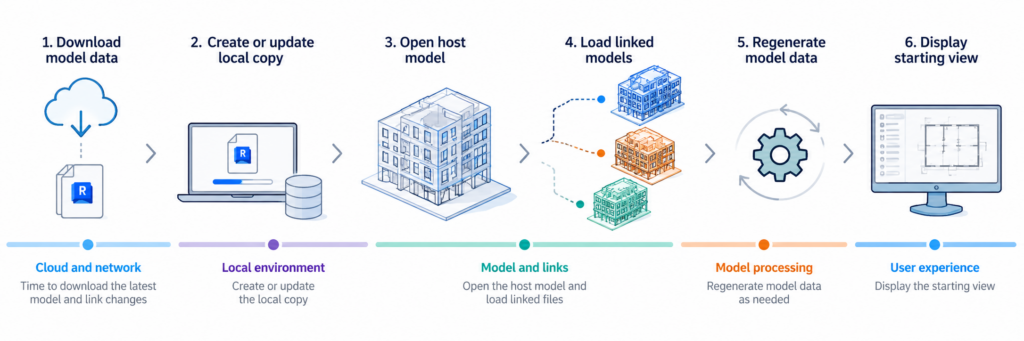
The first step toward better performance is understanding where the time is spent.
Start with Revit journal files
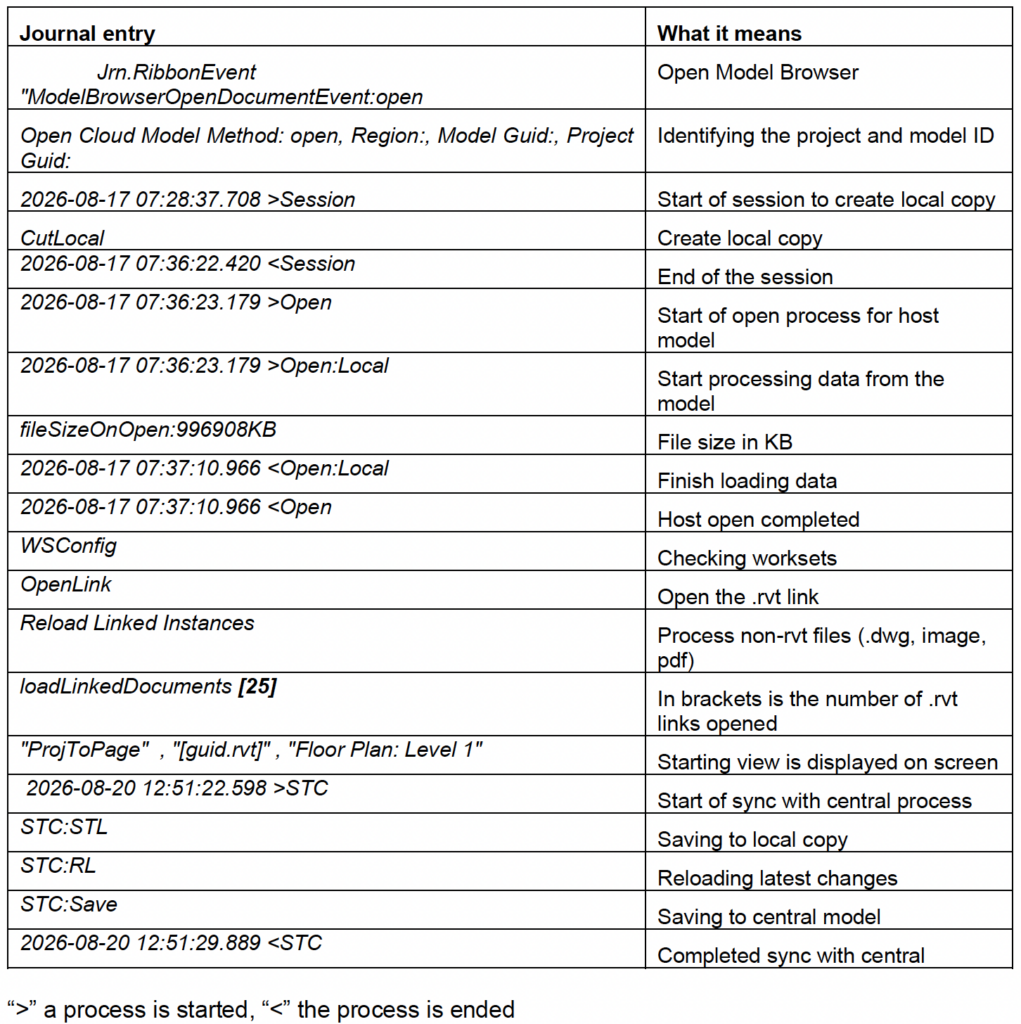
Revit journal files are one of the most useful resources for performance troubleshooting. They record detailed information about a Revit session, including the sequence and timing of operations.
By examining the timestamps around model opening, you can identify how much time is spent creating the local copy, processing the host model, loading links, and displaying the starting view.
You can also investigate synchronization performance. For example, if a significant part of a sync operation is spent in Reload Latest, the delay may be caused by downloading and reconciling changes from other team members rather than saving your own changes.
Journal files are stored in the user’s local Revit profile, under the Journals folder for the corresponding Revit version: C:\Users\<username>\AppData\Local\Autodesk\Revit\Autodesk Revit <version>\Journals
For a meaningful investigation, collect journals from several users working on the same model. Comparing results can help distinguish model-related performance issues from problems specific to a workstation or local environment.
Understand the difference between a cold and warm cache
Comparing model opening times with a cleared cache (cold) and an already populated cache (warm) helps identify whether the bottleneck is downloading model data or processing it.
If the warm-cache open is significantly faster, downloading and caching are likely contributing to the delay. If both are similarly slow, investigate model loading, linked files, or regeneration.
Record these opening times along with a typical synchronization time and repeat the measurements after each optimization to evaluate its impact.
Linked models: The hidden cost of coordination
On large multidisciplinary projects, linked models can contribute significantly to opening time. And the impact isn’t simply determined by how many links a model contains.
Each linked model introduces several potential performance costs:
- Download: Retrieving the latest version of the linked model, when necessary.
- Load: Reading the linked model and building its data in memory.
- Regeneration: Recomputing parts of the host model that depend on the linked model.
- Nested processing: Handling additional models referenced by the link itself.
Understanding these differences is important because each requires a different optimization strategy.
Live links versus controlled updates
When using live linking with cloud workshared models, changes to a linked model may require downloading a new version each time the host model is opened. On live projects where multiple disciplines synchronize throughout the day, this can result in repeated downloads of several linked models, increasing opening time.
One option worth considering is a Shared/Consumed workflow through Autodesk Forma Design Collaboration. This allows teams to control when updated models are consumed, rather than always referencing the latest available changes.
The decision involves a trade-off: live linking provides immediate access to updates, while controlled consumption can improve predictability and reduce unnecessary downloads. The appropriate choice depends on the coordination requirements of the project.
Synchronize with Central does not automatically reload linked models
In cloud collaboration, links are refreshed when the host model is opened or reopened, or when a user manually selects Reload or Reload From. Synchronizing with central alone does not retrieve the latest versions of linked models.
For example, imagine four people working on the same host model. One person reloads the architectural link and synchronizes with central. When the other three synchronize, they receive the changes made to the host model, but not the updated version of the architectural link. Their links remain at the versions loaded in their own sessions until they reload them. This is why teams should agree on when linked models are reloaded, rather than assuming that synchronization automatically keeps everyone’s links up to date.
Don’t overlook nested links
Nested links are particularly easy to miss when investigating model performance.
Imagine an architectural model linked into a structural model, with the architectural model itself referencing several additional models. Depending on how those nested links are configured, they may also be processed when the structural model opens.
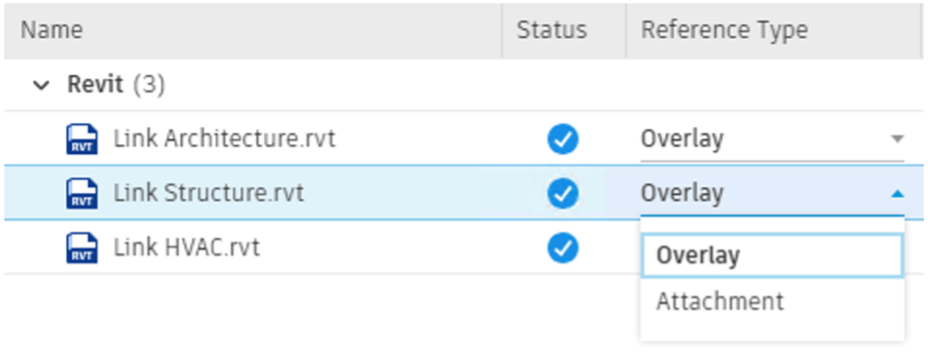
When nested links use Attachment instead of Overlay, they can introduce additional loading work even if their geometry is not visible. Simply closing a workset or hiding the geometry does not necessarily eliminate that processing cost.
Review the nested-link structure and use Overlay where those secondary models do not need to be carried into the host. Avoid unnecessary circular references and unload links that are not required.
Use worksets strategically
Placing linked models on separate worksets, either individually or grouped logically by discipline, gives a greater control over what is loaded.
For example, someone working on a specific discipline may not need every coordination link loaded at the beginning of the session. By selecting only the necessary worksets when opening the model, they can avoid loading unnecessary content.
This is different from simply hiding linked models in a view. Organizing links on worksets makes it possible to control which model data is loaded from the start.
Small changes that can make a big difference
Not every performance improvement requires restructuring a large project. Some relatively simple changes can reduce unnecessary processing during model opening.
Start with a lightweight view
A complex 3D coordination view or a large schedule may require substantial processing before users can begin working. Instead, create a dedicated starting view using a drafting view containing only essential project information as text. Avoid large schedules, detailed geometry, or other resource-intensive content.
This is especially relevant when exploring Incremental Model Open in Revit, introduced as a Tech Preview in Revit 2027.2. With this approach, Revit processes the data required for the starting view first and makes additional data available as needed. A lightweight starting view can therefore help reduce the amount of information processed upfront and speed up model open.
Checking for missing or inaccessible files
An overlooked source of delays is external references that Revit cannot find.
When opening a model, Revit checks whether referenced files such as keynotes, images, PDFs, and linked models are available. If a file is stored in an inaccessible network location or a user’s local folder, Revit may make repeated attempts to locate it. Even a single missing reference can introduce unnecessary waiting time.
Review external file paths and make sure linked resources are accessible. For DWG files, simplify unnecessary layers, hatching, and construction linework before linking. Large images and PDFs should also be optimized when full resolution isn’t required.
Don’t ignore warnings
Model warnings aren’t just a model-quality concern. They can also affect performance.
During model open, Revit loads warnings from both the host model and its linked models into memory. A project with thousands of unresolved warnings can therefore introduce additional processing and memory overhead before users even begin working.
Review warning counts regularly and prioritize issues that contribute to unnecessary model complexity, such as overlapping rooms, complex geometry, or redundant elements.
Keep families, views, and schedules under control
Unnecessary model complexity can also affect opening time, memory consumption, and overall responsiveness. Here are a few areas worth reviewing:
Families: Look for particularly large families, especially those exceeding 5 MB, and check whether their level of geometric detail is necessary. Simplify overly complex geometry, check for disjoined solids, and purge unused families and family types.
Views: Delete views that are no longer needed. Enable view clipping to limit the elements being processed, use Coarse or Medium detail levels for large working views, and disable unnecessary categories in complex 3D views. Also, be mindful of how many views you open during a session: Revit retains the memory consumed by those views even after you close them, until you restart the application.
Schedules: Monitor large schedules, particularly those with many rows and columns, as they can require significant processing resources. Avoid opening multiple large schedules at the beginning of a session and keep them out of the default starting view.
Better performance starts with understanding your model
A large Revit model doesn’t have to be a slow Revit model. And a smaller model isn’t necessarily a faster one.
Improving performance starts with recognizing that opening and working with a model involves many interconnected operations. Linked files, model structure, regeneration, and local caching can all affect the experience, sometimes in ways that aren’t immediately obvious.
Rather than spending time on changes that may have little impact, focus on understanding where Revit is spending its time and address the issues that matter most.
Stay tuned for Part 2, where we’ll explore the team workflows, synchronization practices, and maintenance habits that help keep Revit models running smoothly as projects evolve.