 Irvin Hayes Jr.
Welcome to the latest release of Autodesk Vault 2026.1! This update brings an array of features designed to enhance workflow efficiency, connectivity, and collaboration. Whether you are a seasoned user or new to Vault product data management (PDM), these updates are crafted to streamline processes and boost productivity. Let’s dive into the exciting new features.
Autodesk Vault 2026.1 Highlights
Workflow Efficiency
Copy Design – Property Editing
Unlock a more intelligent and streamlined design workflow with the Autodesk Vault 2026.1 update. This enhanced Copy Design feature now empowers users to edit key properties during the copying process, thereby eliminating the risk of missed updates and conserving valuable time. Whether one is duplicating a drawing, a complete design structure, or individual components, it is now possible to modify multiple properties simultaneously, utilizing intuitive copy/paste functionality or directly from Excel. Initiate your next design with confidence, precision, and efficiency right from the moment of copying.
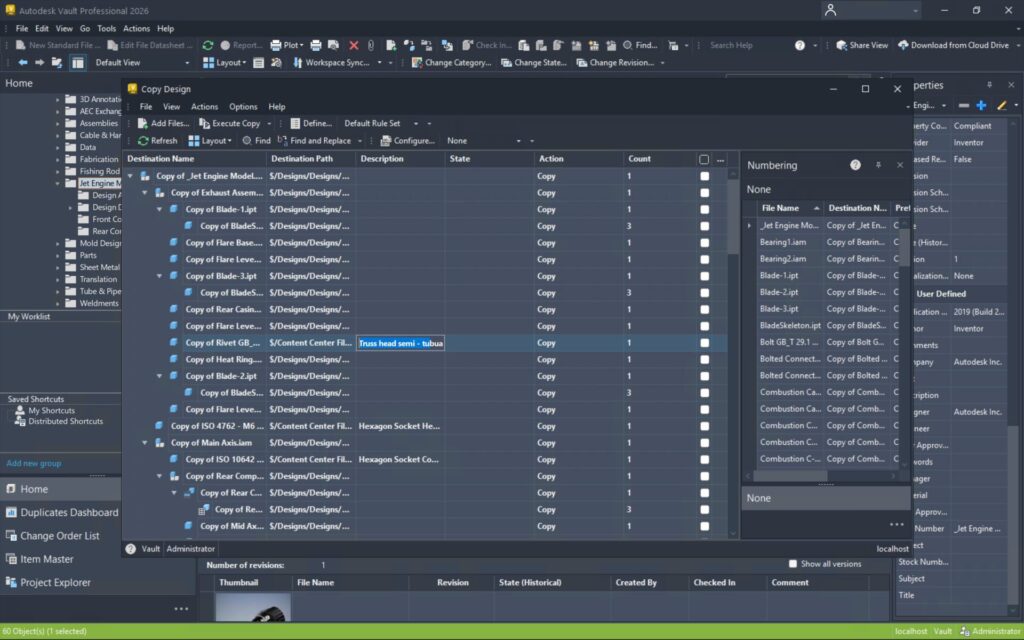
For more information, see Copy Design – Main View Grid.
Suggestions from the Vault Community Idea Board inspired the feature.
Copy Design – Numbering Scheme
Eliminate renaming headaches with default numbering distribution.
Autodesk Vault 2026.1 streamlines the Copy Design process by enabling administrators to establish and disseminate a default numbering scheme for all users. This improvement guarantees consistency from the outset, thus averting expensive renaming tasks and diminishing errors that may arise from improper numbering or naming conventions. By standardizing the nomenclature of new designs, teams conserve time, remain aligned with corporate standards, and ensure that projects progress without disruption.
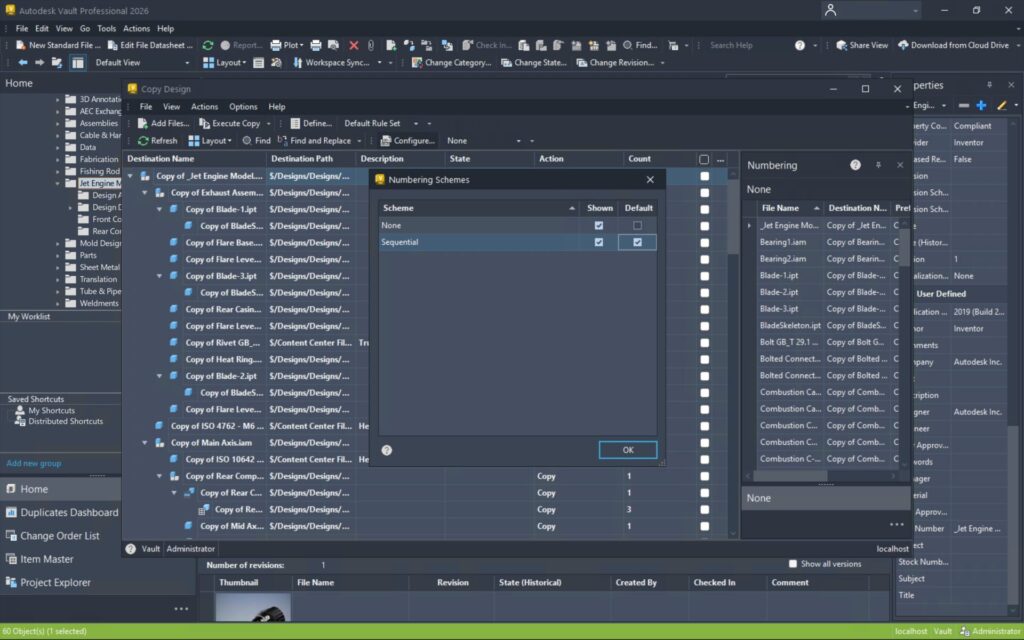
For more information, see Copy Design – Select Numbering Scheme.
PDF Automatic Item Attachment
Autodesk Vault 2026.1 significantly enhances operational efficiency through the automation of attaching 2D PDF files during the Assign/Update Item process. The previous manual steps and the possibility of overlooked files have been eliminated; PDFs are now seamlessly integrated with Items, akin to DWG and IDW representations. This improvement guarantees the inclusion of essential documentation, thereby mitigating the risk of oversight and expediting transitions to downstream teams. Stakeholders can now allocate less time to file management and focus more on design efforts.
For more information, see Assign Items.
Suggestions from the Vault Community Idea Board inspired the feature.
Update Properties Enhancement
Vault 2026.1 eliminates the inconvenience associated with manual property updates through the introduction of a new, intelligent prompt during file check-out from the Vault client. When users initiate the check-out of a file within the Vault client, they are promptly reminded to update the mapped properties, thereby ensuring data synchronization without necessitating additional steps. This straightforward automation mitigates errors, conserves time, and maintains alignment between designs and Vault data. Though it represents a minor alteration, it possesses a substantial effect on overall productivity.
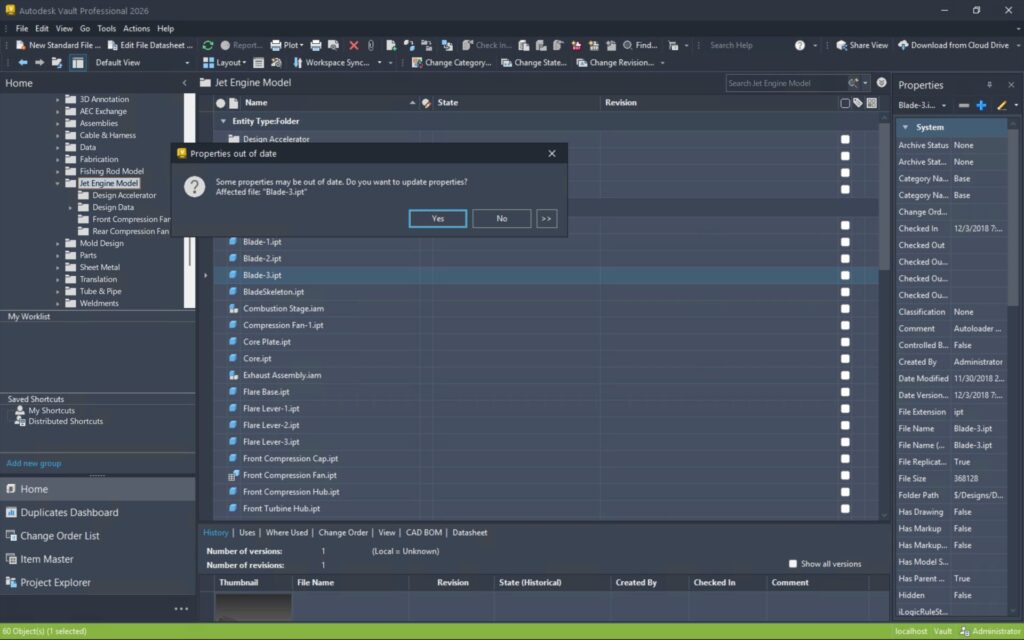
Suggestions from the Vault Community Idea Board inspired the feature.
Batch Plot Enhancement
Batch plot smarter – From 40 clicks to just 3.
Vault 2026.1 brings a revolutionary advancement to batch plotting through a markedly simplified workflow. Instead of navigating through a cumbersome process involving 40 manual clicks, users are now able to generate comprehensive drawing lists in merely three clicks by utilizing the new “Plot Related Design Representation Files” command. By selecting the top-level assembly, Vault systematically compiles all pertinent design representation files, which are then prepared for batch plotting. This enhancement not only saves time but also diminishes errors, thereby allowing your teams to concentrate on design rather than file preparation.
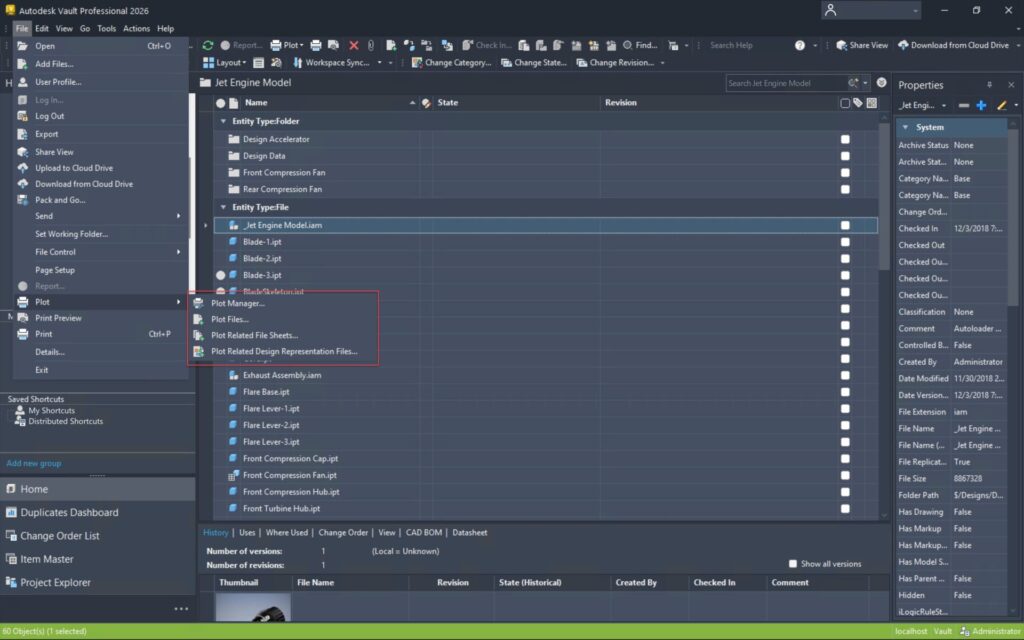
For more information, see Access the Plot Manager.
Suggestions from the Vault Community Idea Board inspired the feature.
Collaboration
Thin Client Enhancements
Resize, remember, and review faster in the Vault Thin Client.
Autodesk Vault 2026.1 presents a more innovative and efficient approach to managing file properties within the Thin Client environment. The introduction of a resizable property panel, accompanied by persistent panel settings, allows users to instantly view extended property values without the necessity to hover or scroll. This advancement not only conserves time but also mitigates frustration. Furthermore, enhanced caching substantially decreases load times when handling large assemblies, facilitating the revisitation of files without unnecessary waiting periods. The overall experience is quicker and more seamless, allowing users to concentrate on making decisions rather than encountering delays.
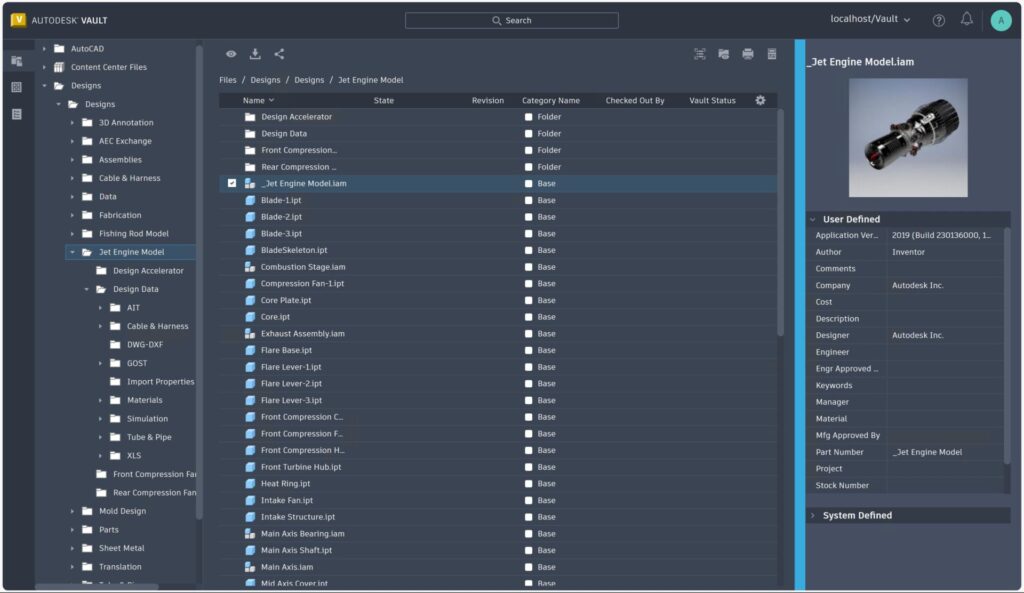
For more information, see Thin Client – The Interface.
Suggestions from the Vault Community Idea Board inspired the feature.
Viewer Document Navigation
Navigate multi-sheet drawings 30% faster in the Vault Viewer.
Vault 2026.1 introduces robust new navigation buttons in the integrated viewer for both thick and thin clients, designed to expedite the review process significantly. Users can now traverse multi-sheet drawings in the Autodesk Viewer with ease, eliminating the need for repetitive clicking or searching for the appropriate page. This intuitive enhancement enhances productivity by up to 30%, allowing teams to review documentation more expeditiously and make informed decisions with assurance. Regardless of whether one is involved in engineering, manufacturing, or quality control, improved navigation translates to accelerated progress.
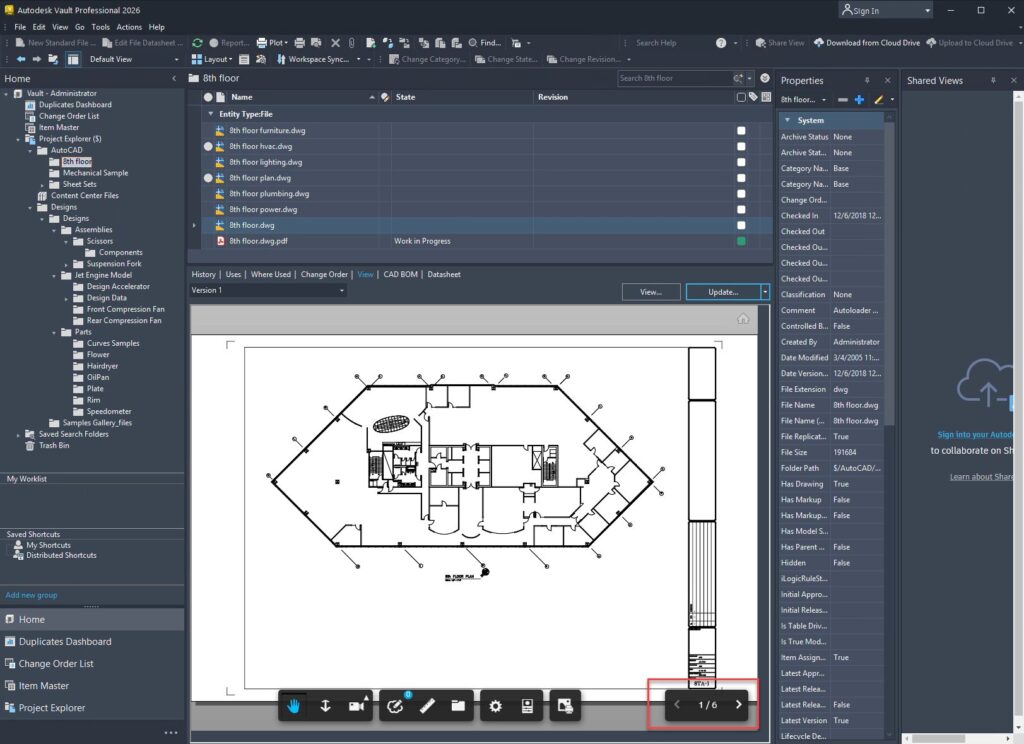
For more information, see Autodesk Viewer Tools.
Suggestions from the Vault Community Idea Board inspired the feature.
Layout View Enhancement
Bigger thumbnails, faster decisions.
Vault 2026.1 enhances the viewing experience by introducing resizable thumbnails in the Vault grid, allowing for easier differentiation between similar models and drawings at a glance. Users are no longer required to open files individually to locate the correct one. This update substantially decreases the number of clicks necessary, streamlining workflow processes and increasing productivity. With improved visuals and reduced procedural steps, users will spend less time searching and more time focused on delivering results.
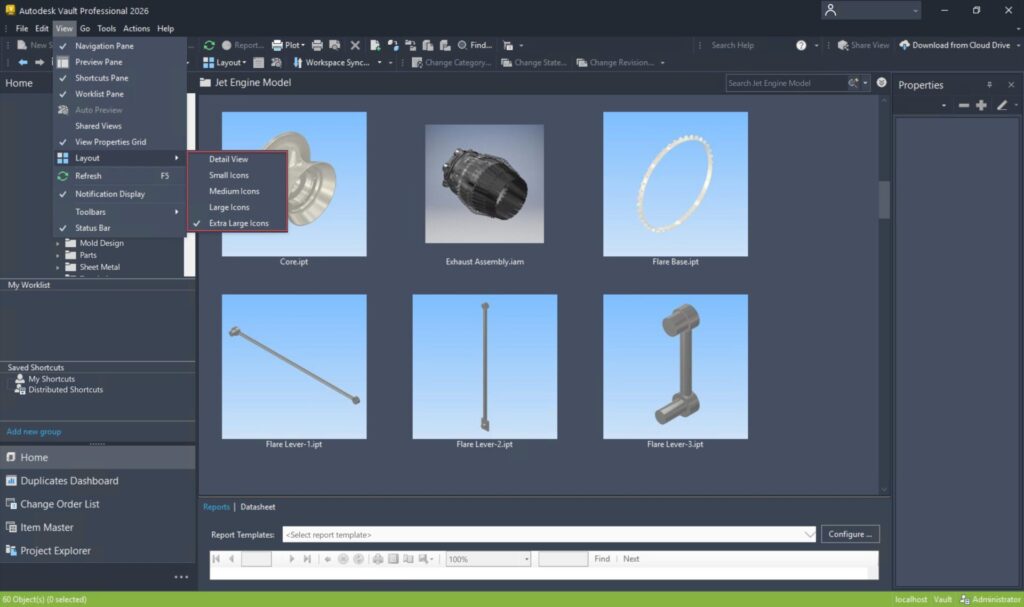
Suggestions from the Vault Community Idea Board inspired the feature.
Connectivity
Autodesk Vault Connector
Connect Vault Professional to Autodesk Fusion Manage seamlessly and efficiently.
Vault 2026.1 introduces the Vault Connector, a powerful new integration that connects Vault Professional (PDM) with Fusion Manage (PLM). This native, out-of-the-box connector, built for such solutions as Autodesk Vault PLM, streamlines enterprise workflows by automating Item and BOM synchronization, attaching neutral format files, and mapping attributes between systems. With built-in user notifications, configurable data flows, and support for many Vaults to one Fusion Manage tenant, teams save hours of manual effort and avoid costly errors. From editing Items to creating BOMs, every step is faster, smarter, and fully connected.
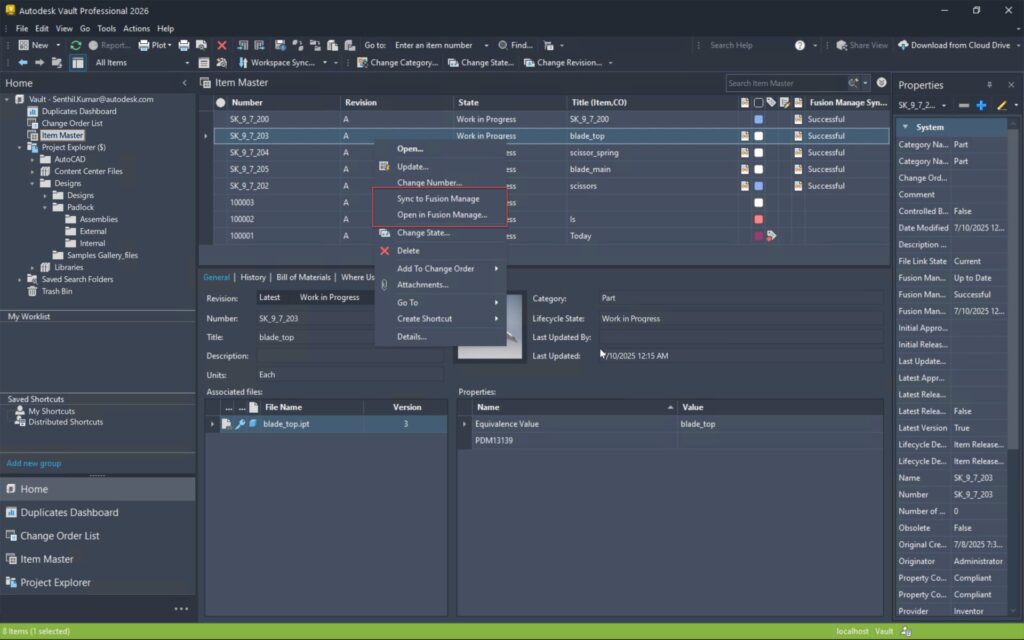
Learn more about the value of using Vault Items, here.
For more information, see: Autodesk Vault Connector
We are excited about these new capabilities in Autodesk Vault 2026.1 and how they will help you achieve more with less effort. Stay tuned for more updates!
Share your feedback
To make sure we’re working on your priorities, be sure to give us your feedback. You can join the following communities to share feedback and product improvement requests with our Autodesk Vault product team:
Vault Ideas – Submit your ideas for improvements and new features.
Vault Forums – Discuss Autodesk Vault’s current workflows with our technical teams and your peers.
Feedback Community – Test Autodesk Vault alpha and beta releases and give your feedback directly to the Vault product team.