 James Krenisky
Learn how to use rotation constraints in Inventor as well as tools like ViewCube, freeform camera rotation, and orbit tool. These techniques ensure precise component movement, enhancing accuracy and functionality in complex assemblies.
One common challenge in assemblies is achieving precise degrees of rotation for components. This is where rotation constraints become critical. Adding a rotation constraint in Autodesk Inventor is straightforward once you understand the process. Lets dive right in!
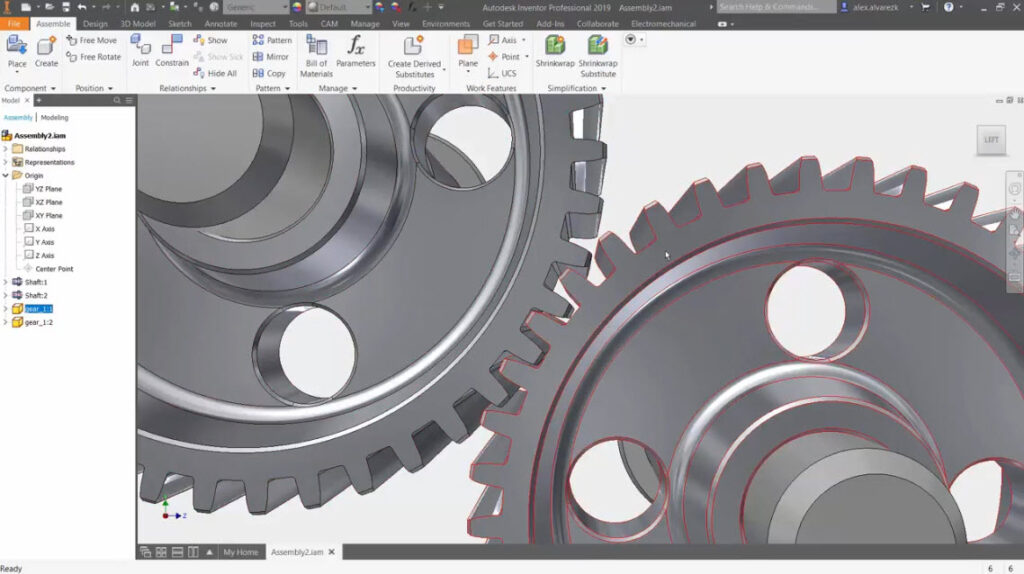
Understanding rotation constraint in Inventor
A rotation constraint in Autodesk Inventor allows you to control how a component rotates around a specific axis or within a defined plane. This is important when working with assemblies that require precise movement, such as gears or levers. With rotation constraints, components rotate only as needed, around a defined axis, preventing unwanted movement and maintaining assembly integrity. You can easily set up these constraints using the ribbon or by right-clicking the component to access constraint settings. Fully understanding rotation constraints in Inventor ensures your components move precisely and maintain accurate functionality in your model.
Applying rotation constraints
To apply a rotation constraint in Autodesk Inventor:
- Select the component you want to control.
- Right-click to access the constraint settings or use the ribbon to find the constraints tool.
- Define the rotation axis, set the angle, and adjust other parameters to meet your design requirements.
With the rotation constraint in Inventor applied, the component will rotate as specified, maintaining assembly stability. You can combine rotation constraints with other types, like position or orientation constraints, to create complex and highly accurate models. This enables parts to rotate precisely and stay correctly positioned throughout the design process, crucial for assemblies where controlled movement is critical.
Using the ViewCube
The ViewCube in Autodesk Inventor is a useful tool for rotating and orienting your view in 3D space. Located in the top-right corner, it allows you to click and drag to rotate the view, helping you see your model from any angle. The ViewCube enables quick access to standard views like front, top, or side, making it easier to position and orient parts accurately. It’s especially beneficial when working with complex assemblies, allowing you to check your model from different perspectives. Using the ViewCube provides a fast and precise way to rotate your view and achieve perfect component orientation.
There are several ways to rotate parts in Autodesk Inventor. Each method offers unique advantages for positioning and orienting components. Whether you’re a beginner or refining your skills, these techniques will help you create accurate models and assemblies consistently. Get started today!