
Reading this blog series, you might get the idea that I’ve used AutoCAD all of my professional life. Well, that’s close, but not entirely true. There were others, and most had some cool feature that I really liked and recall fondly.
When I left college, I immediately got a job using CAD that was required by the U.S. Navy programs we were working on. I have no clue what the software was, but I used a Tektronix 4014 during my second shift work. It was unbelievably slow, and the software itself was unremarkable, but the thing I remember most is the built-in cursor controls.
About 15 years later I took a job that required me to use a CAD software called VisionAEL. It ran on UNIX workstations, and had a really cool feature that I later reproduced with AutoLISP. When you copied something, after designating the second target point, you’d have the option to rotate it in 15* increments by using the arrow keys on your keyboard. So cool!
What’s my point? There are some great ideas that you can incorporate into your AutoCAD work. Fortunately, Autodesk has already created some of these, and they come packaged as the Express Tools in AutoCAD.
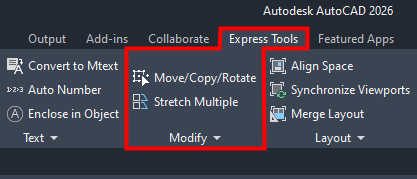
Today, I’m going to discuss a couple of favorites. One that packages multiple functions together, and another that extends the functionality of the original command. You’ll find them in the Modify panel of the Express Tools tab of the ribbon.
MOCORO
The first is officially called MOCORO, short for MOve – COpy – ROtate. I alluded to it back in a post I did about Insights, but I never explained it, so here it goes. First of all, it’s slightly mis-named. It also lets you change the Basepoint and Scale, but I imagine the powers that be thought the way MOCORO rolls off the tongue is better than MOCOROBASC.
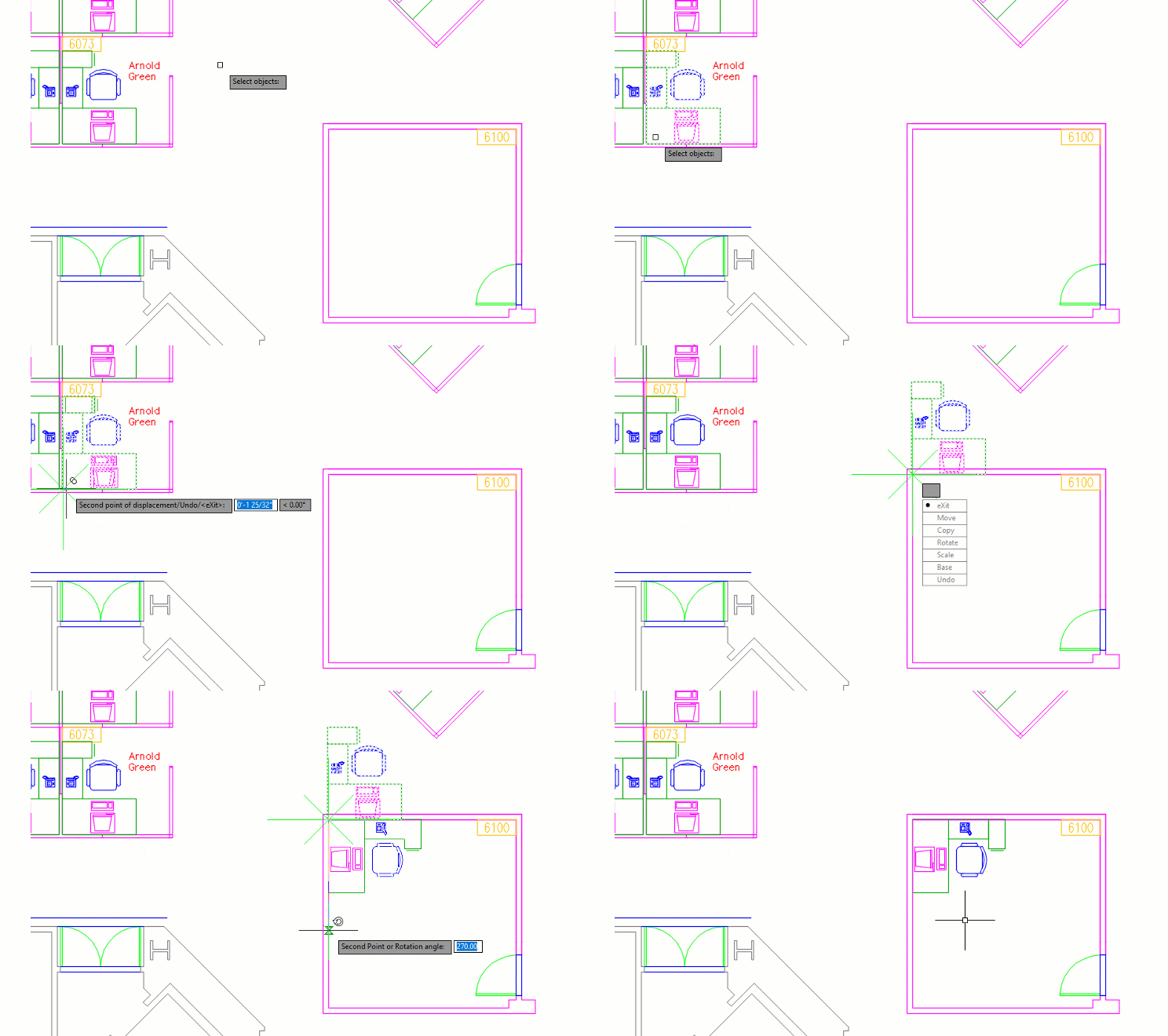
In any regard, below you can see an animation of how it works. Let’s say our task is to copy the furnishings from Arnold Green’s office number 6073 into the empty 6100 office, but aligned for the upper left corner. Your conventional move might be to copy the desk, chair, and equipment into the new office space, then rotate them, and then move them to the corner.
That’s way too much work for this lazy old drafter. Let MOCORO help you out. After each operation, you’ll get a drop-down menu (as long as you have Dynamic Input turned on) where you can choose your next function. Below, I launch MOCORO, select the objects, specify the corner, choose the rotate function next, and position it accordingly.
Each time I complete an operation, the options reappear, enabling me to choose another operation using the same selected object and basepoint. If needed, however, I can change the basepoint by selecting the Base option. Select Exit when you’re done.
MSTRETCH
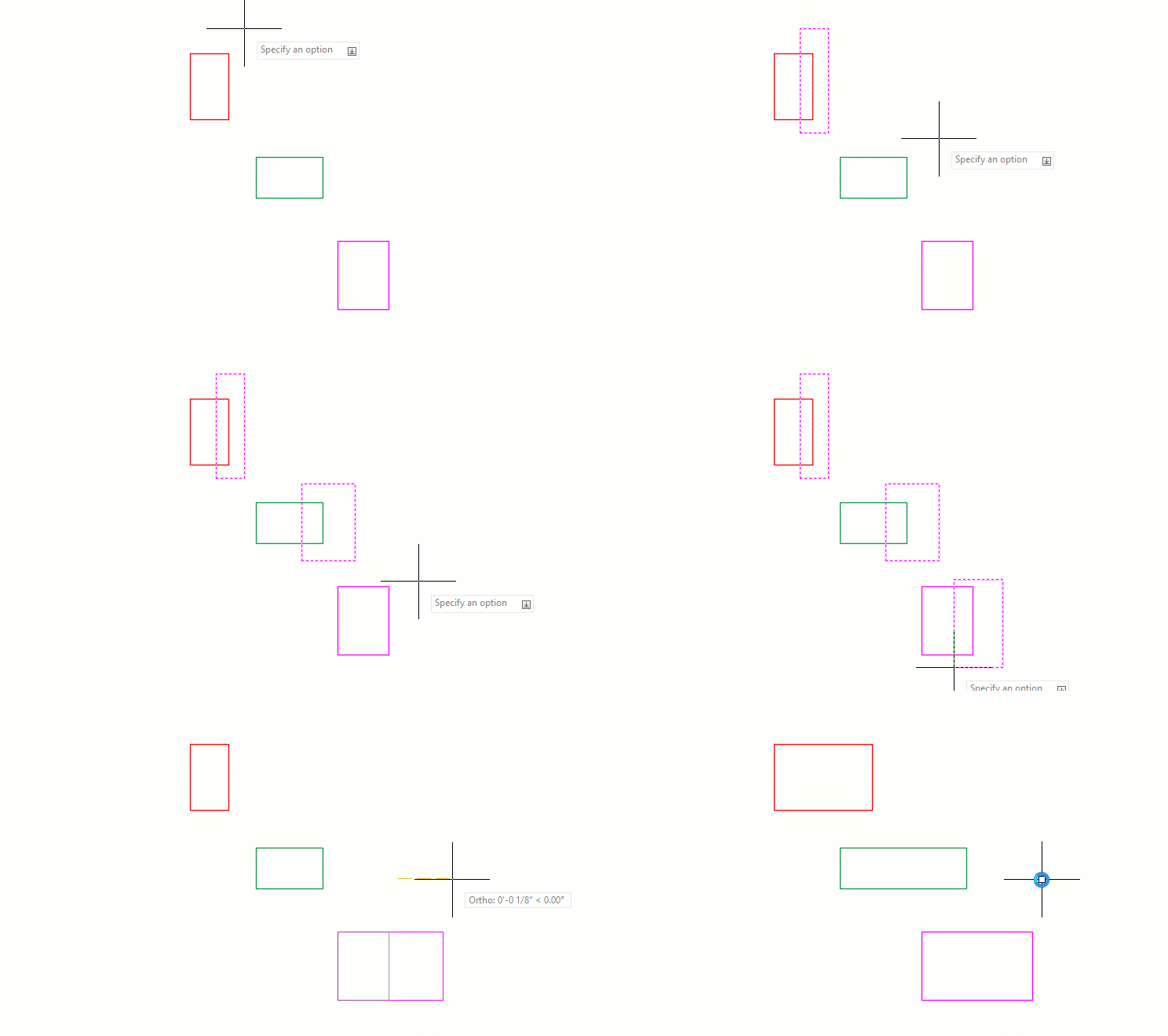
Next up is MSTRETCH. This command enhances the stretch command by allowing you to select multiple objects to stretch. To demonstrate, I’ll use three rectangles that all need to be stretched by the same amount. We’ve all learned from our early days using AutoCAD that the Stretch command requires a crossing selection.
Short of remembering the CP selection option, stretching these three rectangles would require three stretch operations. The animation below will show you how the Stretch Multiple tool can help out.
Final Thoughts
AutoCAD has plenty of cool features sprinkled throughout the Express Tools. Way back in my first year of writing these Tuesday Tips, I wrote about finding them (and more). Don’t forget to expand the five panels in the Express Tools tab that have additional tools in their pull-down menus. Until next time!
More Tuesday Tips
Check out our whole Tuesday Tips series for ideas on how to make AutoCAD work for you.