
When you’re learning AutoCAD, some topics don’t always go very deep. MText is one of those. A new user will learn how to create new text objects, along with the basics of editing and formatting them. Quite often, these topics will be covered in a Basics or Essentials course, with the deeper dive tucked away in a future Advanced course.
Often, too, is the fact that many (if not most) users never make it to the advanced course. If that’s you, today’s post is going to look at a few of the more useful MText editing tools.
Format fractions and tolerances
While lettering in the olden days of board drafting, fractions were always expressed inline – or what we would now call horizontal. Today, we have the option of using a stacked fraction as well, with your choice of slash style. Just make sure the method you choose is in accordance with your published CAD Standard, please.
Start by creating a new MText object (or edit an existing one). In the In-Place Text Editor, type the numerator (for example, 1). Then type one of these special characters:
– Forward slash (/) for a horizontal fraction
– Number sign (#) for a diagonal fraction
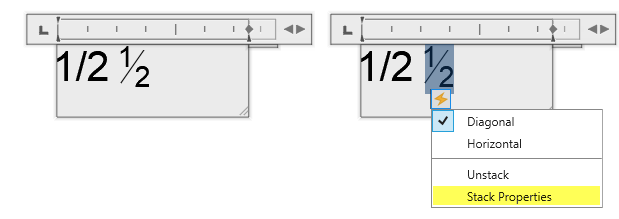
Follow it immediately with the denominator (for example, 2) and press the Spacebar or another valid character. The text stacks automatically, and a lightning-bolt icon appears next to it.
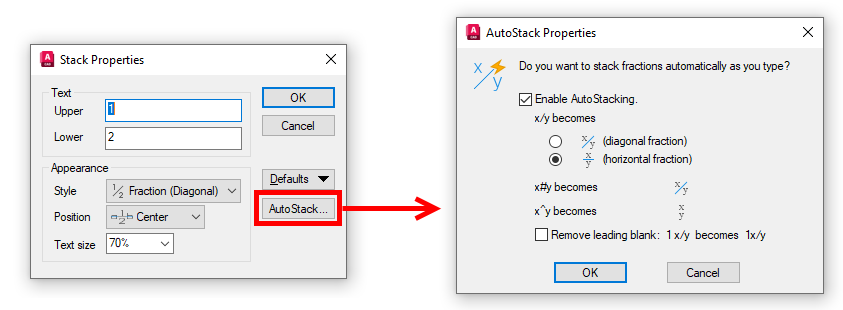
Click the lightning-bolt icon to adjust the stack: switch between horizontal and diagonal styles, open Stack Properties to fine-tune size and alignment, or align decimal points for cleaner tolerance displays. You can also right-click the stacked text and choose Stack Properties for more control.
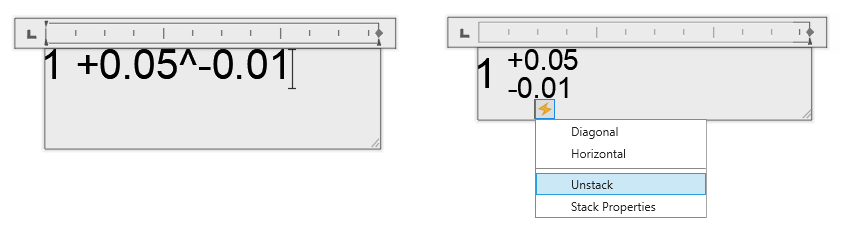
For tolerances, type a numeric value, a caret (^), and the second value – such as 1 +0.05^-0.01 and then press Spacebar. The caret creates a tolerance stack with no dividing line. Use the lightning bolt icon to unstack the tolerance if you need to.
These tools let you produce professional-looking fractions and tolerances directly in the text editor without extra steps or external workarounds.
Convert your text to a list
It’s also easy to create Numbered, Lettered, or Bulleted lists. I’ll use a numbered list in my example, but once you get it, the others are just as easy.
If the Text Editor is still active, select the text you want to convert. If not, double-click the MText object to open the editor and make your selection. On the Text Editor contextual ribbon tab, go to the Paragraph panel and click the Bullets and Numbering drop-down menu. Choose Numbered. (or, as I said, Lettered or Bulleted).
Note that list formatting only works when the Allow Bullets and Lists option is enabled. After the list is applied, adding new items is straightforward: place the cursor at the end of an existing item and press Enter. The numbering updates automatically.
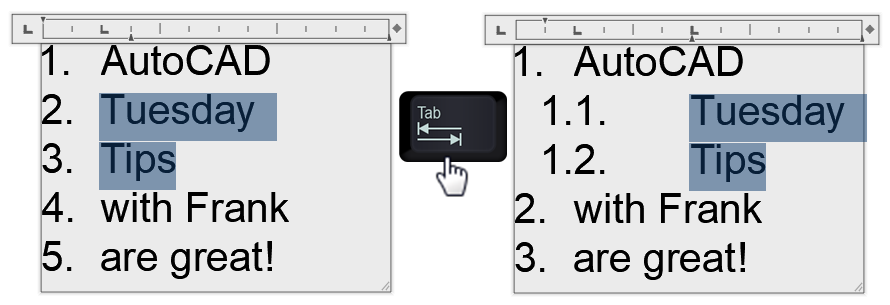
I told you it was easy. How do you create sublists, you might be asking? Again, it’s easy when you know how. Select the text that you want to turn into a sublist, then press the Tab key on your keyboard. The selected text will indent and renumber.
What if you chose the wrong text, or you get a redline back telling you to remove the sublist? Again, easy. Select the text in the sublist, and this time press Tab and Shift at the same time. The list will return to its original condition.
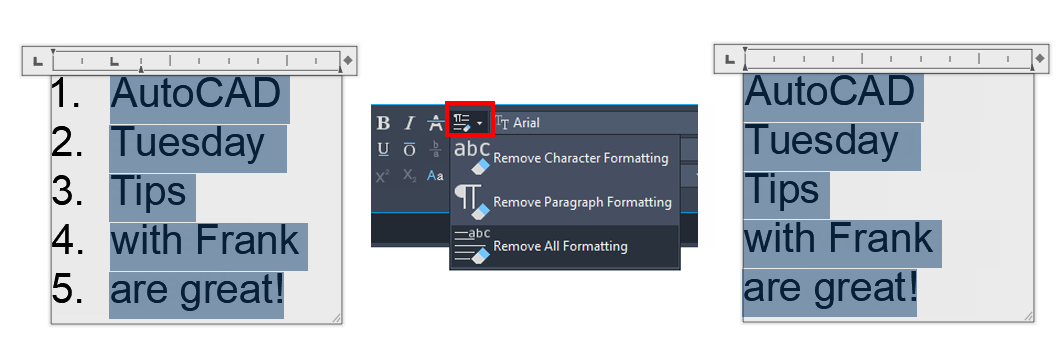
Do you need to remove the list (or bullets, or letters) entirely? From the editor, select the text to remove the formatting from, then expand the Clear Formatting pull-down menu from the contextual ribbon (as shown in the image below). Click on Remove All Formatting to remove the numbering from your text object.
Insert images into your MText
Many symbols are automatically inserted when you create them. The diameter symbol comes to mind when you create a Diameter Dimension. Most of the time though, you’ll need to enter a special symbol into an MText string yourself.
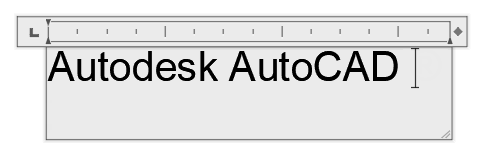
Let’s say you need to add the little “circle R” symbol when you reference something with a registered trademark. In our example, we’ll use everyone’s favorite CAD program.
Place your MText editor cursor at the point where you want the symbol to be inserted. In our case, right after the word AutoCAD.
Now, from the contextual ribbon, click on the Symbol drop-down menu. At the top, you’ll get the big three, Degrees, Plus/Minus, and Diameter. Notice the %%x after each. Back in the day, we had to remember these codes in order to place the symbols into our text. I’m glad times have changed.
Below those are the most commonly used symbols, followed by their Unicode number. If what you need is in this list, simply click on it, and it will appear at your cursor. If not, you’ll have to find it in the character mapping for the font. Click on Other at the bottom of the dropdown, and the Character Map dialog will display. Find your symbol, click on it, then click on the Select button.
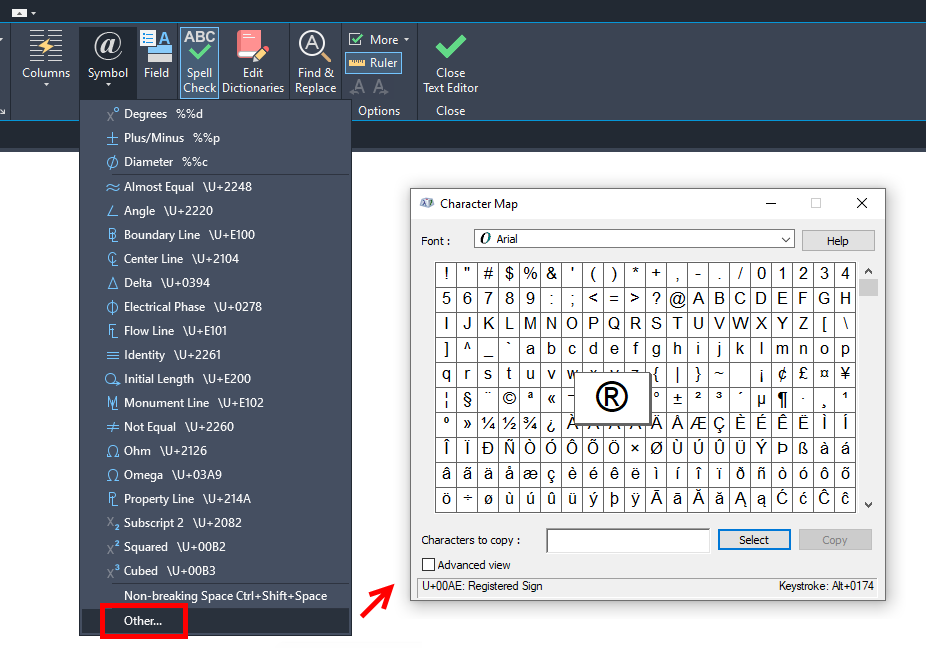
This workflow differs, as you’ll be copying your symbol(s) to the clipboard instead of inserting them via the dialog. Click Copy to do this. Dismiss the dialog with the X in the corner, then paste at your cursor location.
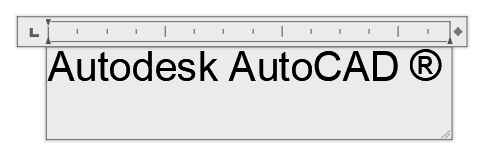
That’s it!
There you go. Three workflows that aren’t in most beginners’ coursework. It would be smart to take some time to go through the other tools in the menu that you may not be familiar with. Maybe you’ll find that one tool that you need, but didn’t even know existed.
More Tuesday Tips
Check out our whole Tuesday Tips series for ideas on how to make AutoCAD work for you.