
When working in AutoCAD, you’ll likely modify or duplicate objects more often than create new ones. To modify and duplicate objects, AutoCAD offers a wide range of options to select objects, giving you the flexibility to meet your needs. Today, we’ll look at a few ways to select, modify and duplicate objects. For the full tutorial, check out the AutoCAD Foundations article. Let’s start with a few quick tips to get you started.
How to Select Multiple Objects
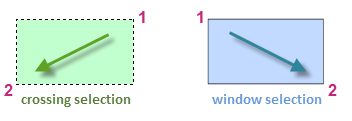
First things first! You’ll need to select objects before you can modify or duplicate them. You can select multiple objects in an area by clicking an empty location (#1 in image), moving your cursor right or left, and then clicking a second time (#2 in image ).
Based on the direction you select objects, you define a crossing or window selection. With a crossing selection, any objects within or touching the green area (in image below) are selected. With a window selection, only the objects completely contained within the blue area (also illustrated in image below) are selected.
How to Erase Objects in AutoCAD
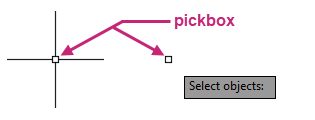
As a design evolves, some objects that were previously added may no longer be needed. To remove an object, first select it by positioning the pickbox over the object and clicking. The pickbox appears at the center of the crosshairs when no command is active, or as a simple square cursor when a command is active and you’re being prompted to select objects.
When objects are selected, they form a selection set, which is the group of objects that will be removed.
Quick Tip: The most recently erased objects can be restored with the OOPS command. So if you created or modified any objects after erasing objects, those erased objects can be restored without undoing other recent changes.
How to Move Objects in AutoCAD
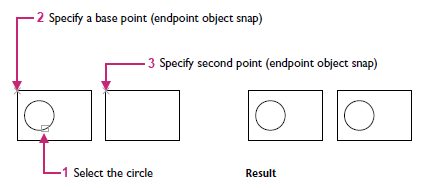
Moving objects in a drawing is one of the most basic ways to modify objects. Simply select the objects to be moved and then specify a base point followed by a second point to determine the distance and direction of the move.
How to Duplicate Objects in AutoCAD
You will often want to duplicate and reuse elements of your design. To do this, follow the same steps used to move objects: select the objects you want to duplicate, then specify two points to define where the new objects should be created.
Advance to New Levels
This just scratches the surface of selecting, modifying, and duplicating objects in AutoCAD. Get to the next level by learning how to rotate and scale; offset; mirror; trim and extend; fillet and chamfer; stretch; and more in the AutoCAD Foundations: Select, Modify, and Duplicate Objects article.