
A hatch covers a specified area with a pattern, solid color, or gradient fill to identify a material such as concrete, steel, or grass. And it’s a cinch to add a hatch to your drawing.
Today’s installment of the AutoCAD Foundation series gives you an easy step-by-step guide on how to add hatch to a closed area.
Make a Hatch in AutoCAD
When you start the HATCH command, the ribbon temporarily displays the Hatch Creation tab. On this tab, you can choose from more than 70 industry-standard imperial and ISO hatch patterns, along with many specialized options.
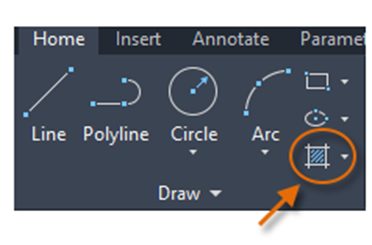
The simplest procedure is to choose a hatch pattern and scale from the ribbon and click within any area that is completely enclosed by objects. You need to specify the scale factor for the hatch to control the pattern’s size and spacing.
How to Use Hatches in AutoCAD
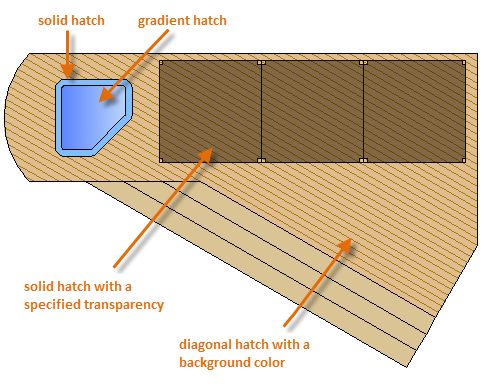
Here are some examples of how you can use hatches:
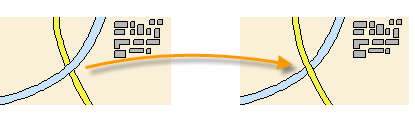
For overlapping hatches, fills, wide polylines, and text objects, use the DRAWORDER command to determine which objects are on top or below. For example, you probably want the yellow highway to cross over the blue river rather than the other way around.
Keep Going
To learn more about hatches, check out the full Place Annotation and Hatch Closed Areas AutoCAD Foundations article that also includes how to add text annotations.