
CAD standards are the lifeblood of efficient drafting and design. Whether you work in an office of hundreds or it’s just you, CAD standards make your drawings more consistent. The CAD standards tool makes it easy to audit and even fix your standards right from within AutoCAD. Let’s walk through how to set it up, run checks, and keep your drawings on point.
Getting Started with CAD Standards
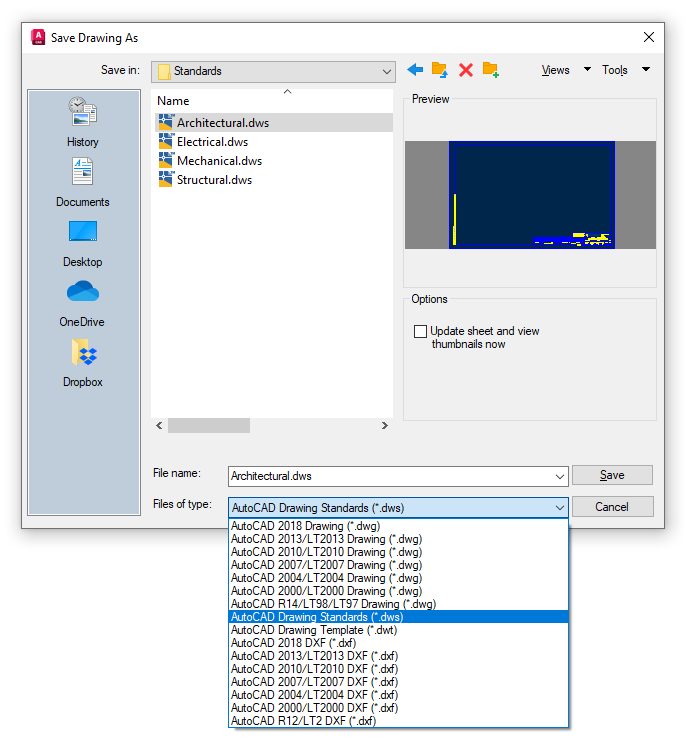
The standards checker consists of two parts: the standards file and the configuration tool. You may already have a file that houses your CAD standards, as your template probably contains all your correct layers, linetypes, and styles. Simply save that file with a DWS extension or create a new one that contains your standards. If you work in a multi-disciplined environment, you can even have multiple files, perhaps one for each discipline, such as architecture, structural, or MEP.
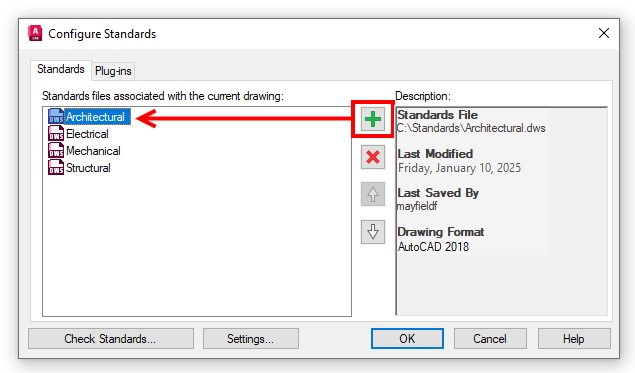
Once you have created your standards file(s), click on the Manage tab on the ribbon and select Configure in the Standards panel. This opens the configuration dialog where you can attach your DWS file(s). You can add multiple files and prioritize them by reordering—the top file takes precedence during audits. Like an Xref, these files stay attached until you remove them, so consider adding them to your templates for maximum efficiency.
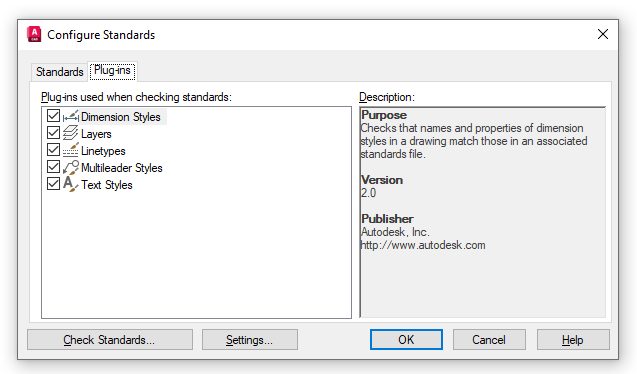
In the Plug-ins tab, select what you want to audit: Dimension Styles, Layers, Linetypes, or Text Styles. Check or uncheck as needed; the description box spells out precisely what each plug-in inspects.
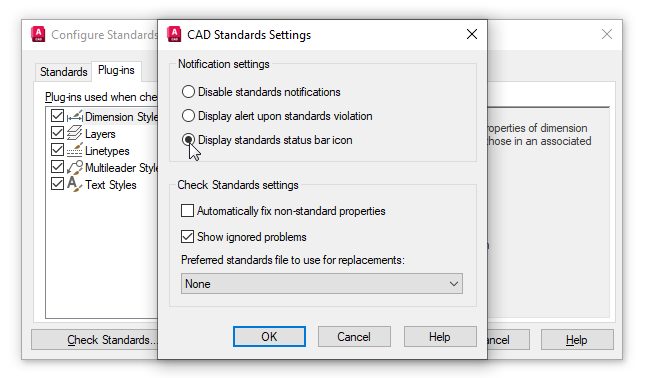
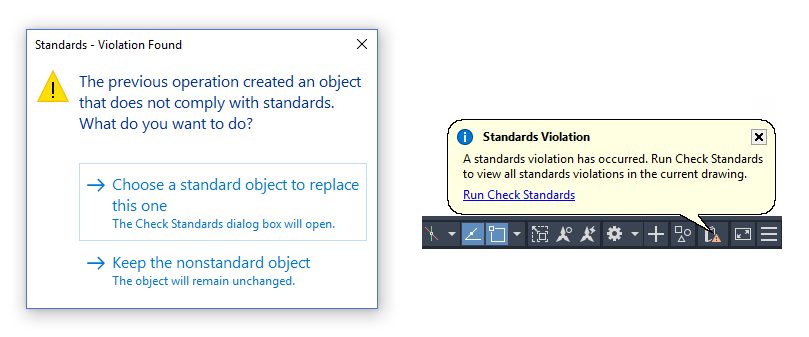
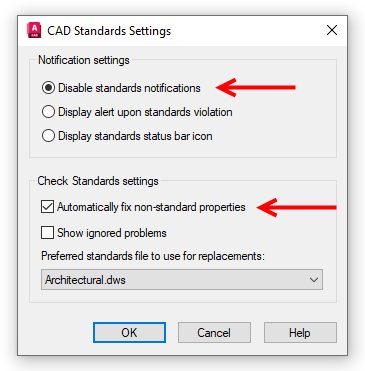
Finally, you’ll want to configure what actions happen when a standards violation is found. When you click on the CAD Standards settings button, you’ll get a dialog where you can choose how, or if, you’d like to be notified of a violation, and what you want to do when a violation is found.
Running the CAD Standards Checker
To check your drawing vs. the standards file, click Check in the Standards panel or use the Check Standards option in the configuration dialog. The Check Standards dialog lists any issues, suggests fixes based on your DWS file, and lets you fix, ignore, or skip to the next problem.

The audit checks both the named object, such as the layer or style name, and its properties. Choosing to fix a non-standard name will not only change the object’s name but also purge the bad name from the drawing. If the violation should be with a property of the named object, such as the color of a layer, it will simply fix the property.
If notifications are enabled, you’ll receive an alert or status bar balloon when a violation is detected, either during a check or when opening a drawing with an attached DWS file.
Another Perspective on CAD Standards
We’ve looked at this so far from the perspective of enforcing office standards. While it certainly helps with that, let’s think outside the box for a minute. Let’s assume your office hums when it comes to standards. Everything is built into your custom tools, and your company template is perfect.
One day, you get a batch of as-built drawings from the client. You are to use them in your project, but they’re not even close to your meticulously crafted CAD standards. Now what? You could assign the summer intern to scrub them all into your standards, but that would take way too much time, perhaps a whole week. Interns come cheap, not experienced.
Then you remember reading this Tuesday Tip. Donning your superhero Captain CAD cape, you make a copy of your company DWT file, rename the copy’s extension to DWS, and apply it to each as-built. You specify the settings to automatically fix non-standard properties and disable notifications, and just like that, you’re probably at least 90% done with your task.
When you’re done, detach the DWS file, Save (of course), and delete the evidence when they’re all done (the copied DWT that became the DWS). Don’t forget to hang up your cape before you tell the boss that you took care of the conversion in a few hours, not days. Now, you’ve just set a perfect example of working smarter, not harder.
Summing It Up
Whether you’re dealing with that rogue cowboy in your office who likes to use their favorite colors or fonts, or if you’re converting another drawing to your office standards, CAD Standards maintain consistency, accuracy, efficiency, and project your company drawings’ professionalism.
The CAD Standards Manager is like a modern AI assistant that you can rely on to keep your drawings streamlined and accurate. It may not be something you use all the time, but knowing about it can help you become the office power user, or even your version of a Captain CAD Superhero (cape not included).
More Tuesday Tips
Check out our whole Tuesday Tips series for ideas on how to make AutoCAD work for you.