
Objects in a drawing share several general properties that determine their appearance. These include color, linetype, linetype scale, lineweight, and more. Properties, such as color and linetype, can be changed per individual object or across many objects with the use of layers.
In our next installment of the AutoCAD Foundation blog series, we have a quick tip on how to change AutoCAD object properties. For the full tutorial on changing object properties and using layers, you can check out the AutoCAD Foundations article.
How to Change AutoCAD Object Properties
All objects that you create have properties. Object properties control the appearance and geometric characteristics of an object. The general properties that are common to most objects are as follows:
- Color
- Linetype scale
- Hyperlink
- Layer
- Plot style
- Lineweight
- Linetype
- Thickness
All other properties are object type specific.
When objects are selected, you can use the Properties palette to verify and change property values. If you select an object in your drawing, here is what you might see in the Properties palette.
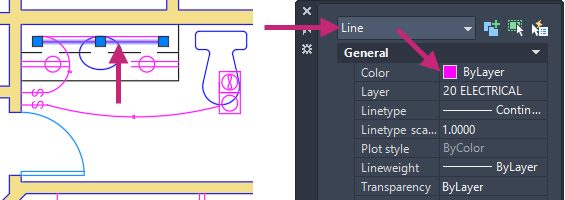
Notice that the current properties for the selected object are displayed in the Properties palette. You can change any of these properties by clicking it and changing the value. A property that is set to “ByLayer” inherits its value from its assigned layer. In the previous example, the line object’s color of magenta is inherited from its assigned layer of 20 ELECTRICAL.
If you select several objects, only their common properties are listed in the Properties palette. If you change one of these properties, all selected objects are changed in one operation.
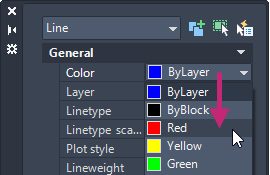
When the Properties palette is displayed and no objects are selected, the current property values are of those to be assigned to newly created objects. Property values listed as ByLayer, indicate properties that inherit their values from the layer to which the object is assigned. For example, changing the Color property value from ByLayer to Red causes all subsequent objects to be assigned the Red color which overrides the value of the assigned layer.
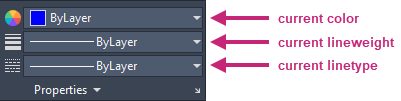
The Properties palette takes up a lot of space. For quick access to the most common properties, you can use the Properties panel on the ribbon. As you can see in this example, the listed properties will all be determined by the current layer.
Keep Going
There’s much more to learn about object properties and layers. Check it out in Change Object Properties and Organize Objects with Layers: AutoCAD Foundations.