There’s nothing I love more than presenting an exciting topic to our Tuesday Tip readers, so today I’m talking about AutoCAD Dimension Settings. By my count, there are 95 dimension variables. So, sit back and relax, as I work my way through them all.
I’m kidding. I’ll be touching on very small percentage of what I consider to be some of most important. Plus, I’ll be using their description from the Modify Dimension Style dialog, instead of the actual dimension variable name.
To be honest, most of us never think about the variables that make up your dimension style. And, if set up right, there should be no reason for you to do so. Outside of choosing a different style to use, you may not even be aware of what the Modify Dim Style dialog looks like.
If that’s you, you’re in luck. The animation below cycles through the seven tabs at the top of the dialog. You should also note that in each tab, there is a preview box in each, always in the same place, the upper right corner. If you’re of a certain experience level like me, you’ll know what a big deal that is.
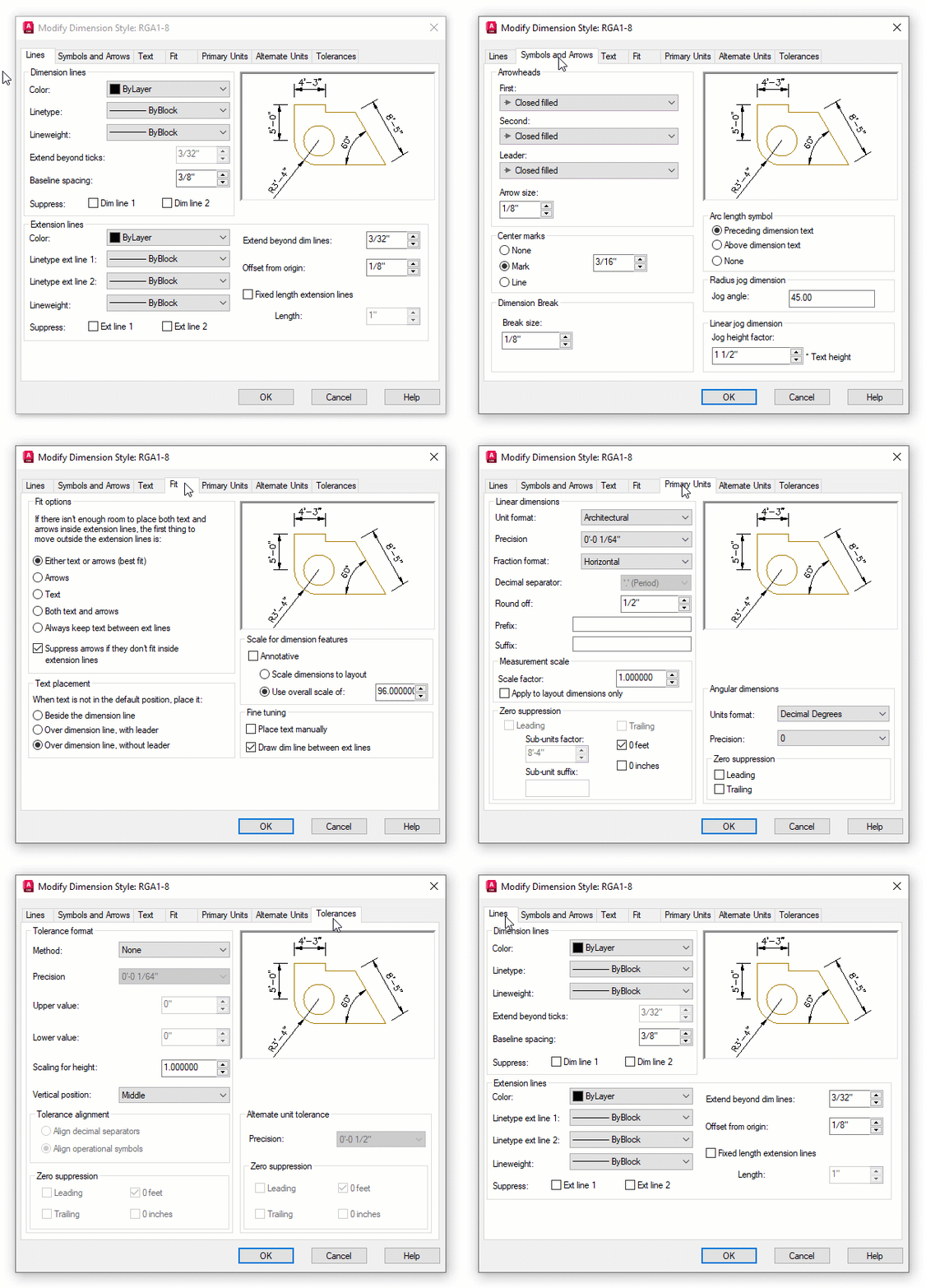
The Important Stuff About AutoCAD Dimension Settings
I’d say at least 90% of the AutoCAD Dimension Settings you’ll find in the Modify dialog control what the dimension object looks like. What terminators are you using? What’s the gap between the object and the dimension line? Where and how is the dimension’s text place? Things like that. Others control how they function, and the settings I’ll be talking about fall into that category.
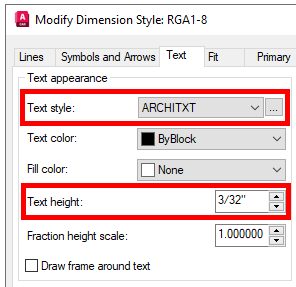
First, in the Text tab, is the text style. The currently active text style may not necessarily match the style that the dim style uses. They are not connected, so it’s important that they match – if that’s what you want. I’ve seen it both ways (usually matching). I’ve been around the CAD block long enough to have worn a path, so in general, I’ve seen it all – or at least a whole lot.
Below that, you’ll find Text Height. This setting goes directly to your CAD Standard. It’s the actual height of the dimension text. 3/32” and 1/8” are extremely common when using Imperial units.
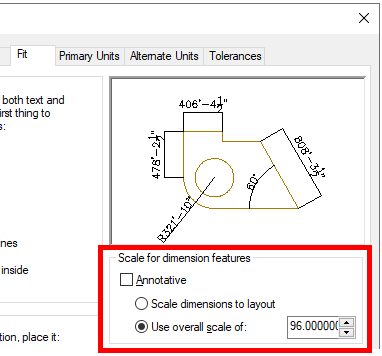
The next two settings are directly responsible for how your dimensioning method functions. The oldest method (yet still in use today), is to place your dimensions into model space, scaled up to the intended plot scale of the model, where the scale is the inverse value of the drawing’s scale. For instance, if the scale is to be 1/8”=1’-0” when plotted, the inverse scale would be 96. That’s the overall scale setting that we see in the next image. That means all of your dimension features get scaled up 96 times, so that when it gets plotted to scale, everything will be the right size.
Like I said, that method is about as old as AutoCAD itself, literally before paper space, so all we had was scaling up the dimensions in model space (which didn’t even have that name until paper space came along). It was either that, or draw the model to scale as you would have done in the days of board drafting. Not really an optimal solution.
Now we have more modern methods. If you want to use Annotative dimensions, this is where you’ll set it to do so. Checking the Annotative box will disable the two radio buttons below it.
If you want the scale of the paper space viewport to control the feature scaling, choose the top radio button. If you want to go old school, this is where you’ll enter the scale value.
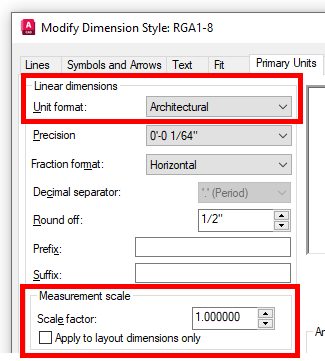
The next one is found in the Primary Units tab. This is typically a point of confusion for new users. Quite simply, the units used in your dimension style do not automatically correspond to the overall units defined in your drawing. If you want them to match, which you probably do, you have to set them here as well.
At the bottom is Measurement scale. Typically, since you’re drawing at 1:1 scale, you’ll leave this at 1.0. But if your drawing is drawn to scale for some reason, let’s say it’s a tiny part, and you’ve scaled it up 2x, you’d want to set the scale factor to .50
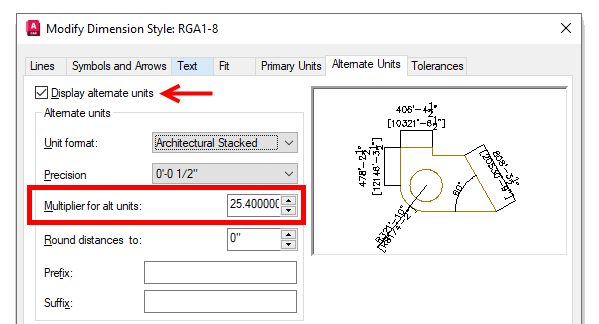
Do you use Alternate Units in your dimensions? If you do, chances are that it’s probably metric. You’ll need to turn the feature on in the Alternate Units tab using the checkbox at the top. Then make sure the multiplier is set correctly. By default it’s already set to 25.4 for metric. If you’re using something else, this is where you’ll set that value.
One More Thing About AutoCAD Dimension Settings
There’s one other dimension variable that is very important, but it’s not part of your dimension style. It’s a system variable called DIMASSOC. It can be set to either 0, 1, or 2. The default is 2. That means that the definition points of the dimension object are associated to the object’s geometric points. Stretch the object, and the dimension updates.
A setting of 1 does not associate the dimension to the geometry, and 0 (zero) creates in essence an exploded dimension. I’m not sure why you’d want to do that, but you do you. This variable is saved in the drawing, so it’s not one of those set it once and it stays that way.
Looking Ahead
For my next Tuesday Tips, I’ll be looking at editing existing dimensions. In fact, while discussing dimensioning variables here, along with various methods, I’ve got another topic in mind for you. After that, I’ll discuss some of the more important things you should find in your CAD Standards, so stay tuned!
More Tuesday Tips
Check out our whole Tuesday Tips series for ideas on how to make AutoCAD work for you.