
There are times when I discuss customizing AutoCAD, and I often receive a response similar to: “Oh, but I’m not a programmer.” No, no, no, you don’t have to be a programmer to set up AutoCAD to fit your workflow better, or in some cases, improve it.
With that said, I present to you my list of top AutoCAD customizations for non-programmers. In this two-part series, the first 10 are included today. In no particular order, let’s kick it off.
1. Quick Access Toolbar
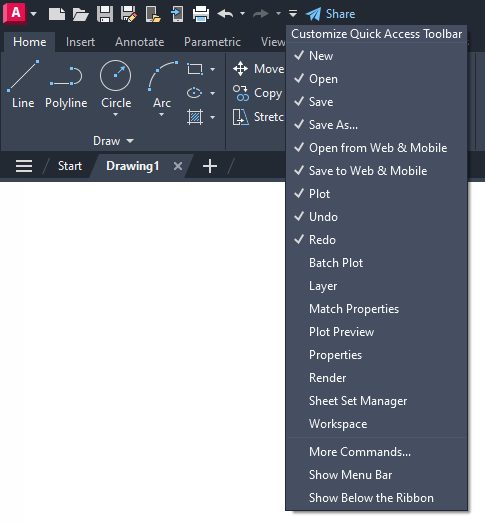
Keep your most frequently used tools in the Quick Access Toolbar (QAT) at the top of your screen. Customize the QAT by clicking the small, pull-down control button on the right. You can check and un-check the commands you want quick access to.
For a fast way to add a Ribbon command to the QAT, right-click any command icon on the Ribbon, and then select Add to Quick Access Toolbar from the pop-up menu. Similarly, right-click on any Quick Access Toolbar item to remove it.
2. Clean Screen
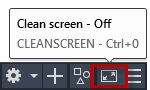
Need to max out your screen space? CTRL-0 is your friend. The Ribbon and Palettes will be hidden, and AutoCAD will maximize to fill the entire screen. The QAT will remain on, so make note of the previous tip.
CTRL-0 again to toggle it back. Of course, you can use the icon on the status bar as well.
3. Anchor Palettes
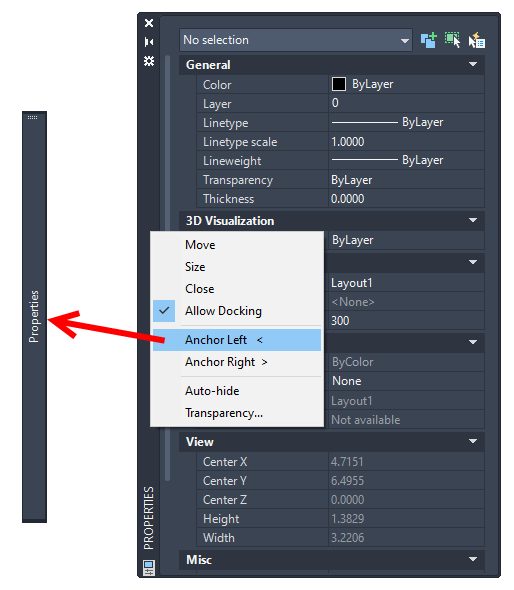
AutoCAD’s many palettes are wonderful productivity enhancers, but not so great when they get in your way. Keep your favorites available with a simple mouse rollover by anchoring some left and some right.
They take up almost no space when anchored, so you can still access their functionality while keeping your drawing editor clean and visible.
4. Right-Click Delay
Do you still use your mouse right-click as Enter? If you’re not using the contextual pop-up menus when you right-click, you’re missing out on one of my favorite productivity enhancements.
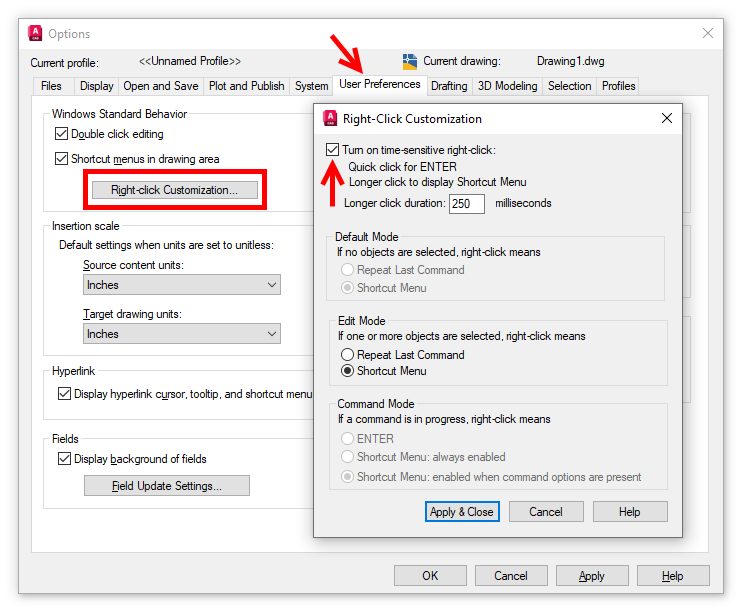
If you just can’t give it up, you can still have the best of both worlds by utilizing the time-sensitive right-click feature.
You’ll find its control in the Options dialog, and when enabled, right-click will still function as you prefer, but now, by holding down the mouse button just a little longer, you’ll get the contextual pop-up menu instead.
5. Command Alias
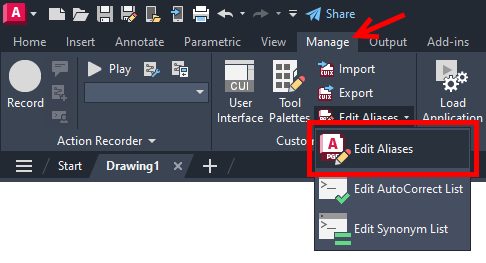
An AutoCAD command alias is a shortened name or abbreviation of a command name. Don’t like a default alias name? Change it! It’s easy. For example, a lot of people prefer C to be Copy instead of Circle. Does one of your often-used commands not have an alias? Add it yourself.
Aliases live in a file called acad.pgp. And here’s the thing – it’s your .pgp file, not anyone else’s, so you can define them as you please.
I’m a firm believer that using aliases and keyboard shortcuts, in conjunction with not taking your eyes off your work, is the best way to increase your speed and efficiency. Personally, I like to keep my most-used aliases mapped to the left side of the keyboard. That way, I don’t have to take my hand off the mouse or my eyes off my work to find a letter on the right side of the keyboard.
6. Places
Stop wasting time by continually navigating multiple levels of folders in the File Open dialog box. Once you get to your folder, add it as a new entry in the Places pane of the Open dialog.
Click on “Tools” in the upper-right corner, then select “Add Current Folder to Places.” A new icon will appear with the name of the folder. Now you can click on your new Place to jump right to that folder.
If you find that you have multiple icons with the same name – “CAD,” for instance – just right-click on the icon, select Properties, and change the name to something that makes more sense, such as the project name.

7. Ribbon States
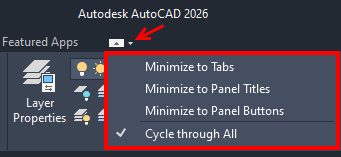
The Ribbon doesn’t have to take up so much real estate. You can minimize it down to either panel buttons, panel tabs, or just titles. Decreasing the Ribbon’s footprint doesn’t affect its functionality, and it may just improve yours.
8. Floating Editor
Have you ever had to work on one drawing while referencing another? You might want to take advantage of pulling your file tab off of the application, and to another location (such as another monitor).
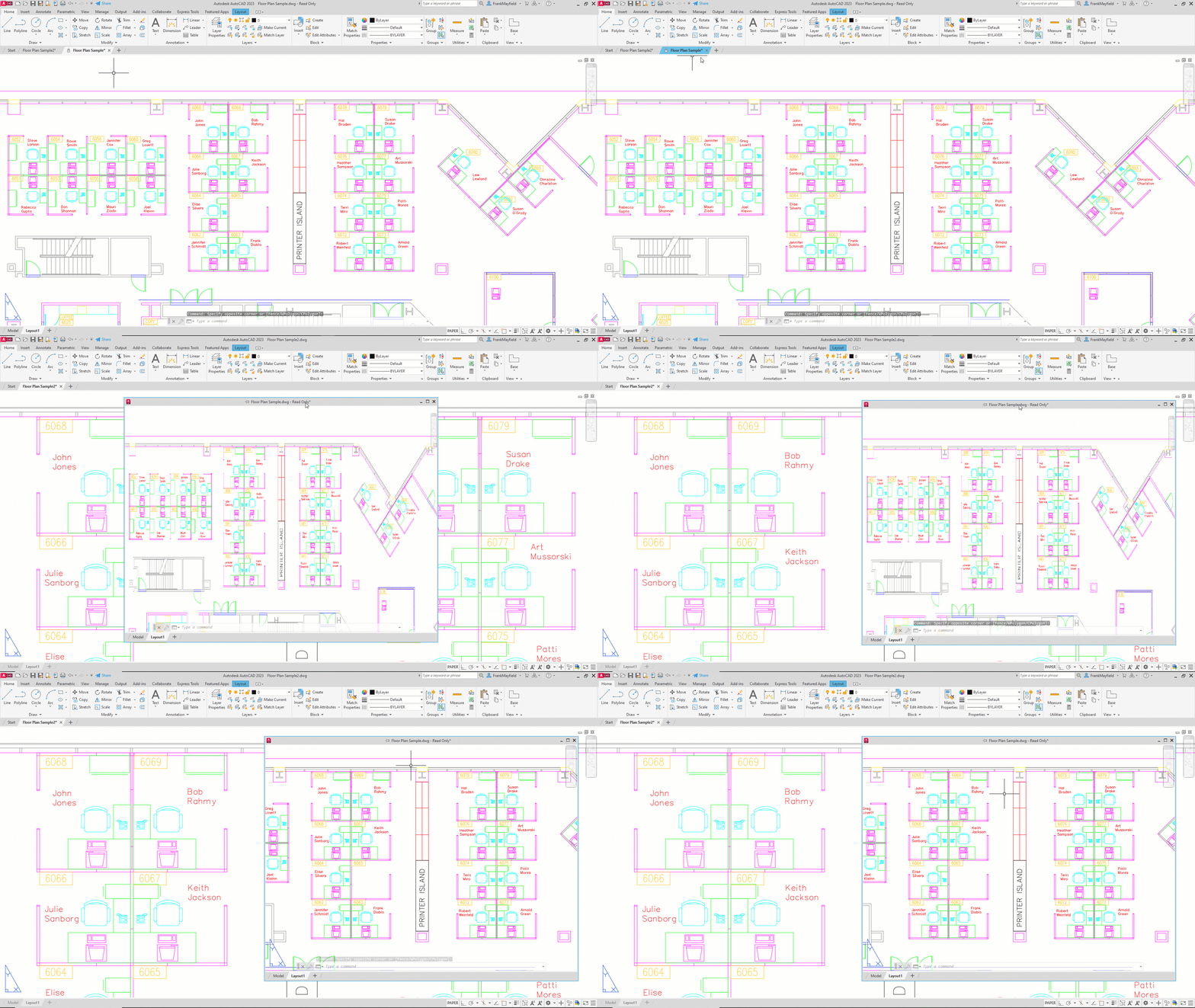
Don’t worry about losing any functionality either. The floating window has its own Command Line, and you can still use the Ribbon and Quick Access Toolbar from the main application while in your active floating window.
When you’re done, use the title bar to drag it back to the file tabs area, or if you prefer, you can right-click the title bar, where you’ll find commands to either move it back.
9. Multiple Workspaces
Do you work in multiple ways in AutoCAD? One day, you’re doing schematic drawings, such as wiring diagrams, and the next, you’re laying out 3D piping.
Set up a separate workspace for your various workflows, containing the tools and palettes you need for the job.

10. Command Line Options
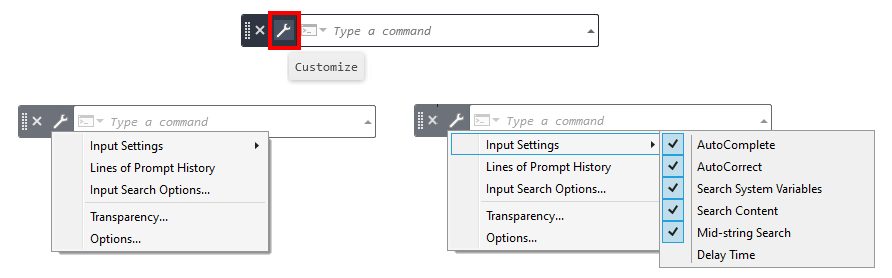
AutoCAD’s Command Line is no longer just a utilitarian device to input commands. Now, it’s a multi-functional digital assistant that you can customize to match your preferences.
Click on the wrench icon, and you can find tools to change your input settings, prompt history, and search options. It’s all just a wrench-click away!
What’s Next?
Stay tuned for the next installment to learn more AutoCAD customizations!
More Tuesday Tips
Check out our whole Tuesday Tips series for ideas on how to make AutoCAD work for you.