Work smarter in Autodesk Revit: Expert Elites share the tips they wish every user knew

There’s knowing Autodesk Revit. And then there’s knowing the small moves that can save time, prevent headaches, and make a good workflow significantly better.
Ahead of AU 2026, we asked several Autodesk Expert Elite members presenting at the conference to share some of the Revit advice they’ve picked up through years of hands-on experience: the shortcuts they think more people should know, the habits they wish experienced users would reconsider, and the tasks that are overdue for automation.
Their answers range from hidden elements and family creation to model coordination, Dynamo, and one surprisingly simple team habit that can make a big difference later.
First, what is an Autodesk Expert Elite?
Autodesk Expert Elites are customers with advanced, hands-on knowledge of Autodesk technologies who are recognized as speakers, content creators, innovators, and thought leaders in their areas of expertise.
But technical expertise is only part of it. Expert Elites actively give back by sharing practical solutions, mentoring others, participating in events, providing feedback, and helping people across the Autodesk community learn and succeed.
In other words, when Expert Elites share a shortcut, there’s a good chance it comes with a lot of real-world experience behind it.
So, what do they want Revit users to know?
1. Don’t overlook Revit’s “hidden elements world”
Marcello Sgambelluri, Director of Advanced Design Technology
Marcello’s LinkedIn
Marcello’s advice starts with something that’s right there in Revit but easy to underuse: the environment where hidden elements live.
“Don’t forget about the entire environment where all the hidden elements live in Revit. If you need to work with a hidden element, sometimes there’s no need to find it and unhide it. Simply go to the ‘hidden elements world’ and use it there.”
And he means use it. Many of the Revit functions you already rely on are available while working with hidden elements.
“Nearly all the functionality in Revit is also available in the hidden elements world, such as copy, move, create, etc. For example, need to know the parameter of a hidden element? Don’t waste time trying to find it to unhide it. Go to the hidden elements world and read its parameter value from there.”
As Marcello puts it, “This could potentially save you a lot of time in the long run.”
The takeaway: Before unhiding something just to interact with it, see whether you can accomplish the task directly in Reveal Hidden Elements.
2. Get more creative with nested families
Dzan Ta, Autodesk Technical Specialist
Dzan’s LinkedIn
For experienced users looking to push Revit families further, Dzan recommends exploring what you can accomplish by combining families in a less obvious way.
“You can nest a component family, such as a custom bracket family, into a mullion profile family.”
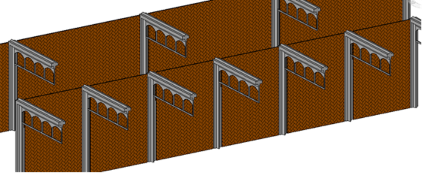
Why would you want to? It opens the door to another way of creating custom repetitive elements.
“In doing so, you can then use this custom mullion profile in a project to make a custom repetitive element horizontally with the Curtain Wall system family.”
It’s a good reminder that becoming more advanced in Revit doesn’t always mean finding another tool. Sometimes it means discovering a new way to combine the capabilities you already know.
The takeaway: Look beyond the intended use of an individual family or tool and consider what becomes possible when Revit capabilities work together.
3. Leave breadcrumbs for your project team
Paul Aubin, Author and Consultant
Paul’s LinkedIn
Paul’s tip may take only a few seconds, but it could save someone a lot more time down the road:
Add a comment when you Synchronize with Central.
“I wish that all Revit users working in team projects would get in the habit of adding comments to their Synchronize with Central. It only takes a moment and is similar to adding a subject to your emails.”
The value of that small habit becomes apparent when someone needs to retrace the project’s history.
“If someone must look back through the save history of a project, they will have a virtual trail of breadcrumbs to follow to determine which previous version to open.”
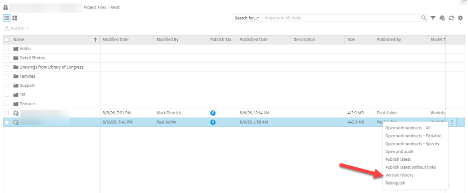
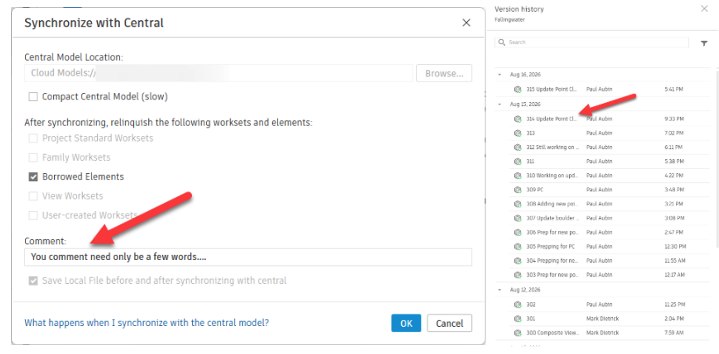
The takeaway: When you synchronize, tell the next person why. Those few seconds can create a useful project record for your teammates—and your future self.
4. Avoid the problems that quietly pile up
Back to Dzan, who called out three mistakes he sees experienced Revit users make:
“Too many in-place families, too many constraints in the model, and too many unresolved warnings/issues.”
His advice is equally straightforward.
“Try to create component families in your project instead of in-place families. They are a lot more versatile and stable.”
And when it comes to constraints, more isn’t necessarily better.
“Try to avoid over-constraining your Revit model in the project environment. Too many constraints will cause hiccups later in the project.”
Then there are those warnings everyone plans to get around to eventually.
Dzan says: don’t wait.
“Resolve your warnings/issues as quickly as possible. Leaving them to accumulate will make your BIM Manager very unhappy.”
Consider us warned.
The takeaway: Good model health is easier to maintain than it is to recover. Deal with unnecessary complexity and warnings before they have a chance to multiply.
5. Open Revit files from Revit—not File Explorer
Dzan has another deceptively simple recommendation for a manual habit he’d like Revit users to leave behind:
“Do not open Revit models by double-clicking the file in File Explorer. Open the file from within the Revit application instead.”
The reason is version control.
“Opening the file via File Explorer will have you potentially opening an old file in a newer version and accidentally upgrading it. When you open the file from within Revit, you are assured the file is being opened in the version you want to work.”
A couple of extra clicks now can help prevent a much bigger problem later.
The takeaway: Start with the Revit version you intend to use, then open your model from there.
6. If you’re still doing repetitive work manually, learn Dynamo
Shir Rustici, BIM Manager
Shir’s LinkedIn
Asked for the one skill she would teach an experienced Revit user, Shir didn’t hesitate:
Learn how to use Dynamo.
“Even with all of the exciting advances in AI, Dynamo is still an incredibly powerful tool for automating repetitive tasks and extending what you can accomplish in Revit. It can save you hours of manual work and help you tackle workflows that would otherwise be difficult or impossible to do efficiently.”
And if “I’m not a programmer” is the reason you haven’t tried it, Shir says the barrier to entry isn’t what it used to be.
“Today, you don't necessarily need to be a Dynamo or Python expert to get started. AI tools like ChatGPT can help you build Dynamo graphs, troubleshoot them, and even write Python code to use within Dynamo.”
That makes automation increasingly accessible to experienced Revit users who may never have considered themselves programmers.
And Shir sees the skill as one that will continue to pay off:
“The technology around it is evolving, but the ability to automate your Revit workflows is still incredibly valuable.”
The takeaway: Don’t judge a repetitive Revit workflow by how quickly you can do it manually. Ask whether you should still be doing it manually at all.
7. Build coordination into the way you model
Steven Bloomer, BIM Lead
Steven’s LinkedIn
Steven’s advice focuses on something that sounds simple but that he doesn’t see teams doing often enough: setting up Revit to make coordination easier while you’re actively modeling.
One approach is to use a container file for sitewide reference DWGs rather than individually linking DWGs into every Revit project.
Then, make the different disciplines easy to distinguish visually.
“Set up view templates with links colorized by discipline—for example, structures blue, building services orange, fire protection red—and set up key views, such as plans and some sections, with those applied to review coordination while modelling.”
Steven also flags shared coordinates as an area where experienced users can run into trouble.
Instead of establishing them inside the first building model created, he recommends “establishing a purpose-built master shared coordinate file like a survey project.”
The takeaway: Coordination shouldn’t be something you check only at milestones. Set up your Revit environment so that coordination becomes easier to see as you work.
8. Stop assigning bulk information one element at a time
What’s one thing Steven wishes every Revit user would stop doing manually?
His answer is a workflow many people will recognize:
“Assigning bulk alphanumeric information manually to graphical elements.”
His preferred alternative?
“Ideally, [you] should be using Dynamo with rule sets to manage the information requirements.”
It echoes Shir’s advice: automation isn’t simply about doing the same work faster. It can help create more repeatable and scalable ways of working.
The takeaway: When a task involves doing the same predictable thing to many elements, that’s a strong signal to investigate automation.
Small changes. Better Revit workflows.
What’s striking about these tips is that working smarter in Revit doesn’t always require discovering a brand-new feature.
Sometimes it means using an existing capability differently. Sometimes it means adopting a better project habit. Sometimes it means recognizing that a manual workflow has reached the end of its useful life.
And sometimes it means learning from someone who has already solved the problem.
That’s a big part of what the Autodesk Expert Elite community is about: experienced Autodesk customers sharing practical knowledge and helping others get more from the tools they use every day. Expert Elites contribute across Autodesk Community, user groups, events, and social channels.
Follow these and other Autodesk Expert Elite’s in the Autodesk Community!
Get more Expert Elite advice at AU 2026
These tips are just a preview.
At AU 2026, Expert Elites are leading sessions on Revit and other technologies, where you can go deeper, learn from their real-world experience, and pick up more ideas to put to work long after AU is over.
Explore Expert Elite sessions at AU 2026 →
And when you get there, ask them questions. Sharing what they know is kind of their thing.
Still need to register for AU 2026?
Register here for a full conference pass, a day pass, or a free Digital Pass.