Get help with Account management
Account management basics
Security and privacy settings
On this page: What is account sign-in confirmation > Use email confirmation code or authenticator app > Authenticator app for sign in explained > Set up an authenticator app for Autodesk sign in > Set up or update authenticator app on new device > Receive verification code by email when your authenticator app isn't accessible > Generate backup code
What is product privacy > Privacy: Managing product data settings > Manage your product privacy preferences from your Autodesk profile > Manage your product privacy preferences from your desktop product
On this page, you’ll learn how to confirm your sign-in and manage your product privacy settings in your Autodesk profile.
What is account sign-in confirmation
For security, your Autodesk account is protected with a sign-in confirmation step after you enter your email and password. By default, we send a code to your registered email. The code stays valid for 10 minutes.
If you prefer, you can set up an authenticator app on your phone as your primary method to get the one-time passcode instead of an email.
The extra step, called 2-step verification, gives your account stronger protection by requiring a code from your email or authenticator app. We no longer offer phone calls or text messages as options to receive your verification code due to its vulnerability to interception and spoofing.
Note: After you sign in to your account, you can generate a one-time backup code. Use this backup code to bypass verification if you ever lose access to your email. We’ll show you how to do this in section generate backup code of this article.
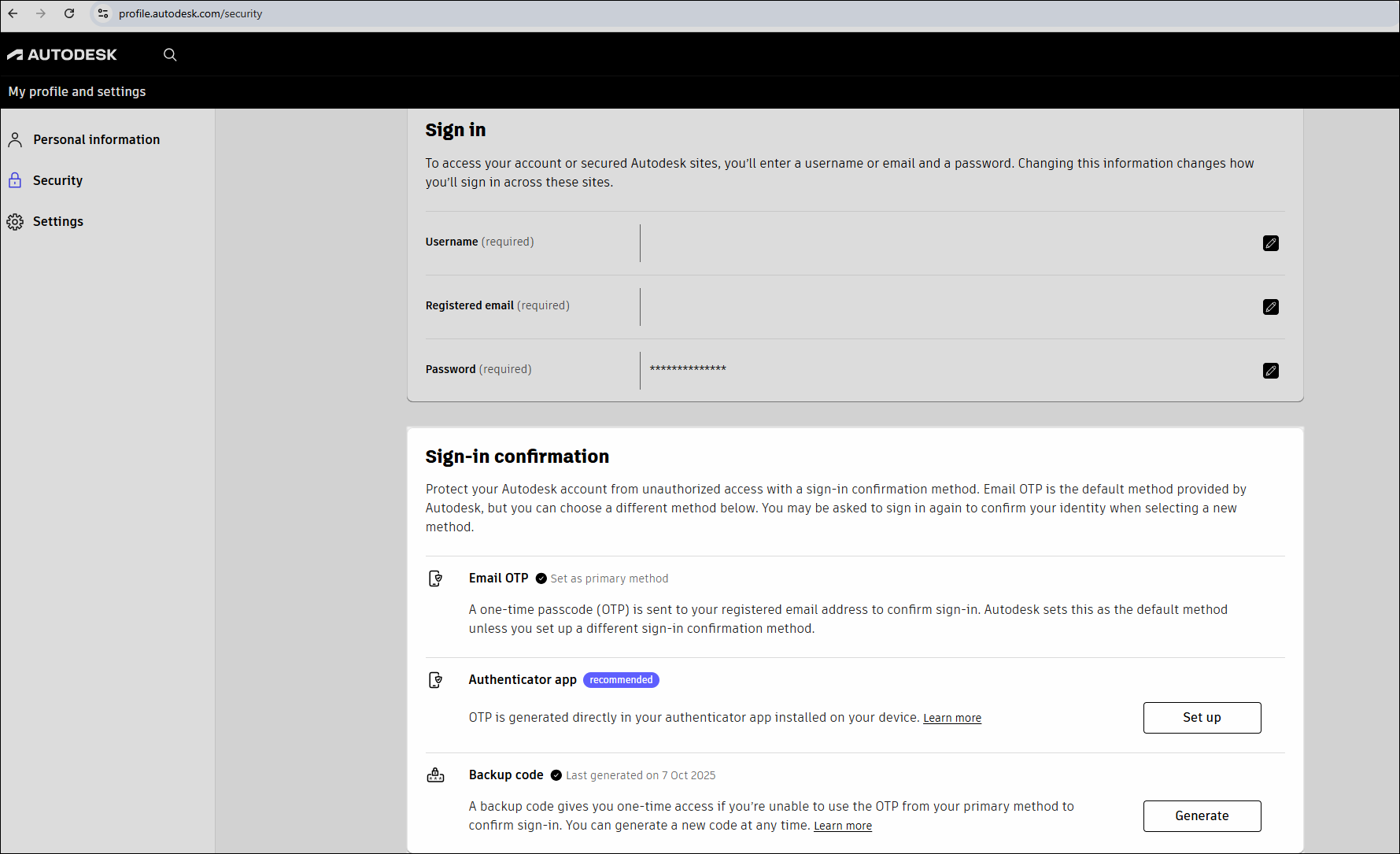
Security: Use email confirmation code or authenticator app
Protect your account from identity threats and keep it secure by using at least two ways to verify your identity when you sign in. Enter your password, then provide a one-time passcode sent to your email or to an authenticator app on your phone.
If your company uses single sign-on (SSO), just follow your organisation’s sign-in process. If SSO isn’t available, you must enter a one-time passcode in addition to your password at least every 30 days to access your account.
Select Trust this device to skip entering the one-time passcode sent to your email on this computer and browser for the next 30 days.
The default setting is to send the one-time passcode (OTP) to your registered email address to confirm your sign-in. You’ll find your default sign-in confirmation method listed as Email OTP in your Autodesk account profile, under the Security tab. See the 2-step verification FAQs section below for detailed information about how sign-in works.
If you prefer, set up an authenticator app on your phone instead of email.
Authenticator app for sign in explained
To use an authenticator app to receive your one-time passcode (OTP), first install one on your mobile device. You choose which authenticator app you want to use. Autodesk supports all time-based one-time passcode (TOTP) authenticator apps. A few examples are Twilio Authy, Cisco Duo, Google Authenticator, and Microsoft Authenticator, all of which are free.
Note: If your organisation uses single sign-on (SSO) for Autodesk products and services with your company credentials, you don’t need to complete these steps. Your company’s identity provider already confirms your identity.
Set up an authenticator app for Autodesk sign in
If you want to change your default sign in confirmation method from receiving a one-time passcode by email to using a code from your authenticator app, follow the steps below to update your security settings.
Download an authenticator app and install it on your phone.
Go to Security in your Autodesk account profile.
Sign in with your email address, password and one-time passcode (OTP) sent to your email.
Under Sign-in confirmation, go to Authenticator app and select Set up.
To reconfirm your identity, enter your email and password and select Sign in.
Open your email inbox and find the message from noreply@signin.autodesk.com.
Enter the one-time passcode (OTP) you received by email into the confirm sign-in window within 10 minutes and select Next.
If you want to skip entering a code for the next 30 days, select Trust this device. If you’re using a shared workstation, select Don’t trust this device.
Using your authenticator app on your phone, scan the QR code displayed in your profile.
Enter the code your authenticator app generates for Autodesk MFA, then select Turn on. If you use your authenticator app for other systems, services, or email addresses, be sure to enter the code shown under Autodesk MFA for the email address you’re setting up.
You’ll now see the Manage button in your profile’s sign-in confirmation section. This means you’ve successfully turned on generating a one-time passcode (OTP) using your authenticator app.
The next time you sign in, you'll need to enter a code from your authenticator app in addition to your email and password.
Set up or update authenticator app on new device
Reinstall your authenticator app or set it up on your new device. This helps you get back into your account if you’ve changed phones or lost access.
Go to Security in your Autodesk Account profile.
Sign in using your email address, password, and the code from your current device. If you can’t access the code in your authenticator app, choose Get code by email and we’ll send you a verification code to your inbox.
Under Sign-in confirmation, go to Authenticator app and select Manage.
To reconfirm your identity, enter your email, password and code from your current authenticator app. If you can’t access the code in your authenticator app, choose Get code by email and after entering the code from your inbox, select Next.
On the next screen, you’ll see that Update authenticator app is already selected. Simply leave this option as it is, then Continue to move forward with updating your authenticator app.
Using the authenticator app on your new device, scan the QR code displayed.
Enter the code for Autodesk MFA generated by the authenticator app and select Update.
You can now use the authenticator app on your new device. If you use your authenticator app for other systems, services, or email addresses, be sure to enter the code shown under Autodesk MFA for the email address you’re setting up.
Turn off 2-step verification authenticator app and switch to email codes
If you want to switch back to receiving verification codes by email instead of through your authenticator app, the following steps will guide you through the process.
Go to Security in your Autodesk Account profile.
Sign in with your email, password, and the code from your authenticator app.
Under Sign-in confirmation, go to Authenticator app and select Manage.
To reconfirm your identity, enter your email, password and code from your current authenticator app. If you can’t access the code in your authenticator app, choose Get code by email and after entering the code from your inbox, select Next.
On the next screen, choose Turn off and select Continue.
To turn off 2-step verification using your authenticator app, simply select Turn off to confirm your choice.
After these steps, the next time you sign in, we will send your verification code to your email address instead of your authenticator app.
Receive verification code by email when your authenticator app isn't accessible
If you usually get your one-time passcode (OTP) from your authenticator app, but can’t access your device, you can use the following steps to receive a verification code by email instead.
Enter your email and password to reach the 2-step verification screen.
On the verification screen that asks you to enter a code, select Get code by email at the bottom of the screen.
We’ll automatically send the code to your registered email address. The code stays valid for 10 minutes. If you don’t see the email from noreply@signin.autodesk.com, please check your junk or spam folder. For more tips on receiving your one-time passcode (OTP) email, visit Ensuring Email OTP Deliverability: Best Practices for Autodesk Customers (US Site).
Enter the code sent to your email and select Next.
Generate backup code
Use backup codes to access your Autodesk account when you’re not receiving your verification code by email. Each backup code works once to complete the 2-step verification and stays active until used.
If you need a new backup code, go to your security settings and generate it anytime.
Go to Security in your Autodesk Account profile.
Under Sign-in confirmation, go to Backup code. It will show you when your backup code was last generated.
Select Generate.
In the new screen, select Generate again to create a new code that will replace your existing one.
To reconfirm your identity, enter your email, password and code from your primary method.
When you see the new backup code, either copy it or select the download button.
After you save your backup code, tick the box I saved my backup code to confirm you’ve stored your new code for future use.
Select Close. A message will appear in the top right to confirm that you’ve generated your new backup code.
If you can’t access your email, use your backup code to securely sign in to your account. We give you a backup code the first time you sign in after creating your account. Each time you use a backup code to sign in, we automatically generate a new one for you. This makes sure you always have a backup option to access your Autodesk account.
What is product privacy
You can view and update your product privacy settings at any time. Autodesk collects data for analytics through your individual usage of desktop products. Collecting this data through our analytics programs helps Autodesk better understand how you use our products and services. For more specifics about this program, please visit the Autodesk analytics program (US Site).
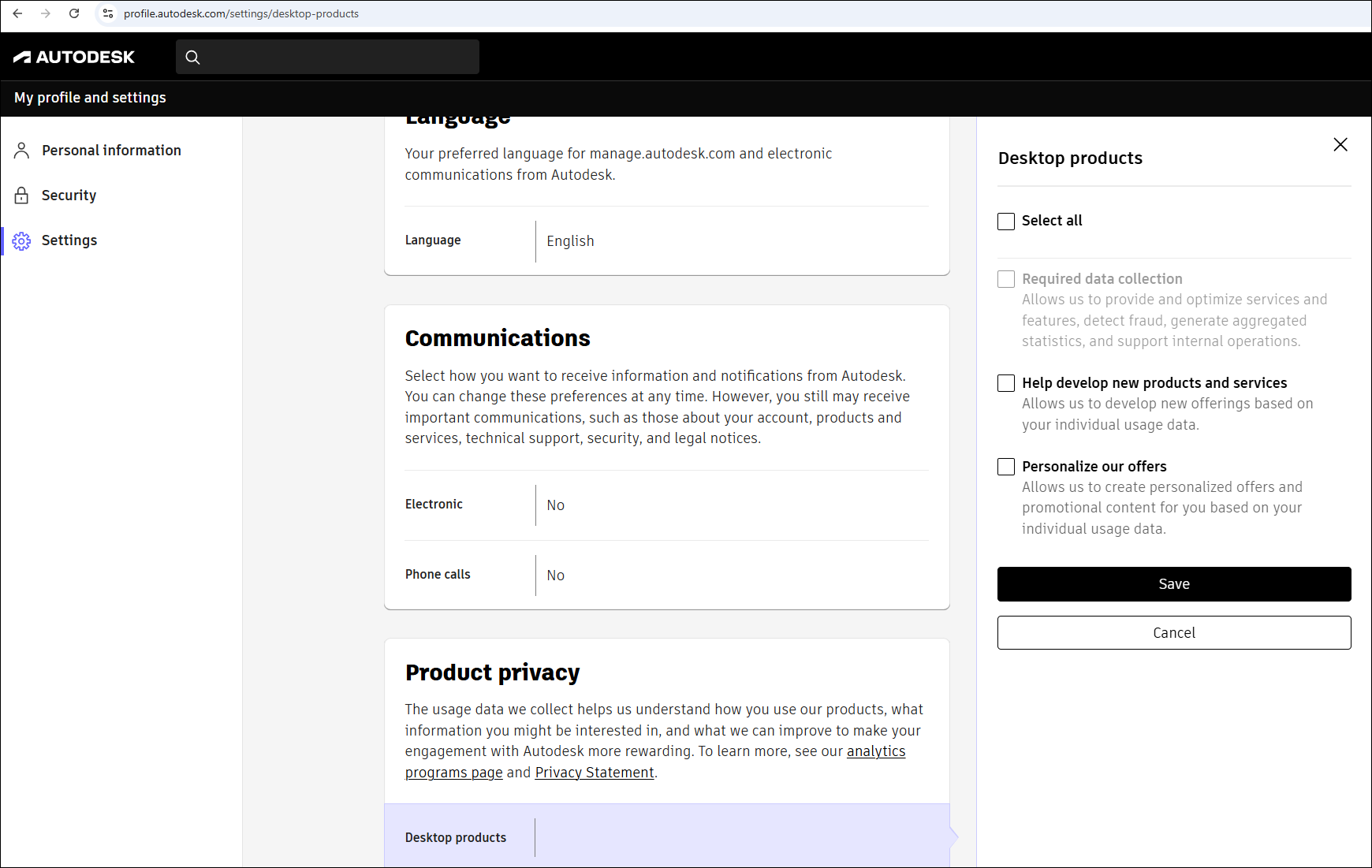
Privacy: Managing product data settings
For most 2023 and newer desktop products, you can change your settings once and the change applies across your Autodesk account. For some 2022 and older versions, product privacy setting changes might only apply to the desktop products you are using on a specific device.
If you have questions about what data we collect or how it’s used, visit our analytics programs page (US Site) and Privacy Statement (US Site).
Manage your product privacy preferences from your Autodesk profile
Sign in to your Autodesk Account profile.
Under Settings, scroll down until you see Product privacy
Select the pencil icon to edit your preferences.
Choose whether you want to help us develop new products and services or receive personalised offers based on your usage data by selecting or deselecting these options.
Save to confirm your changes.
Note: Some usage data collection is required for operational purposes, and the Required data collection selection cannot be changed. For example, we might require data to deliver offerings, or to identify non-valid use of our offerings. Required data also includes systems operations data generated by third-party cloud computing solutions integrated into our offerings, for example, security operations management and data storage solutions.
Manage your product privacy preferences from your desktop product
Open your product.
Go to the Account Settings menu or Help menu (settings locations vary by product).
Select Privacy Settings or Desktop Analytics.
Related resources
Need help? Ask the Autodesk Assistant!
The Assistant can help you find answers or contact an agent.
What level of support do you have?
Different subscription plans provide distinct categories of support. Find out the level of support for your plan.
View levels of support