 Irvin Hayes Jr.
Autodesk Vault 2026.2 enhances PLM connectivity with Fusion Manage integration, streamlines data management, and boosts productivity with new sync and workflow features.
Autodesk Vault 2026.2 brings seamless connectivity for Vault PLM users with the introduction of the integrated Fusion Manage panel in Vault. Vault 2026.2 also includes a set of targeted improvements designed to make daily data management more efficient and user-friendly for both CAD administrators and users. Here’s a look at what’s new and, most importantly, how it will help you work smarter with less friction.
Autodesk Vault 2026.2 highlights
Seamless PLM Connectivity in Vault: Discover the Fusion Manage Panel
The 2026.2 release delivers groundbreaking seamless connectivity between Vault and Fusion Manage, product lifecycle management, streamlining product development processes, and making critical data more accessible right where you need it. This integration is more than just viewing data; users can take actions, make edits, and share data bi-directionally between Vault and Fusion Manage. This is truly a breakthrough for productivity with context-rich, collaborative workflows across Vault users and extended teams. Read on to learn more.
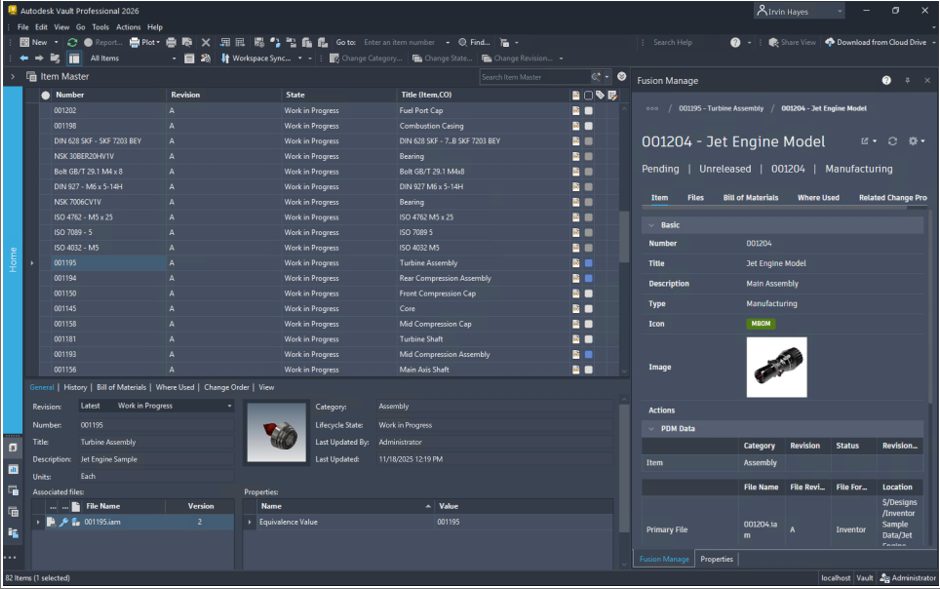
Introducing the Fusion Manage Panel: Context-Rich Information, Directly in Vault
With the introduction of the new Fusion Manage panel, users can immediately view Fusion Manage Item or Change details without leaving the Vault client. When you select an item that is synced with Fusion Manage or a file associated with a synced item, the panel dynamically displays relevant Fusion Manage content. This eliminates context switching and keeps data synchronized across workflows so that teams can stay focused on their work.
Supported content includes:
- Items from the Item Workspace: Explore tabs for Item details, associated files, Bill of Materials, Where Used info, and Related Change Processes.
- Change objects from the Change Management Workspace: Quickly access details on Change Orders, Change Requests, and Problem Reports. Tabs include Change details, Attachments, Affected Items, Task Planning, and Notes (available tabs vary depending on the workspace). Navigation is seamless, clicking between Items and files updates the panel view instantly. If more detail is needed, you can open the Fusion Manage Item or Change Order in your browser directly from the panel.
- Fusion Manage Sync Back: Lifecycle Updates Made Easy: Lifecycle state updates for Vault Items and their linked files can now be triggered by Change Orders in Fusion Manage. This maintains clear synchronization between environments and ensures data consistency without additional administrative steps.
- Sync Item to Fusion Manage in Inventor: From Inventor, users now have the power to sync Items directly to Fusion Manage and open those Items within Fusion Manage immediately. This feature accelerates design-to-release processes and closes the loop between authoring and data management environments.
Vault Connector Enhancements
The release of Vault 2026.1 brought the Autodesk Vault Connector, making it easier than ever to synchronize data between your product data management and product lifecycle management solutions. Built for such solutions as Autodesk Vault PLM, the Vault Connector seamlessly integrates Vault Professional (PDM) with Autodesk Fusion Manage (PLM), enabling secure, cloud-based collaboration for your entire organization. With the release of Vault 2026.2, we’ve added even more functionality using the Vault Connector. Learn more here.
Copy and Paste Property Values—Now Fast and Flexible
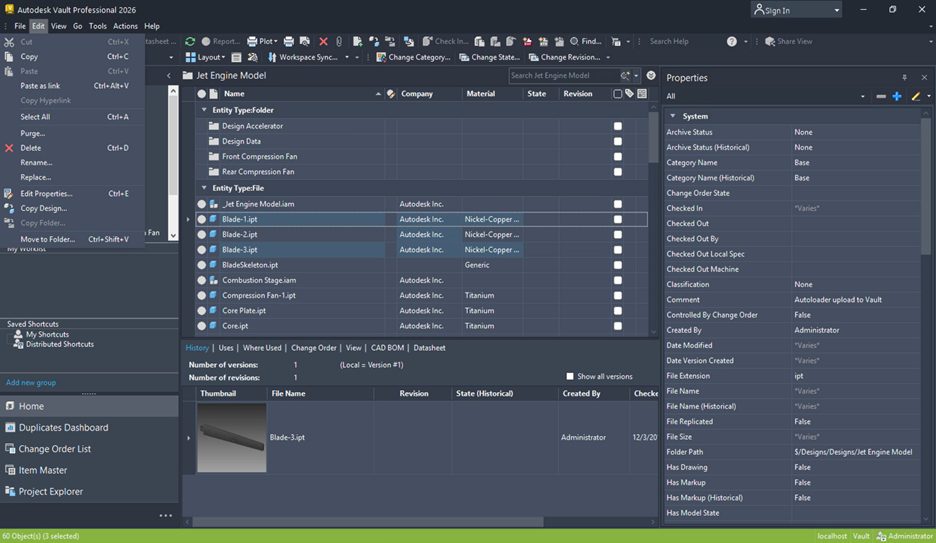
Tired of spending extra time scrubbing copied property data? Vault 2026.2 eliminates the hassle. You can now select and copy single or multiple property cells directly from the Properties panel, main grid, or custom tab views. Only your chosen values are copied, with no extra property names or headers. Paste cleanly into Excel, Word, or even email, no cleanup required.
This enhancement spans all workspaces (Files, Items, Change Orders) and applies to any tab with columns, including dialog windows. Whether you need a single value or a set from across properties, select as needed and get precisely what you want, then CTRL+C and CTRL+V straight into your target application.
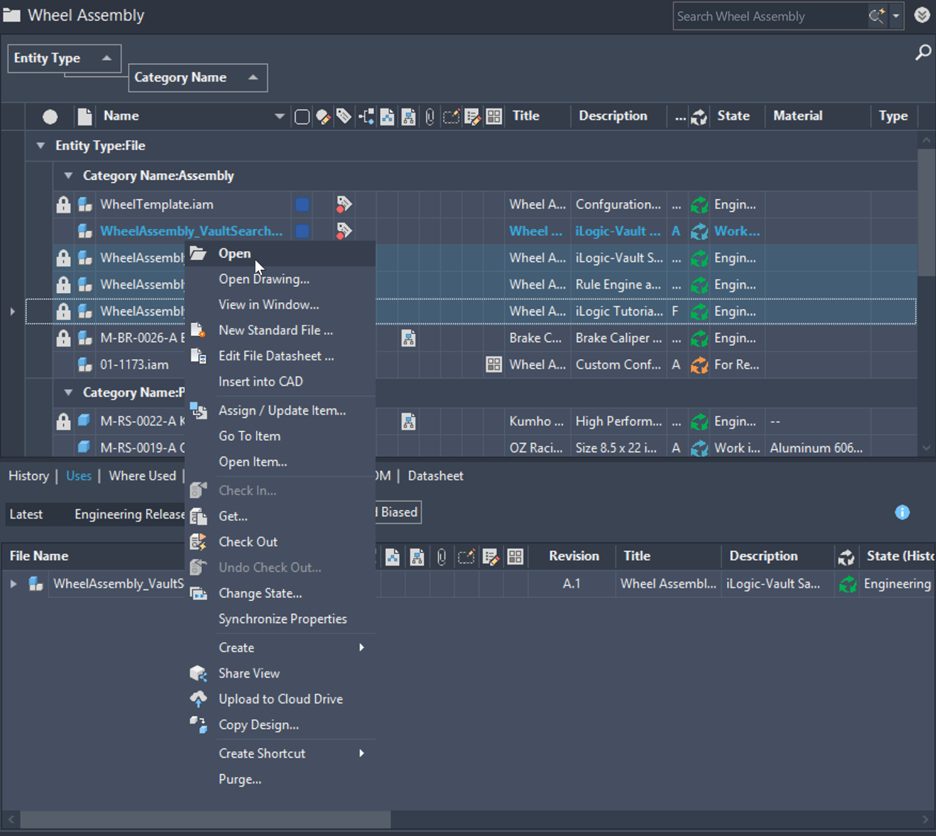
Multi-Select Open—All Files, One Click
Opening dozens of design files? Now you can do it in seconds, not minutes. With the new multi-select Open command, CTRL+click the files you want in Vault Client, right-click, and choose Open. All your selected files launch in your default application with a single action.
This isn’t just a minor convenience; opening 10 files now takes 13 clicks instead of 50. Worried about file types? No problem. Mixed CAD formats open together if your application supports them. It’s a workflow boost you’ll feel immediately, especially when handling large projects.
Data Standard: No Numbering Scheme? No Problem.
Flexibility matters. Vault 2026.2 introduces a “None” option to the numbering scheme dropdown in Data Standard. If your project doesn’t require a numbering scheme for new Items or files, select this new option. You’ll skip extra steps, save three clicks, and benefit from a consistent workflow, whether your Vault setup uses a single numbering scheme or several.
For teams with customized Vault configurations: be sure to update your scripts using the latest function in .CAD\addins\Default.ps1:InitializeNumSchm() for full compatibility.
Autodesk Vault 2026.2 is all about reducing busy work and empowering teams to focus on real design and data tasks. Ready to accelerate your workflow? Make sure you upgrade to get the latest enhancements.
Learn more
- Autodesk Vault Connector What’s New for Seamless PDM and PLM Integration
- The Value of Autodesk Vault Items in your Digital Transformation Journey here.
Visit the Vault PLM product center here.
Share your feedback
To make sure we’re working on your priorities, be sure to give us your feedback. You can join the following communities to share feedback and product improvement requests with our Autodesk Vault product team:
- Vault Ideas – Submit your ideas for improvements and new features.
- Vault Forums – Discuss Autodesk Vault’s current workflows with our technical teams and your peers.
- Feedback Community – Test Autodesk Vault alpha and beta releases and give your feedback directly to the Vault product team.