Your Autodesk Forma Hub name is a detail that can seem small until it starts showing up everywhere.
There are a few reasons why you may want to rename your Autodesk Forma Hub. Maybe your company went through a merger or implemented a rebrand. Perhaps you need to rename the hub to comply with internal naming conventions.
Whatever the case, renaming your Autodesk Forma Hub is a quick change, but it’s only available to the right role. If you’re a Forma Hub Admin, you can do this in about a minute.
This guide walks through the exact process with screenshots and a few common issues to avoid.
Your hub name appears across multiple parts of the Autodesk Forma experience, so keeping it clear and up to date can reduce confusion for your teams.
With that in mind, the hub name is visible in the following places and scenarios:
Note that renaming a hub does not delete data, projects, or permissions. This change is cosmetic and administrative, not structural.
Ready to rename your hub? Before doing anything, ensure that you have the correct admin permissions and access to the right Autodesk Forma environment. Specifically:
If you don’t have Hub Admin access, you’ll need to contact someone on your team who manages Autodesk Forma account settings.
The process itself is straightforward and only takes a few clicks once you know where to look.
Log in to Autodesk Forma and go to the Hub Admin module, where hub-level settings and account configurations are managed.
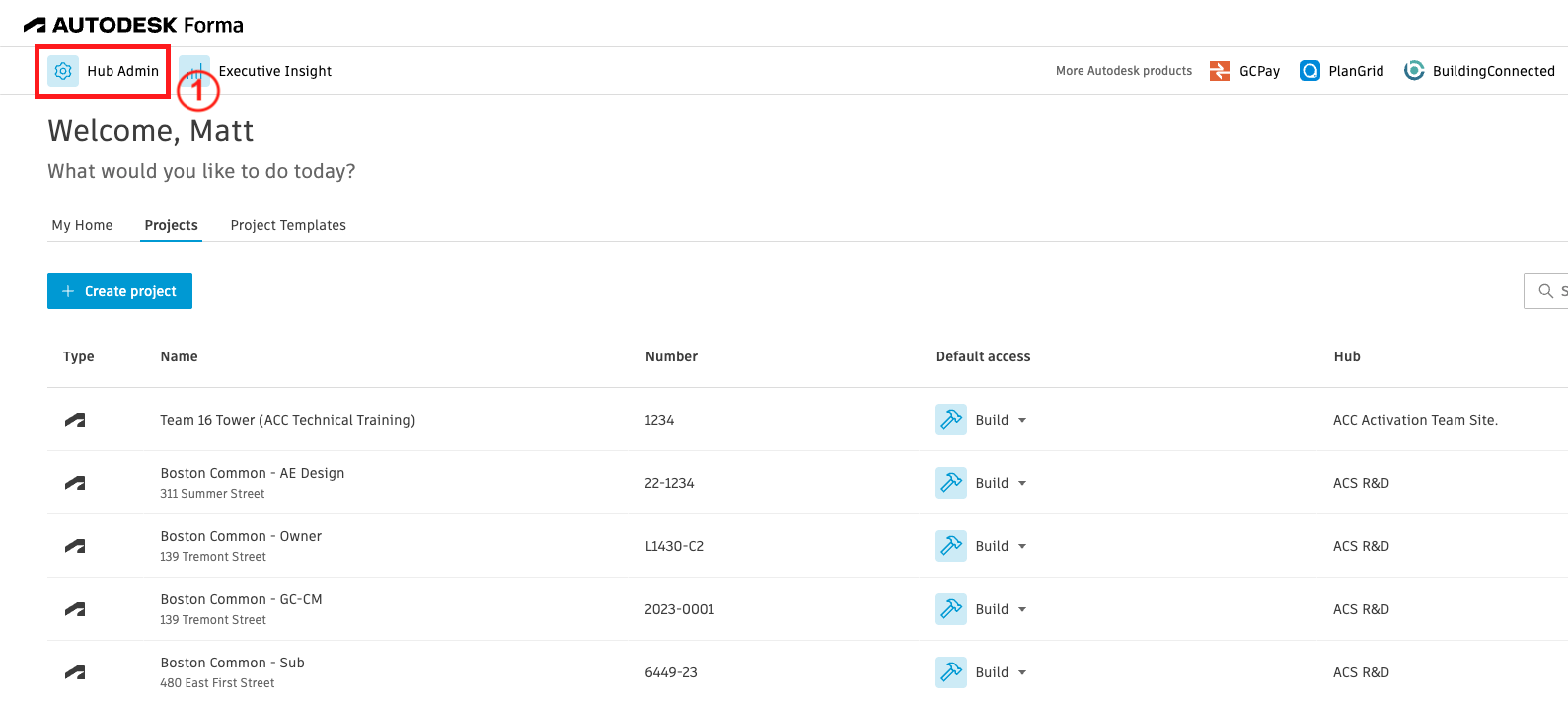
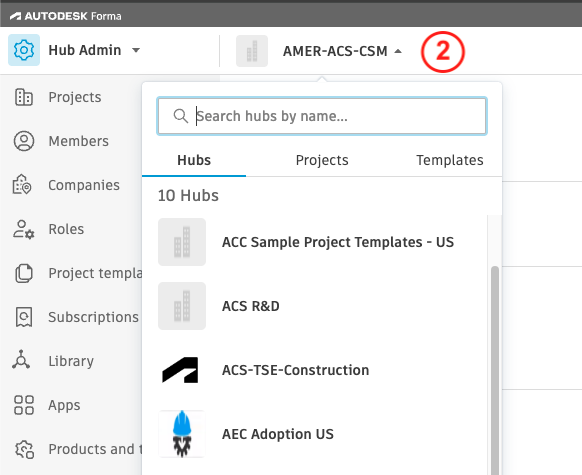
If you are part of multiple hubs, use the hub switcher dropdown to navigate to the hub you want to rename.
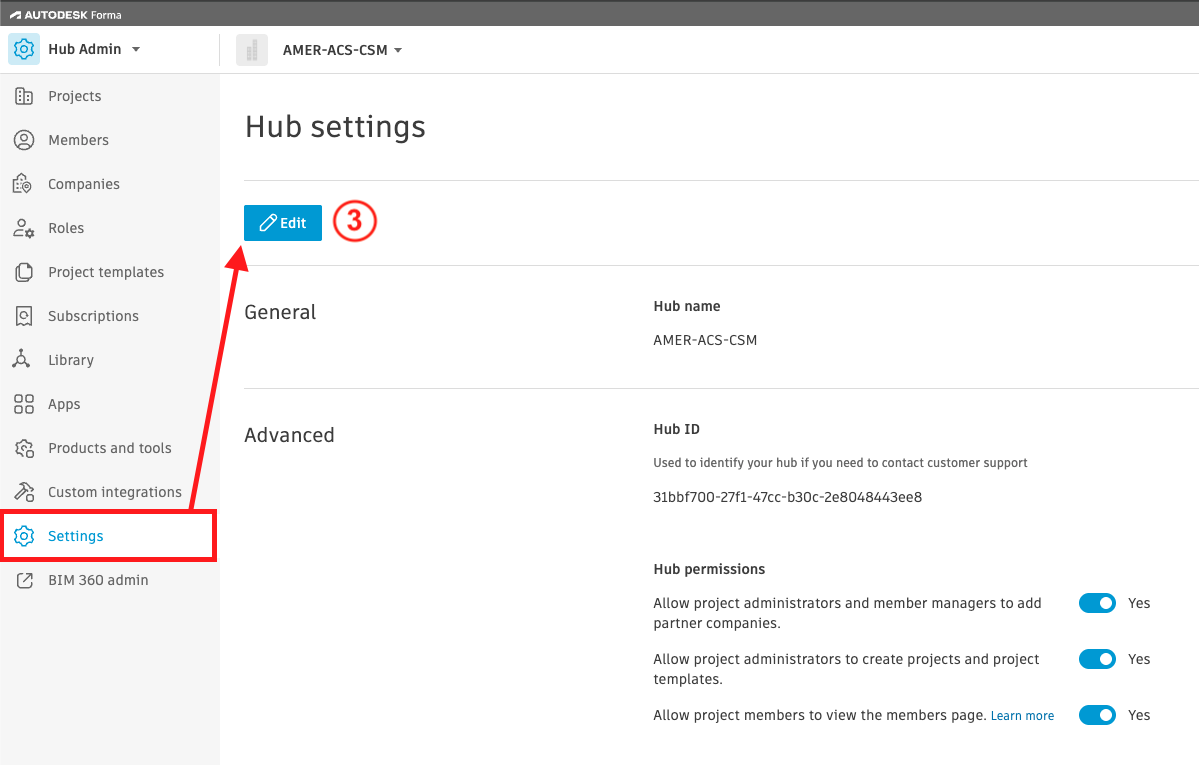
Select Settings from the left-hand panel, then click the “Edit” button (with the pencil icon) under the Hub Settings.
A Hub Name text box should appear. Type the new hub name within the text box.
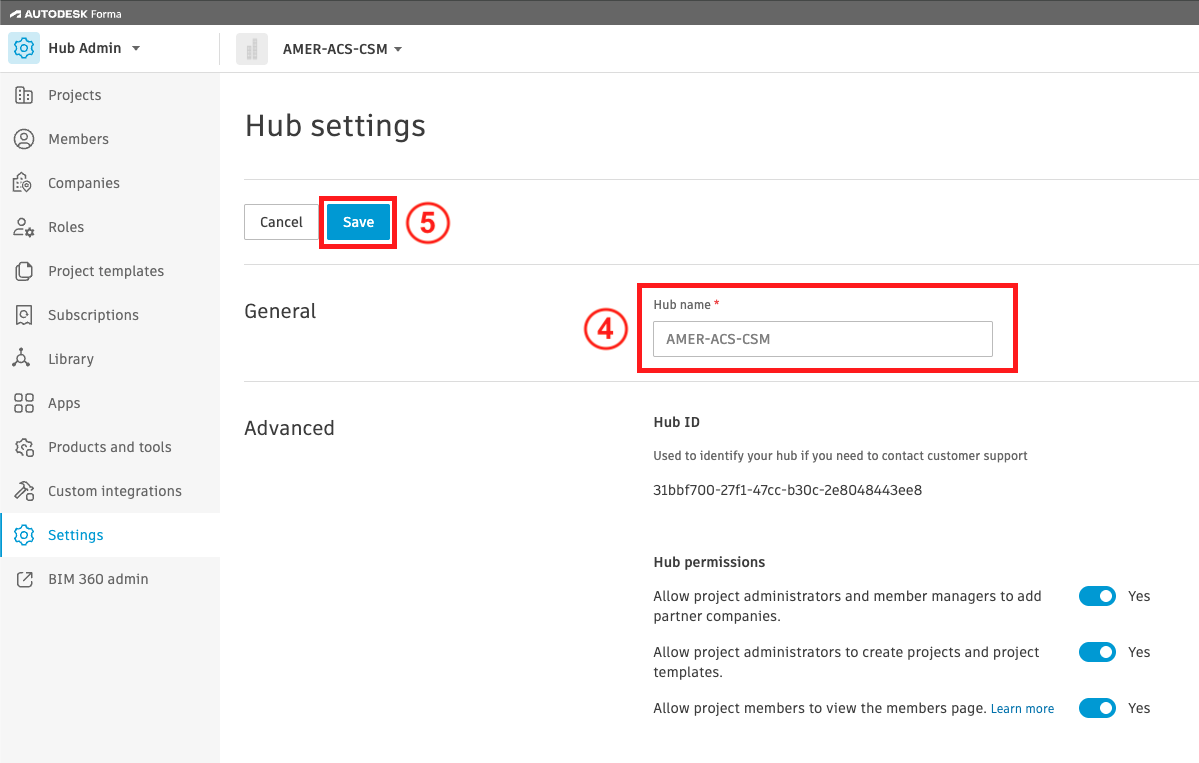
Once you’re happy with the name change, click “Save”.
Once you save the new hub name, the updated display name is applied immediately in Autodesk Forma.
In some connected tools or cached experiences, the previous name may continue to appear temporarily until the session refreshes. Signing out and back in usually resolves this.
Renaming your Autodesk Forma Hub changes the display name only. Your projects, permissions, subscriptions, and existing data stay intact. Team members will still have access to the same workspaces, and project information won’t be deleted or reassigned.
Renaming a hub does not:
While renaming a hub is generally low risk, there are certain instances when it’s not advisable. These include:
You don’t see the option because you’re not a Hub Admin.
You’re likely editing a project name instead of the hub name. After a rebrand, it’s common for project names, product names, and hub names to be managed separately.
Some historical references, saved views, screenshots, or documentation may still display the older name. The rename updates the current hub display name moving forward, but it may not retroactively update every historical reference.
Renaming an Autodesk Forma Hub is a fast admin-level update that usually takes less than a minute.
As long as you’re a Hub Admin, you can make the change directly from the Hub Admin settings. The update only changes the hub display name, so your projects, permissions, and data stay intact.
If the rename option isn’t showing up or something doesn’t look right afterward, start by checking your role permissions and confirming you’re editing the hub itself, not an individual project.
If you’re having trouble renaming your Autodesk Forma hub, double-check your role permissions and ensure you’re a Hub Admin. If that doesn’t work or if you have additional questions, head to the Autodesk Support Hub where you can find help, answers, and self-service resources.