How to migrate EAGLE schematics, PCB designs, and libraries to Autodesk Fusion Electronics
How-to Guide
Summary
This guide explains how to migrate Autodesk EAGLE schematic files (.sch), printed circuit board PCB files (.brd), and libraries (.lbr) into Autodesk Fusion Electronics.
You'll learn how to import projects, migrate local libraries, update library references, and edit components after migration.
Prepare your EAGLE files
The first step in migrating from EAGLE to Fusion is preparing your existing design files to import them into Fusion’s unified project environment. To prepare your files, identify where they are stored locally on your machine.
Before importing EAGLE projects into Fusion:
Familiarize yourself with the Fusion projects and hub structure, to understand where your data will be stored.
Create projects and folders for where you'd like to store your PCBs, schematics, and libraries.
Verify where your EAGLE schematic and PCB files are locally stored on your system. (Where you have saved the files on your computer).
How to migrate schematics and PCB designs to Autodesk Fusion
Unlike EAGLE, where a schematic (.sch) and board (.brd) needed to share the same name and location to stay linked, Fusion identifies and pairs these files during the import process. If both files are present during the upload process, Fusion can associate them and create a single electronic design.
When moving from EAGLE to Fusion, you will notice the following key differences:
A single electronics design contains both the schematic and PCB, preserving their relationship.
Designs are stored in cloud-based projects rather than local folders.
When EAGLE designs are translated into Fusion, some layers may be reassigned or modified.
Workflows
The next step is to bring a Schematic and PCB design into Fusion while maintaining their link:
In Autodesk Fusion, go to File > Upload.
Select Change the Location, then select or create a project and folder to store your designs.
Click Select Files and select your .sch and .brd files together (or drag them into the Drag and Drop Here box).
Select Upload and notice that a dialog appears to ask to group files into Electronic Design files.
Leave "Create Electronics Design" checked and select OK. This should synchronize the Schematic with the Board.
Additional workflows
This workflow is recommended if one or both files are already uploaded in Fusion:
Select File > New > Electronics Design.
Click Reference to a schematic document .
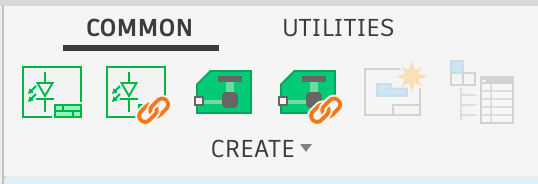
Select the schematic file from the cloud or locally.
Go back to the Electronics Design.
Click Reference to a PCB document .
Select the PCB from the cloud or locally.
Save the electronics design file.
This workflow outlines how to import design rule check (DRC) rules into a Fusion PCB design.
In Autodesk Fusion, go to Preferences > Electronics > Directory.
Identify the path Directory for Design Rules, and open the local folder (through Finder or File Explorer).
Copy your .dru file (DRC rule) to this directory.
Close Preferences.
Open 2D PCB board.
On the command line, type DRC and press Enter.
In DRC dialog, click Load button.
In Select Design Rules directory, select Local directory.
Click design rule and click OK.
Go to Electronic Design document and Save.
How to migrate libraries from EAGLE to Autodesk Fusion
Workflows
It's important to update your designs that use private libraries and direct them to the newly imported hub libraries to allow you and your hub members to modify components and update designs without running into permission issues.
Open a design that contains components from private libraries.
Go to the Place Components panel.
Click Swap Libraries.
Select the Target Library dropdown.
Choose the hub library to replace the private library. If the library has not yet been imported into your hub:
Select Import as New Hub Library.
Save the library to your Fusion hub, then return to the swap dialog.
Confirm all components exist in the target library. Any missing components are highlighted.
Click Swap to replace all components from the private library with those from the target hub library. The copied library will be linked to the managed library on Library.io.
Open or save a library that contains private Library.io packages.
In the banner that appears at the top of the library editor, click Import Packages.
Review the list of packages that need to be imported.
In the Location field, click Change Location to select the project and folder to store the packages.
Click Import to proceed
The Electronics Library Manager in Fusion enables you to control which component libraries are active in the design environment, directly affecting what parts are available in the Place panel. It provides access to multiple library sources including library.io managed libraries, cloud hub libraries, and Autodesk libraries, and supports search, filtering, and previewing of component data before placement.
Library folder | Hub libraries | Public libraries | Private libraries |
Library type | Fusion libraries stored in hub projects/folders. | Libraries provided by Autodesk or third-party providers. | Libraries stored in your personal Library.io managed folders that are synced into the Fusion library manager. |
Collaboration capabilities | These libraries are shared among members of the same hub, allowing members to access the same components. Add members to the Fusion hub to add collaborators | These are read-only libraries included in Fusion that contain standard components available to all. | These libraries allow sharing outside of Fusion. Components from Library.io are not accessible to your hub members unless you import them to your hub libraries, or share them through the Library.io website. |
Editing capabilities | Hub libraries can be edited directly in Library Workspace or Library Manager. | To edit these libraries, you must save a copy to your Fusion hub libraries and work in the copy. | To edit these libraries, you must save a copy to your Fusion hub libraries and work in the copy. |
How to edit and update components in Autodesk Fusion libraries
In Fusion Electronics, components are stored in libraries and can be used across designs. When you place a component from a library into a design, Fusion creates a link between the design copy and the library source, and maintains a connection between them.
You can edit a component in the library through workflows in Library Manager or a Schematic/PCB design. When components are edited in the library, update your designs to use the new version of the library.
Open the Schematic.
Right-click device or component and select Edit.
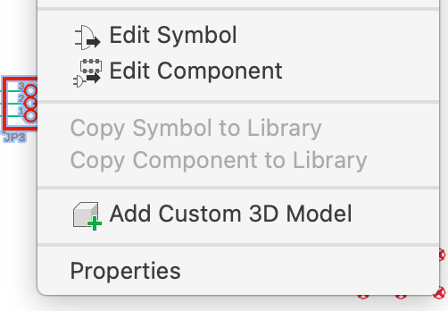
Make necessary changes.
Go back to the Schematic.
Go to the Library tab.
Select Update design from library.
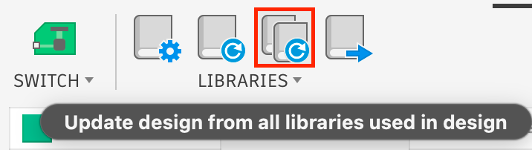
Open the PCB.
Right-click the footprint and select Edit.
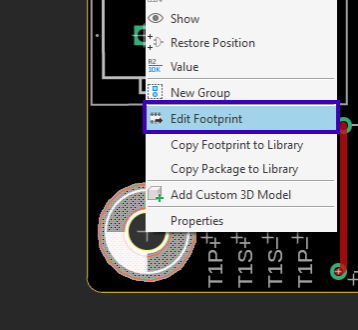
Make necessary changes.
Go back to the PCB.
Go to the Library tab.
Select Update design from library.
Open Library Manager and go to Hub Libraries.
Right-click the library you want to edit, and select Edit.
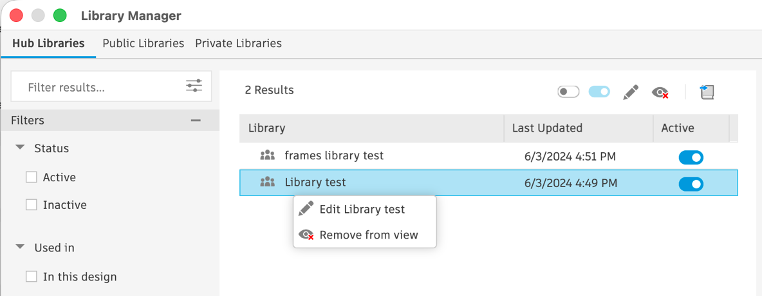
Make necessary change.
Go to File > Save.
Open a design that uses the library.
Go to the Library tab.
Select Update design from all libraries used in design Update from library to component in Autodesk Fusion icon.
Verify your migration
After migrating your EAGLE schematics, PCB designs, and libraries to Fusion Electronics, verify that your library references, components, and design files were imported correctly:
Designs
Open the electronics design and confirm it has both the schematic and the PCB.
Compare part count, nets, and board outline with your EAGLE originals.
Check your layers (copper, silkscreen, solder mask). Some may be reassigned during translation.
Libraries
In Library Manager, go to Hub libraries and confirm your imported libraries are there. Large sets can take time to upload.
Library references
In Place Components, confirm no components still come from private libraries. Use Swap Libraries to move any that do.
Once you have fully migrated, you can then continue editing your designs, manage libraries with the Library Manager, and take advantage of Fusion's integrated electronics, mechanical design, and manufacturing workflows.
Need help? Ask the Autodesk Assistant!
The Assistant can help you find answers or contact an agent.
What level of support do you have?
Different subscription plans provide distinct categories of support. Find out the level of support for your plan.
View levels of support