Get help with Account management
Account management for admins
Manage Advanced AI settings for hubs and projects
Advanced AI settings let admins control whether users in a hub or project can access Advanced AI features. The setting also controls whether your Customer Content in that scope will be used for future Advanced AI training.
You can manage Advanced AI settings:
At the hub level in Autodesk account
At the project level in supported product experiences
Changes may take up to a few hours to take effect.
Standard AI features remain available and are not affected by this setting.
On this page
Before you change this setting
How Advanced AI settings apply
Change Advanced AI settings in your Autodesk account
What turning off Advanced AI does and does not do
Advanced AI vs Standard AI
Common admin scenarios
Troubleshooting
FAQs
Before you change this setting
When this experience becomes available, Advanced AI will be default on for all projects in supported hubs. You can change the setting at any time if you prefer to turn Advanced AI off.
The Advanced AI setting applies to Advanced AI features as a category. You cannot turn individual Advanced AI features on or off separately.
If you turn on Advanced AI | If you turn off Advanced AI |
Users in the selected hub or project can access Advanced AI features. | Users in the selected hub or project cannot access Advanced AI features. |
Content in that scope may be used for future Advanced AI training. | Content in that scope will not be used for future Advanced AI training on a go-forward basis. |
New projects inherit the hub setting unless project-level settings allow a different choice. | New projects inherit the hub setting unless project-level settings allow a different choice. |
Changes may take up to a few hours to take effect. | Changes may take up to a few hours to take effect. |
Note: Turning off Advanced AI does not retroactively alter or retrain models that were previously trained.
Note: There is no separate setting to keep Advanced AI features turned on while preventing Customer Content from being used for future Advanced AI training.
How Advanced AI settings apply
Advanced AI settings can apply at different levels depending on the product and admin experience.
Hub-level settings
As an admin, you can manage Advanced AI settings in your Autodesk account for supported hubs.
The hub setting:
Controls access to Advanced AI features for the hub.
Controls whether Customer Content in that hub may be used for future Advanced AI training.
Becomes the default setting for new projects in that hub.
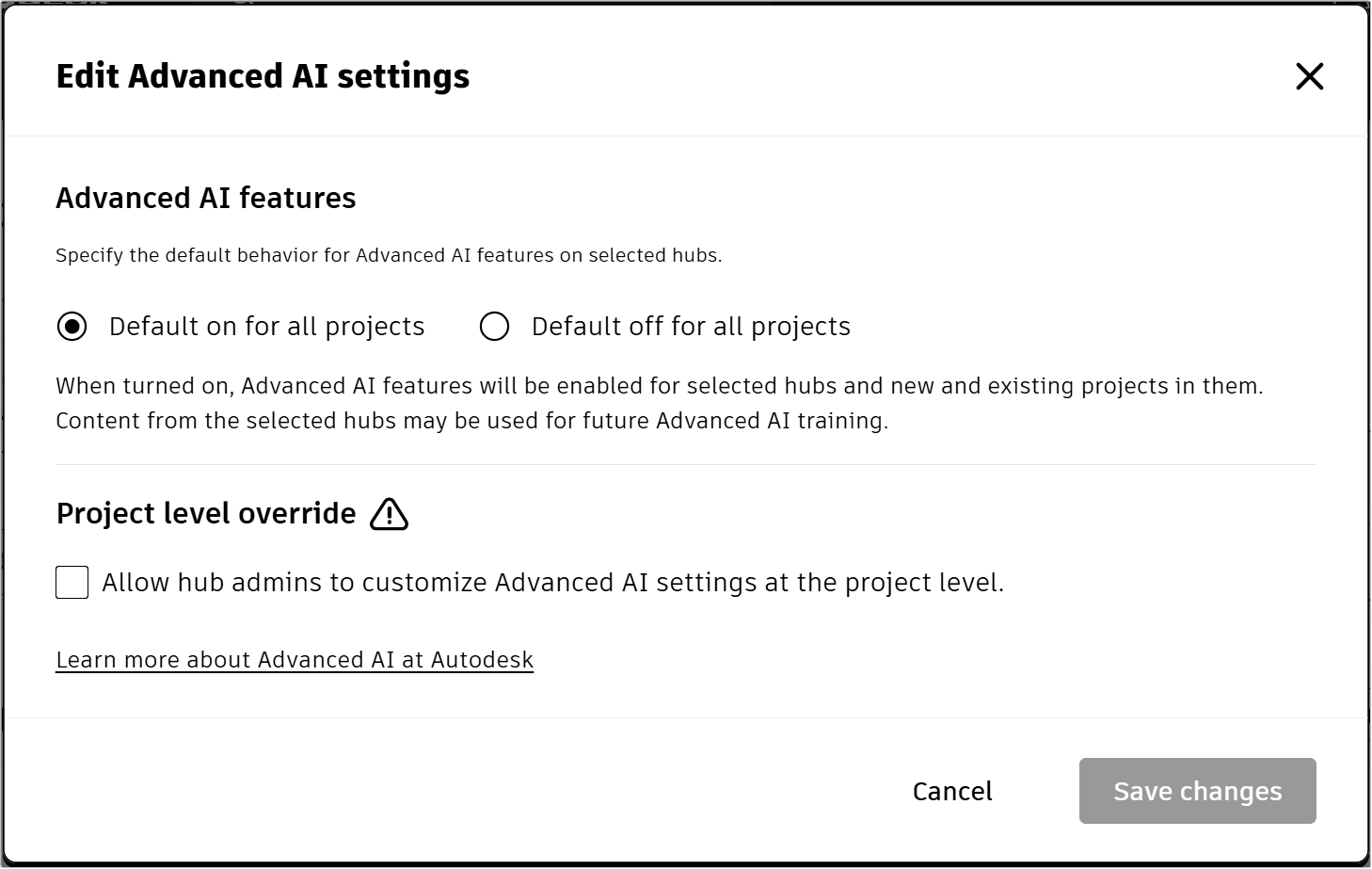
Lets you enable or disable project level override. Project level override lets account admins and hub project admins use different Advanced AI settings for individual projects when supported by the product.
Project-level settings
Some Autodesk products support project-level Advanced AI settings.
When project-level settings are supported:
A project can use a different setting from the parent hub.
Project admins manage the setting in the product’s local admin experience.
New projects still inherit the hub setting by default.
Permission to use different project settings is controlled through the project level override
option in the same dialog used to configure the hub default setting.
Change Advanced AI settings in your Autodesk account
Before you begin
Confirm that you have the required admin permissions for the hub.
Depending on your organization, this may include:
Primary admin.
Secondary admin.
Another admin role approved for hub management.
Turn Advanced AI on or off for a hub
Sign in to your Autodesk account.
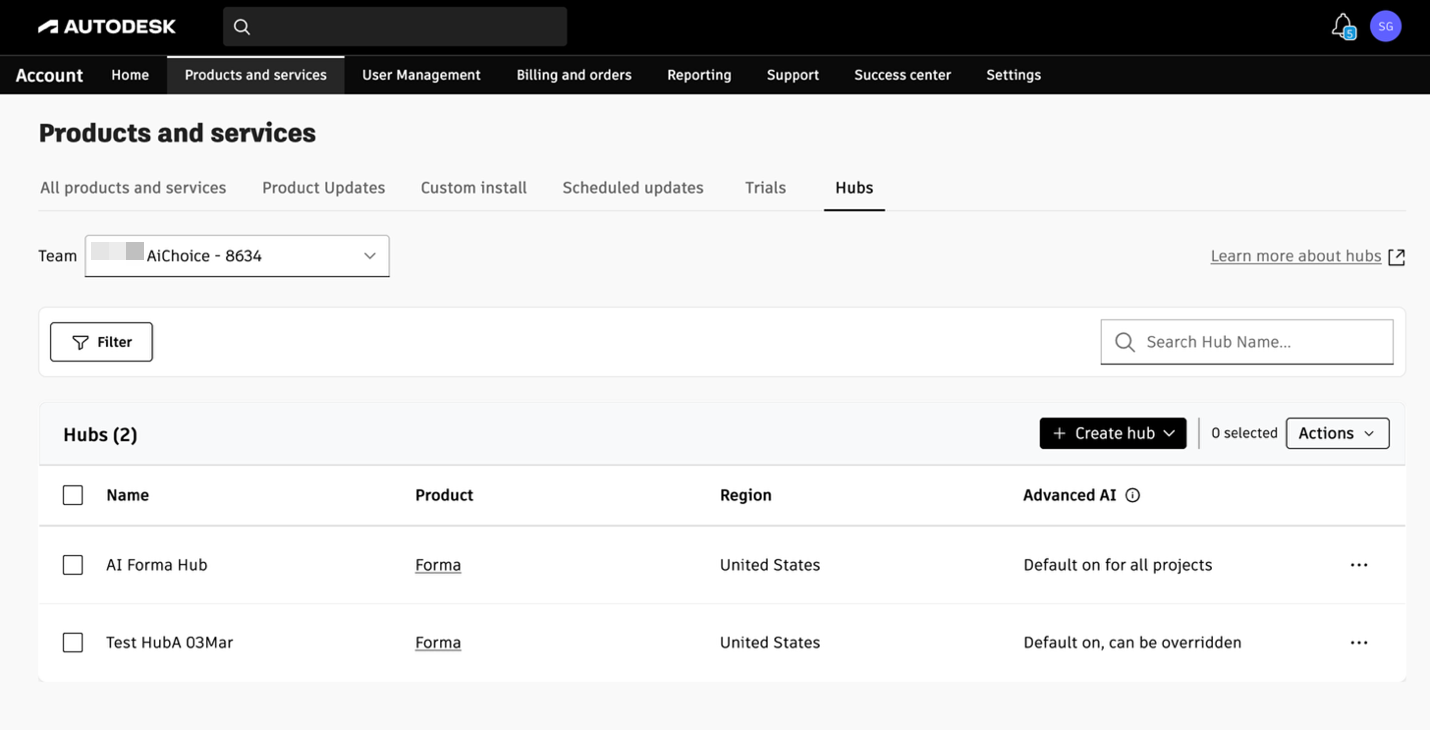
Go to Products and Services.
Select Hubs.
Locate the hub you want to update.
Update the setting using one of these methods:
Select one or more hubs and choose Actions > Update AI Settings.
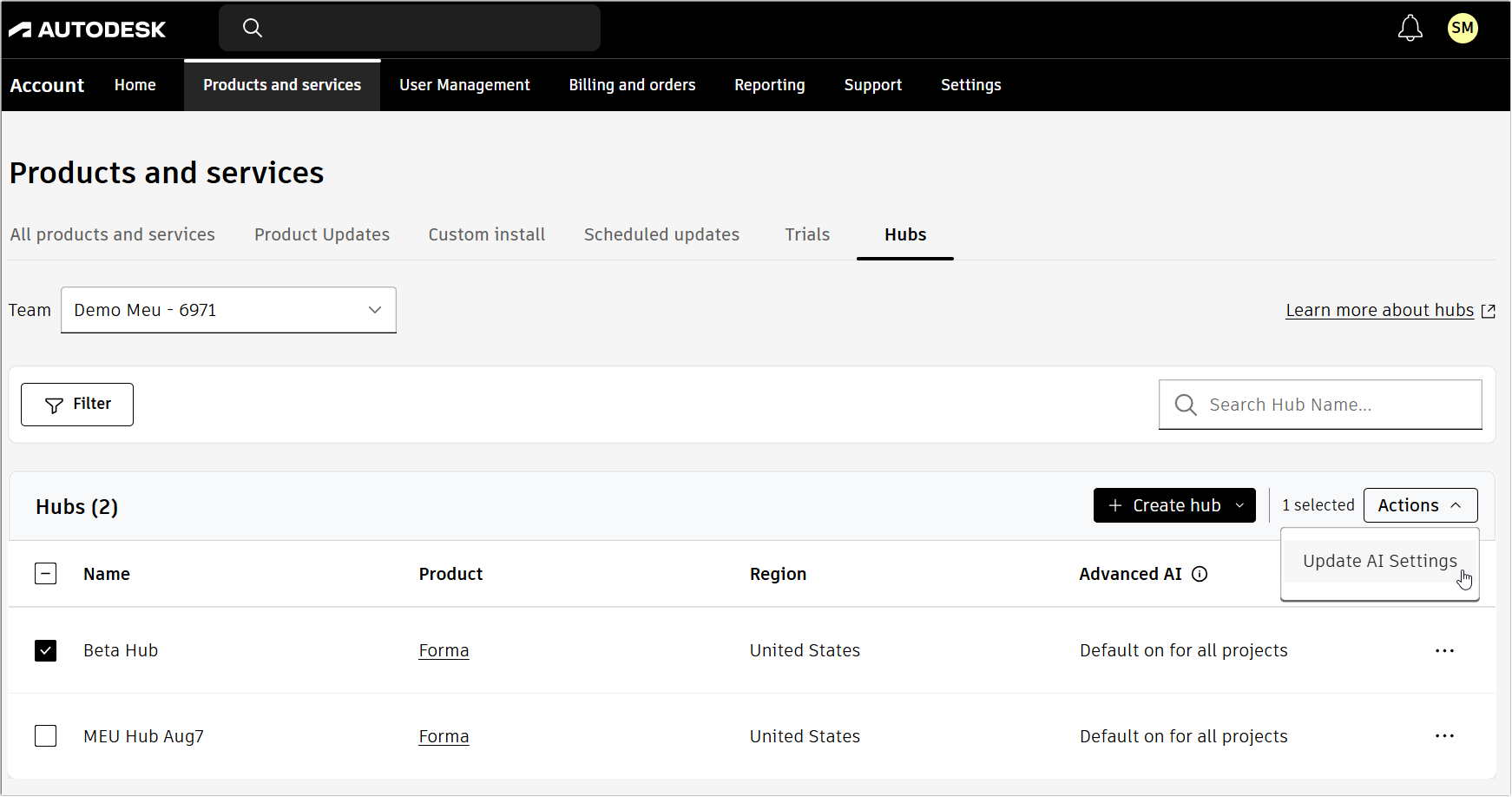
Actions - Update AI Settings Select the More actions (...) menu for an individual hub and choose Update AI Settings.
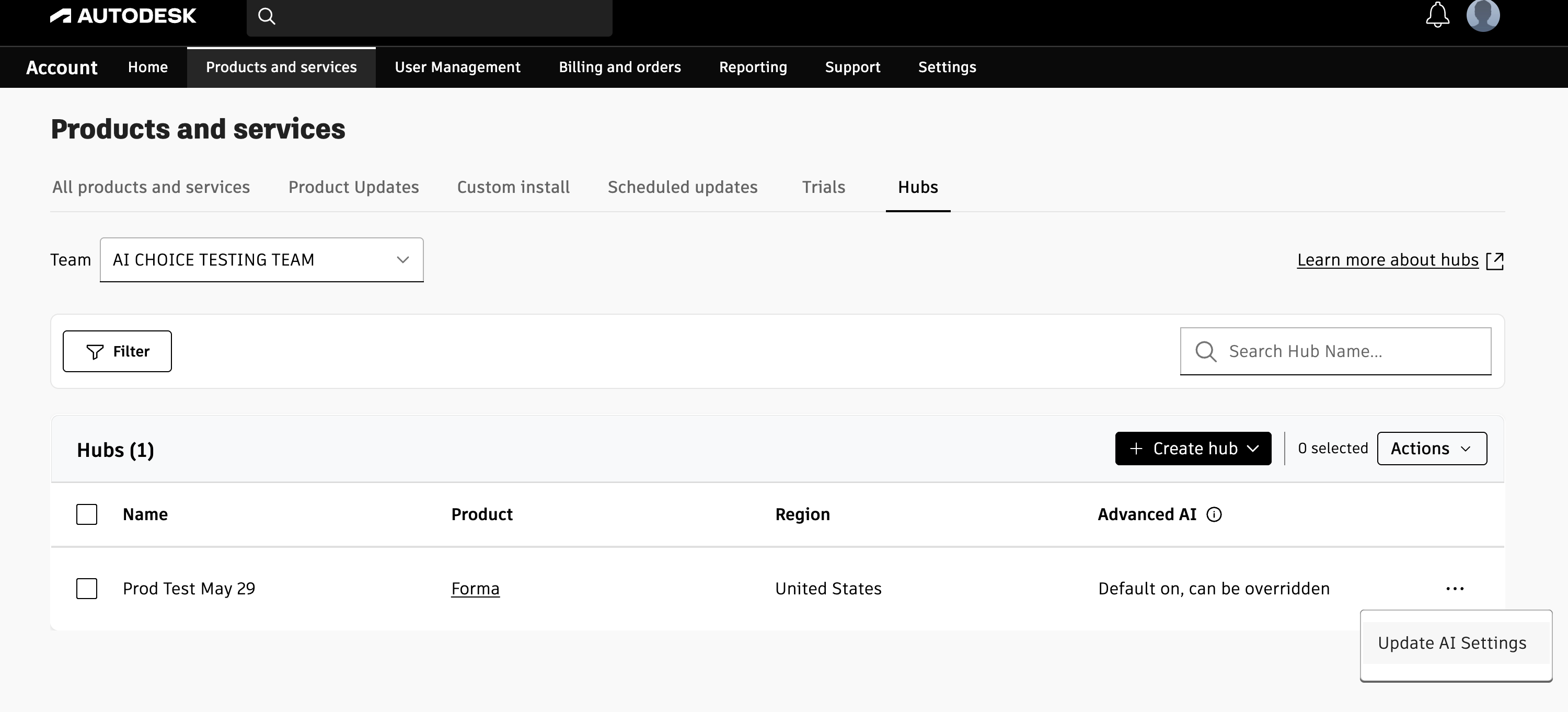
Update AI Settings
Review the value shown in the Advanced AI column:
Default on for all projects: Advanced AI is on for all projects in the hub.
Default off for all projects: Advanced AI is off for all projects in the hub.
Default on, can be overridden: Advanced AI is on by default for all hubs and hub admins can allow different settings for individual projects.
Default off, can be overridden: Advanced AI is off and hub admins can allow different settings for individual projects.
N/A: Advanced AI settings are not available for the selected hub.
Default off for all projects (warning icon): Advanced AI is disabled at the account level and cannot be changed by admins.
Choose whether you want to allow hub admins to customize Advanced AI settings at the project level with the project level override.
Choose whether to turn Advanced AI default on or turn it off for all projects.
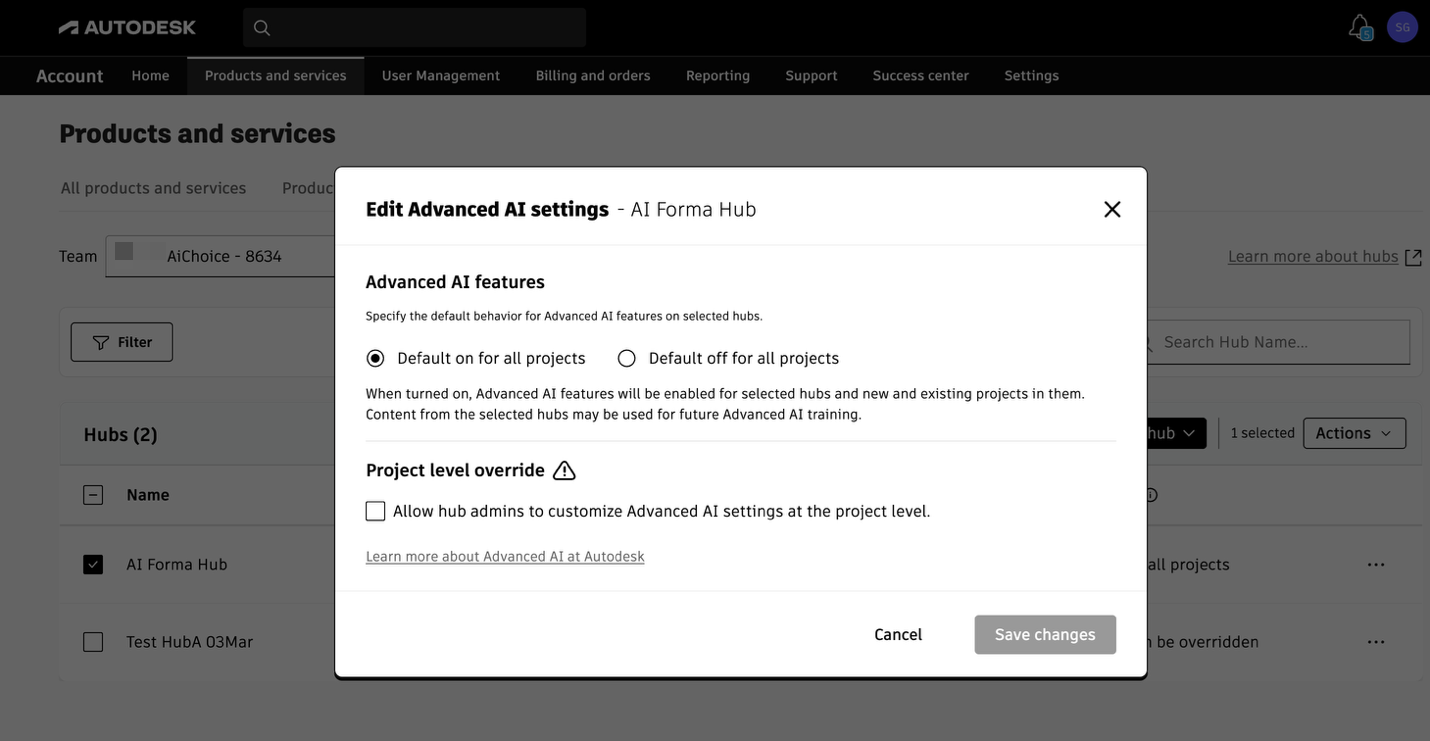
Edit Advanced AI settings Save changes.
You can also select multiple hubs to apply the same setting in bulk.
Changes may take up to a few hours to take effect.
What turning off Advanced AI does and does not do
What turning off Advanced AI does
Turning off Advanced AI for a hub or project:
Removes access to Advanced AI features in that scope.
Prevents Customer Content in that scope from being used for future Advanced AI training on a go-forward basis.
This applies only to the selected hub or project scope.
What turning off Advanced AI does not do
Turning off Advanced AI does not:
Turn off Standard AI features.
Remove previously trained model learnings.
Retroactively alter models that were previously trained.
Provide customer-specific model retraining.
Delete previously trained models.
Create a separate control for Customer Content use while keeping Advanced AI features turned on.
Propagation timing
After you change the setting:
Access changes may take up to a few hours to take effect.
Product experiences may update at different times.
Full propagation can take up to a few hours.
Advanced AI vs Standard AI
Advanced AI and Standard AI are managed differently.
Feature category | Controlled by this setting |
Advanced AI features | Yes |
Standard AI features | No |
Standard AI features remain available even when Advanced AI is turned off.
Autodesk Assistant is a Standard AI feature. If Autodesk Assistant attempts to access an Advanced AI capability in a hub or project where Advanced AI is turned off, that capability will be unavailable.
Common admin scenarios
Scenario: You want all projects in a hub to use the same setting
Turn Advanced AI on or off at the hub level and do not allow project-level override.
New projects inherit the hub setting automatically.
Scenario: A specific project needs a different setting
If the product supports project-level settings:
Allow project-level override for the hub.
Open the product’s local admin experience.
Update the project setting separately.
The project can then use a different setting from the parent hub.
Scenario: Users still see Advanced AI features after a change
Changes may take up to a few hours to propagate across products and services.
Confirm:
The correct hub or project was updated.
The user belongs to the expected hub or project.
The product supports the setting you changed.
Troubleshooting
Issue | What to check |
You cannot edit the setting. | Confirm that you have the required admin role. |
The setting does not appear. | The hub or product may not support Advanced AI settings. |
Users still have access after turning Advanced AI off. | Wait a few hours for changes to propagate. |
A project cannot use a different setting. | Confirm that project-level override is supported and allowed for the hub. |
Autodesk Assistant still appears. | Autodesk Assistant is a Standard AI feature and remains available. |
Activity log events
Activity log may include events such as:
System-level Advanced AI restrictions.
Hub-level setting changes by admins.
Example activity log messages:
System has turned off Advanced AI for all hubs and projects in this team.
James Fidler updated Advanced AI settings on hub X.
Related resources
Need help? Ask the Autodesk Assistant!
The Assistant can help you find answers or contact an agent.
What level of support do you have?
Different subscription plans provide distinct categories of support. Find out the level of support for your plan.
View levels of support