Get help with Account management
Account management for admins
Manage user role policy
Use user role policy to control whether people on your Autodesk account team are classified as users or external users. Learn how User-management based and Domain based policies work, why someone may be classified as an external user, and how user roles work with Subscription usage policy.
An external user is typically someone outside your organization, such as a contractor or vendor, who needs access to Autodesk products or services. External users were previously called guest users.
Your team can use either User-management based or Domain based user role policy. The policy determines how people are classified when they're added to your team.
The initial user role policy for a team can vary depending on when the team was created. Some teams may already use User-management based policy. Some newer teams may start with Domain based policy and have the primary admin's email domain included as the first domain. Existing teams aren't automatically changed.
User role classification is also used by other Autodesk account controls, including Subscription usage policy. If your Subscription usage policy treats external users differently, make sure your users are classified according to your organization's requirements.
Choose your path
If this sounds like you… | Start here | This path is for… |
Someone from my company is showing as an external user. | Why someone may be classified as an external user | Understanding how the team's current policy classified the person. |
I want people from our company to be recognized automatically. | Use Domain based user role policy | Automatically classifying people as user instead of external user by approved email domain. |
We're restricting external users and I want to make sure the right people are affected. | Understand how user role policy works with Subscription usage policy | Reviewing role classification before applying subscription restrictions based on user role. |
This person's role doesn't match our domain rule. | Review user role policy exceptions | Reviewing people whose existing role differs from the role expected by the current domain policy. |
Understand your user role policy options
User management based
With User-management based user role policy, people added to your team through an integrated Autodesk cloud collaboration product, such as Forma Design Collaboration, Forma Build, or Forma Takeoff, are automatically set as an external user in your Autodesk account.
User-management based policy can be appropriate when your organization already has a reliable process for making sure people are correctly classified as users or external users.
Domain based
With Domain based user role policy, you create a list of approved email domains for your team.
This lets you automatically manage who is considered a user or external user, regardless of whether they're added through Autodesk account or an integrated cloud collaboration product. Anyone added with an email from an approved domain will be assigned as a user, while users with emails from other domains will automatically be set as external users.
Domain based policy can be useful when people are frequently added through cloud collaboration products because it lets Autodesk classify them automatically based on their email domain.
For some newer teams, Domain based policy may already be selected and the primary admin's email domain may already appear as the first domain.
Selecting the domain based policy doesn't change the roles of existing users. The policy applies only to new users. To update existing users' roles, use the options in User management.
Note: Include your organization's domain for single sign-on (SSO) or directory sync in your domain based rules. This ensures that team members using SSO are automatically recognized as standard users.
Why someone may be classified as an external user
How a person is classified depends on the user role policy for the team.
With User-management based policy, someone added through an integrated Autodesk cloud collaboration product can be classified as an external user even if they're an employee or otherwise part of your organization.
With Domain based policy, the person's email domain is used to determine their role. A person whose email domain matches an approved domain is classified as a user. A person whose domain doesn't match is classified as an external user.
If someone from your organization is unexpectedly classified as an external user:
Go to Settings > Team settings in your Autodesk account.
Select the appropriate team.
Review User management policies to see whether the team uses User-management based or Domain based policy.
If the team uses Domain based policy, check whether the person's email domain is included.
If the person was already on the team before the current Domain based policy applied to them, check View exceptions in Manage policies.
Changing someone's role classification doesn't change the organization they work for, their project role, or their product assignment.
Understand how user role policy works with Subscription usage policy
User role policy and Subscription usage policy control different things.
Setting | What it controls |
User role policy | Whether someone is classified as a user or external user on the Autodesk account team. |
Subscription usage policy | Whether applicable subscriptions assigned by the team can be used on projects associated with another team. Some Subscription usage policy settings treat users and external users differently. |
When Subscription usage policy is set to Restricted for external users, a person's classification matters because the restriction applies to people classified as external users.
Before relying on this setting, review your team's user roles and make sure people are classified according to your organization's requirements.
This is especially important for people added through cloud collaboration products. With User-management based policy, those people can be classified as external users. Domain based policy can reduce unintended classification by automatically recognizing people whose email addresses match your organization's approved domains.
You do not have to change to Domain based policy solely because you use Subscription usage policy. If your organization already has another reliable process for keeping user and external user roles accurate, you can continue using that process.
For information about whether an applicable subscription can be used on another team's project, see Manage subscription usage for external Forma projects.
Use Domain based user role policy
Use Domain based policy when you want to classify people automatically according to their email domain.
To set up Domain based policy:
Go to Settings > Team settings in your Autodesk account.
Select the team you want to manage.
Under User management policies, select Manage policies.
Select Domain based.
Add the email domains that identify people who should be classified as users.
Select Apply Changes.
Confirm the policy update.
Note: If you set up a domain rule, existing users on your team will keep their existing roles. If any existing users don’t meet the domain policy, they’ll be marked as exceptions. See View user role policy exceptions.
Add domains
You can add multiple domains to your Domain based user role policy.
Add a domain when people using that email domain should normally be classified as users on the team.
Make sure you include all relevant organizational domains, including domains used with SSO or directory sync when applicable.
To add a domain:
Go to Settings > Team settings in your Autodesk account.
Select the appropriate team.
Under User management policies, select Manage policies.
Select Add domain to add as many domains as you need.
Select Apply Changes at the bottom of the screen.
Confirm your policy update.
New users whose email addresses match a listed domain are classified as users. New users with email addresses from other domains are classified as external users.
Remove domains
You can remove domains from a Domain based user role policy. At least one domain must remain.
To remove a domain:
Go to Settings > Team settings in your Autodesk account.
Select the appropriate team.
Under User management policies, select Manage policies.
Review the domains in the policy.
Select Remove for the domain you want to remove.
Select Remove to confirm the removal.
New users whose email addresses use the removed domain are classified as external users.
Note: Existing users keep their current roles. If their roles no longer match the domain policy, they appear as exceptions.
Review user role policy exceptions
An exception is a user whose current role doesn't match the role that the team's Domain based policy would assign.
For example, someone who was already on the team before their email domain was added to the policy keeps their existing role. If that role doesn't match the current domain rule, the person appears as an exception.
An exception isn't necessarily an error. It means the person's role differs from the role expected by the current domain policy. Review the person's relationship to your organization before deciding whether their role should change.
To review exceptions:
Go to Settings > Team settings in your Autodesk account.
Select the team you want to manage.
Under User management policies, select Manage policies.
Select View Exceptions in the Approved email domains section.
Compare each user's current role with the role expected by the domain policy.
You can filter the list to review all roles, users, or external users.
Reviewing exceptions is particularly important if your Subscription usage policy treats external users differently.
Change roles for exceptions
To change the role of a user listed as an exception:
Go to Settings > Team settings in your Autodesk account.
Select the appropriate team.
Under User management policies, select Manage policies.
Select View Exceptions in the Approved email domains section.
Select the user whose role you want to change. You can select multiple people.
Select
Change roles
.
Choose the appropriate role.
Select
Change role
to save your changes.
When you select multiple people, the same new role is applied to everyone selected.
You don't have to remove every exception. The team admin should decide which role is appropriate for each person based on the organization's requirements.
Exceptions to the user role policy
You’ll see alerts in your account whenever a user doesn’t follow your domain based rules.
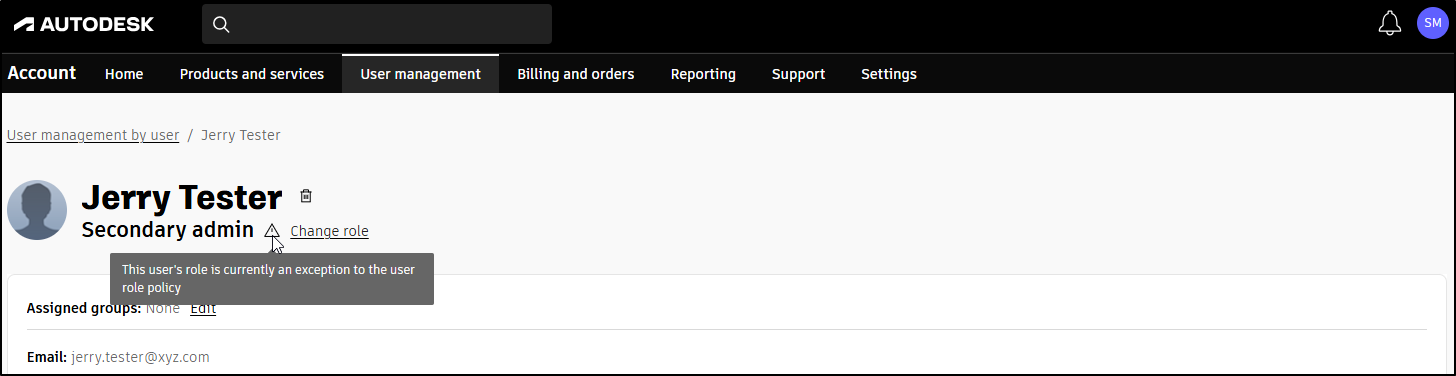
User details alert: This user’s role is currently an exception to the user role policy
You’ll see a warning sign in a user’s details if their role doesn’t follow your domain based rules. This means the domain based rule is on, and the user is an exception. To change a user’s role, click change role or go to your team settings to see all your user role exceptions.
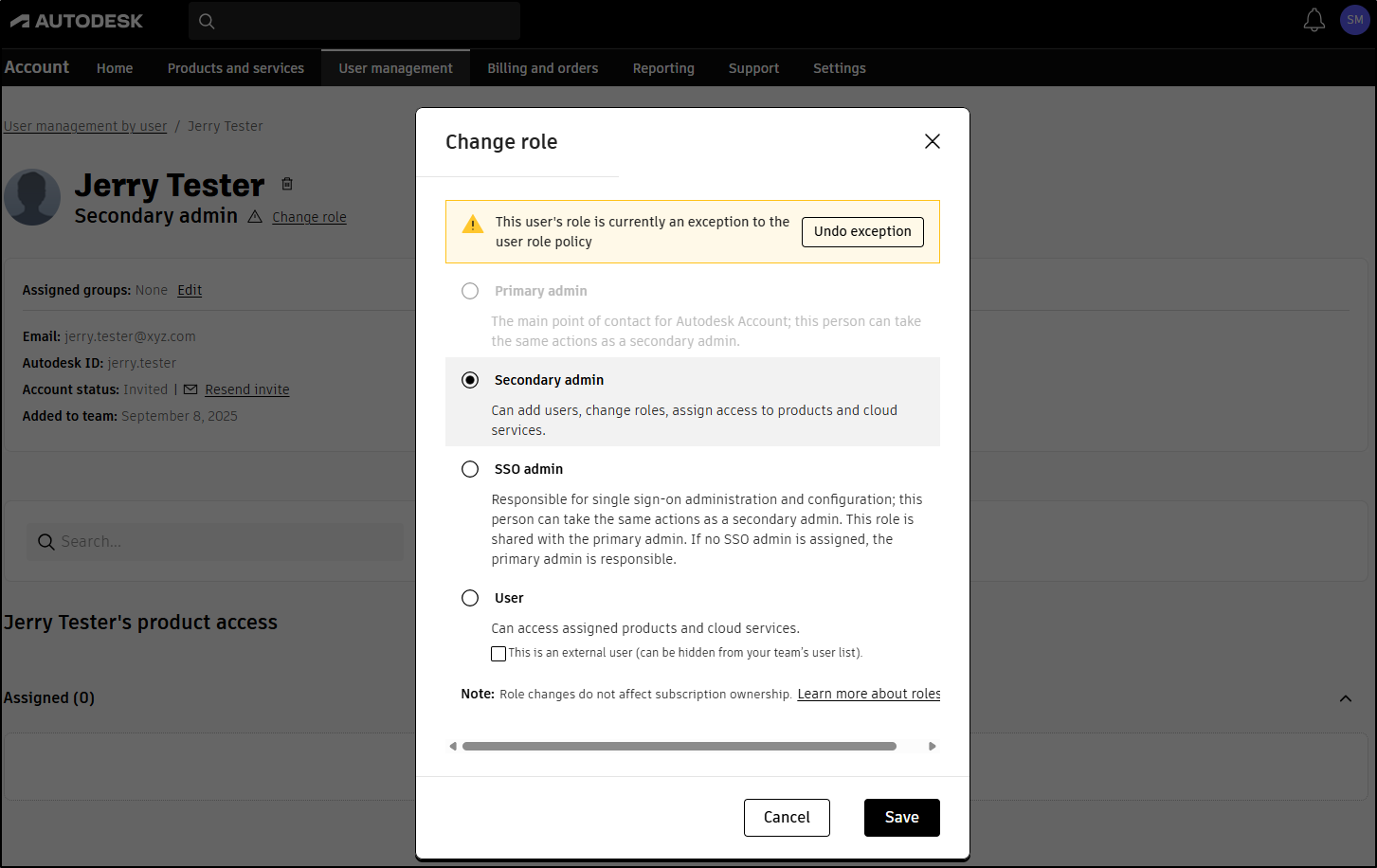
Change role alert: This user’s role is currently an exception from the user role policy
When you change a user's role to match your domain rule, you'll see a message letting you know their role is currently an exception. If you want this user to follow your domain rules, select Undo exception.
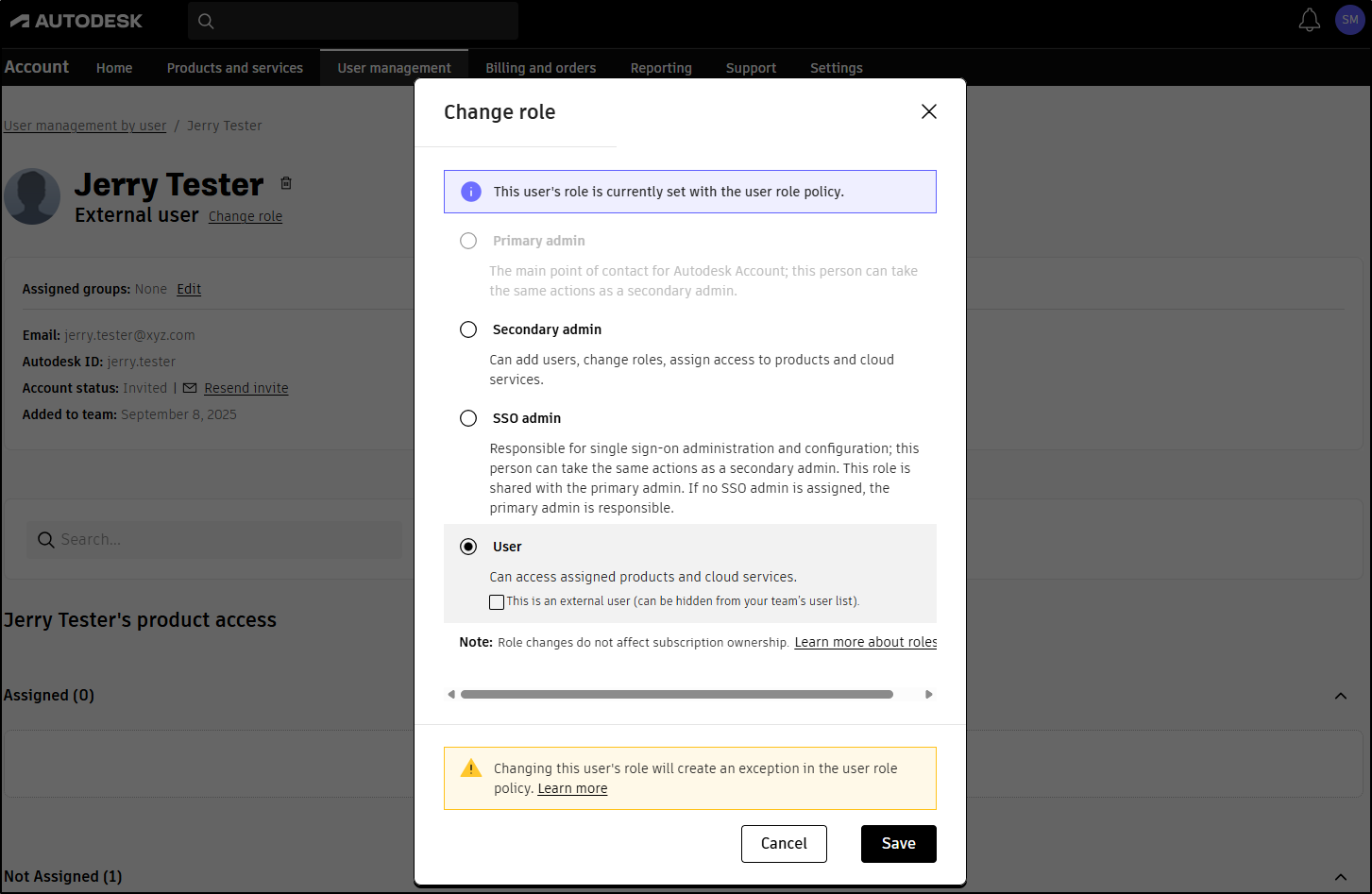
Change role alert: Changing this user’s role will create an exception in the user role policy.
If you change a user’s role that follows your domain rules, you’ll see a message saying this update will create an exception. Change the role if you don’t want the user to follow your domain policy. To remove the exception, go to the user’s details or your team settings to view all exceptions.
Related resources
Need help? Ask the Autodesk Assistant!
The Assistant can help you find answers or contact an agent.
What level of support do you have?
Different subscription plans provide distinct categories of support. Find out the level of support for your plan.
View levels of support