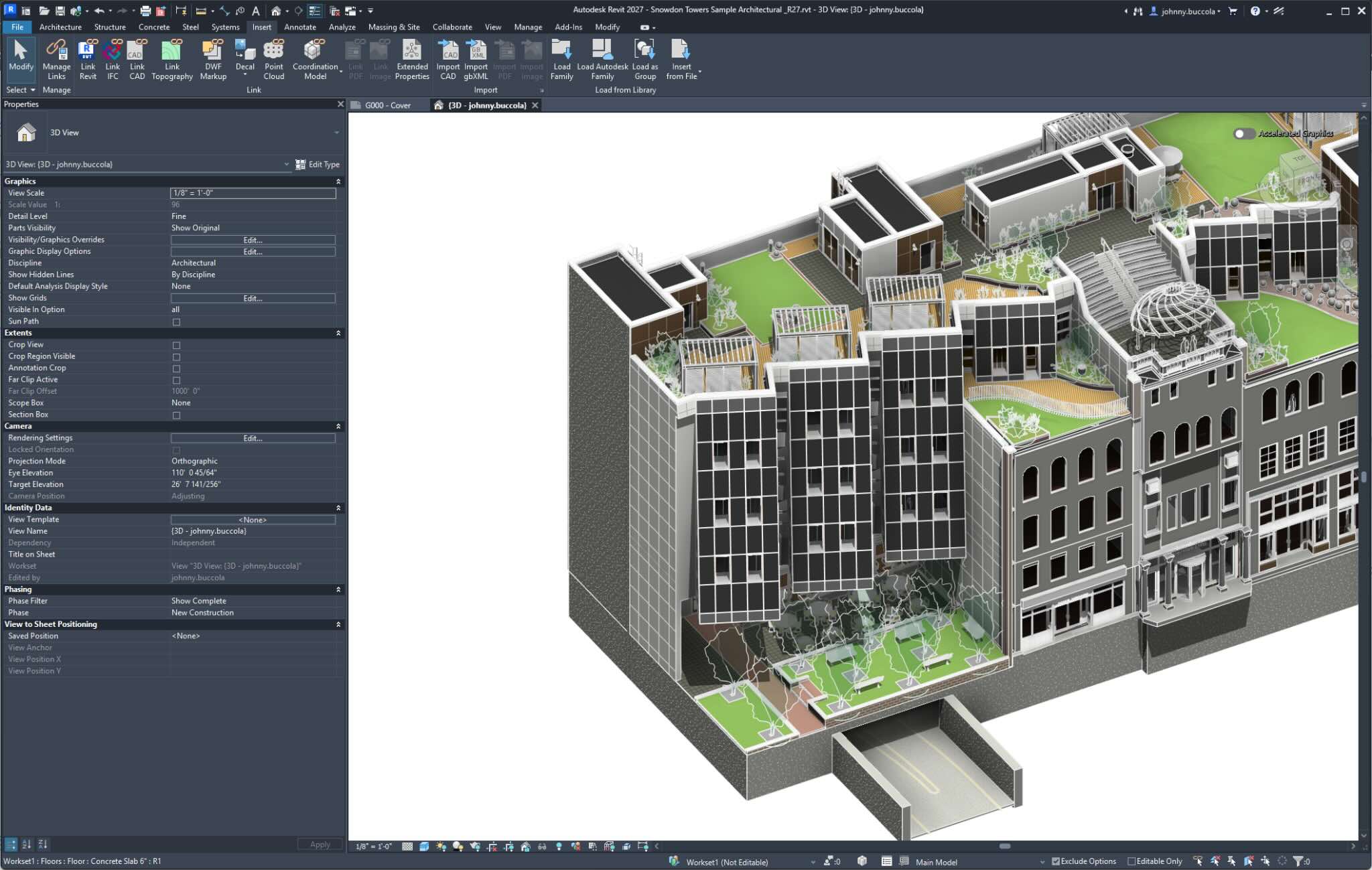
Let's be honest: Revit has become indispensable. Maybe a little too indispensable. Over the decades, it has evolved from a CAD tool for cranking out permit sets into a BIM multi-tool for massing, coordination, collaboration, work packaging, and more.
But there's a familiar tension on every project. Double-clicking into a 370 MB .rvt just to tweak a property value or add a supplier part number isn't something most team members should have to do, and it isn't something most team members can do.
When that file belongs to another firm? The instinct is to detach a copy and work from that. And just like that, data duplication begins, even when BIM execution plans are airtight.
For team members who don't have Revit at all, the picture is even more fragmented. Installation plans move into spreadsheets. Fabrication tracking lives in a separate system. Field decisions are buried in correspondence logs. The "information" in BIM starts to drift from the model it's supposed to describe.
But what if non-authoring team members could append their own data to the model without opening Revit, in a tightly standardized environment?
That's exactly what Extended Properties are designed to do.
Learn More About Forma for Model Management
There's a point in every project where the model is technically correct, but logistically incomplete.
As a contractor, how do I use the model to plan for construction? Historically, there have been two options:
Extended Properties introduce a third option: append that data directly to the model without opening it in Revit.
From within Forma Model Coordination, teams can define properties like Install Batch, Install Sequence, QA Status, or Fab ID and apply them to tracked model objects.
No file download. No local edits. No risk of stepping on someone else's work.
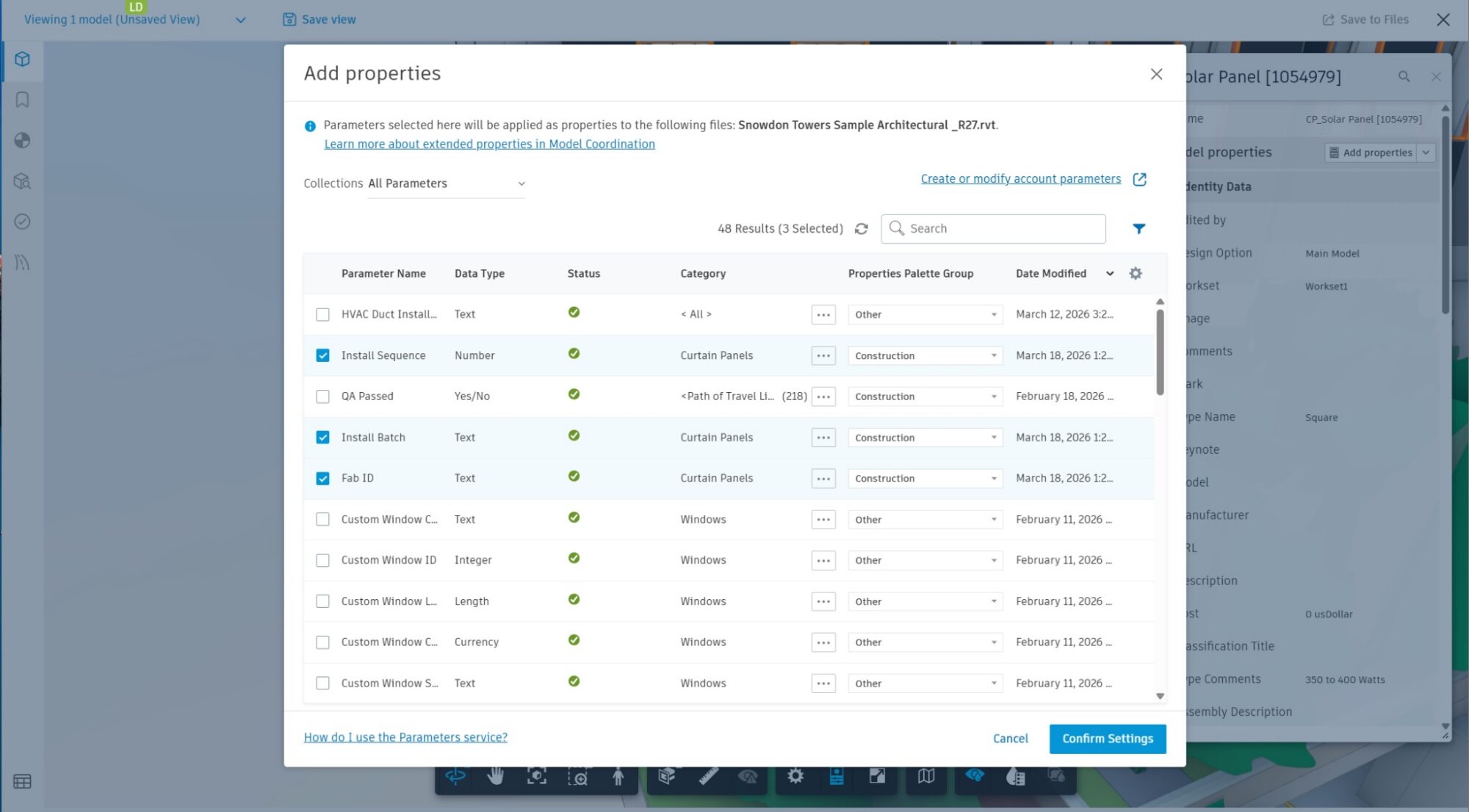
In Forma’s Model Coordination tool, project admins can append properties from from the Parameters Library located in Account Admin
At this point, access to the information model is no longer locked behind a desktop authoring tool. It's accessible to Forma Design Collaboration users and API developers alike.
The next step usually happens in Excel. However, with Extended Properties, it doesn't have to.
Once properties are appended to the model, VDC Coordinators and PEs can populate their data straight from Forma Model Coordination, right alongside the 3D context where that data matters most.
The viewer keeps things focused: editable properties are elevated to the top of the panel, and a VDC expert can pre-configure a saved, filtered view for a subcontractor to work from. Model curation at its finest.
Coloring by install batch and pivoting the Object Table turns what would have been rows in a spreadsheet into something tangible and immediate. Simple, yet powerful BIM visualization.
And yes, you can still use Excel to import data via the Object Table. The difference now is that the data stays connected to the model objects it belongs to.
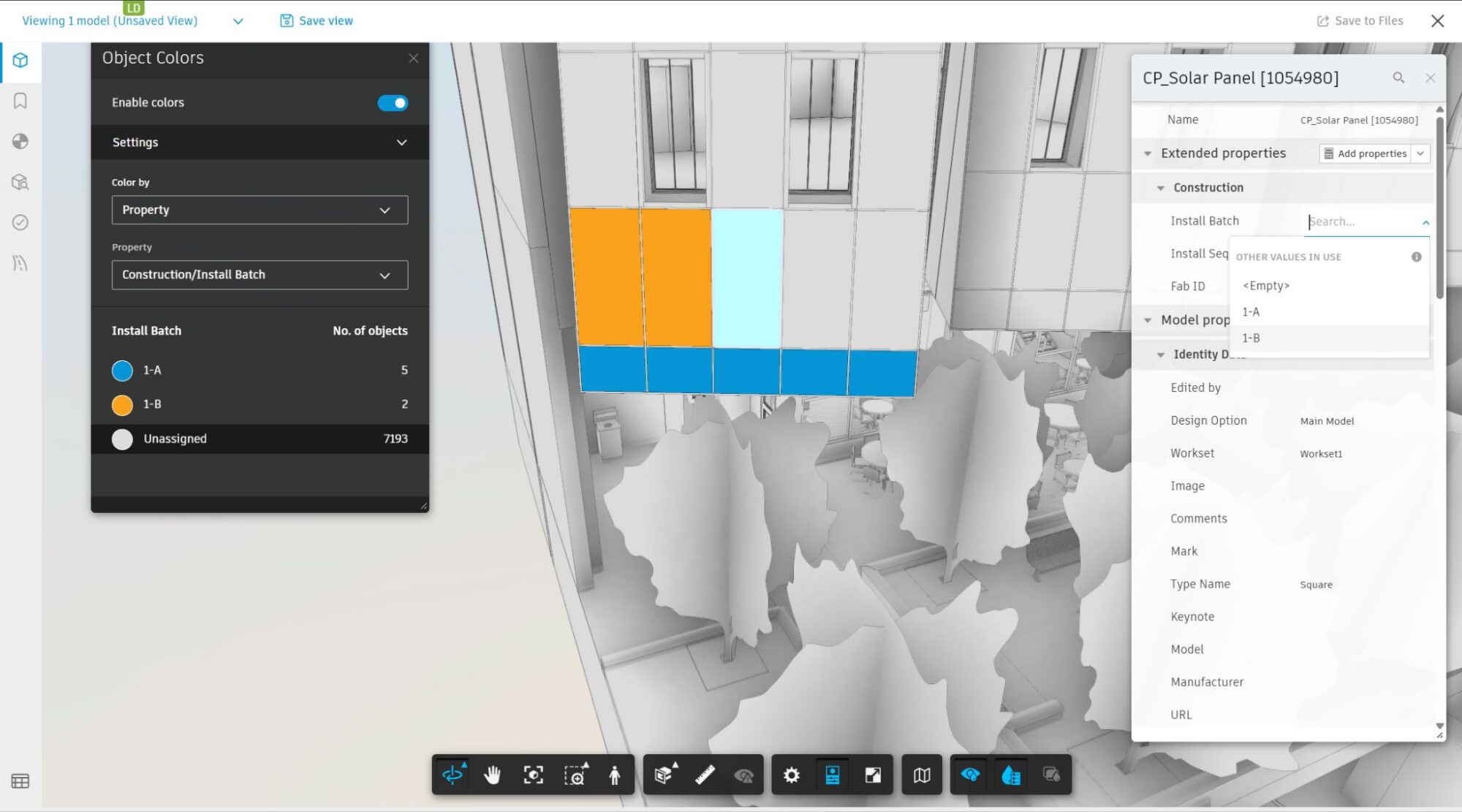
Assign property values straight from the comfort of your Forma viewer.
Instead of relying on data exports, derivatives, and file exchanges, teams make changes directly in context, using tools they already feel confident in. That's democratization in practice.
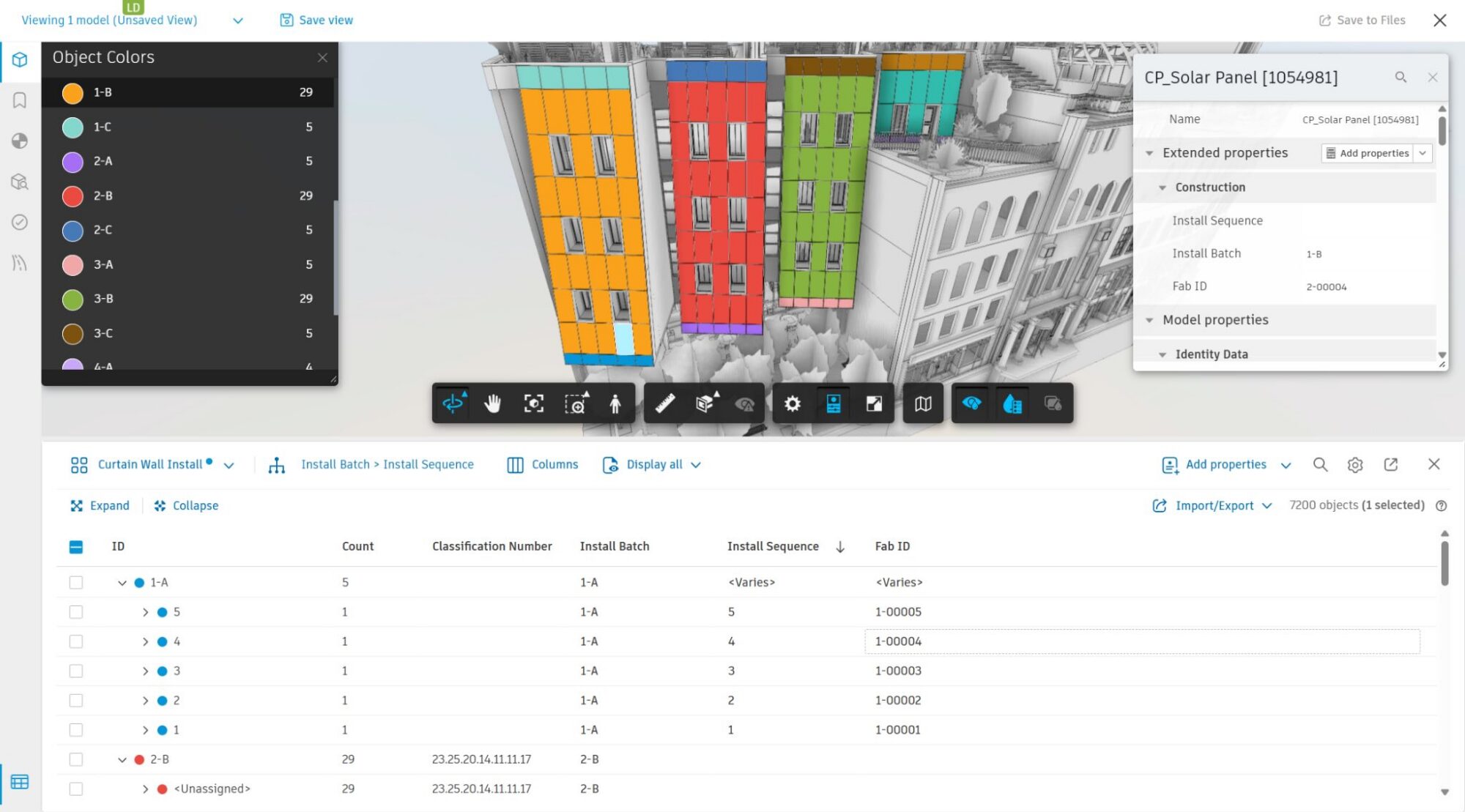
The object table acts as a live data visualization helper, with instantaneous feedback during data entry.
With the curtain wall contractor working in their model conditioning experience in Forma, the designer eventually wants to check in on the proposed installation plan.
The workflow is familiar. The designer links the Extended Properties data set into their Revit file, just like any other linked reference, and sees their BEP-standard parameter names populated with data and associated with the same Revit elements they authored.
No context switching or file swapping. Just linked, live data flowing back into the authoring environment.
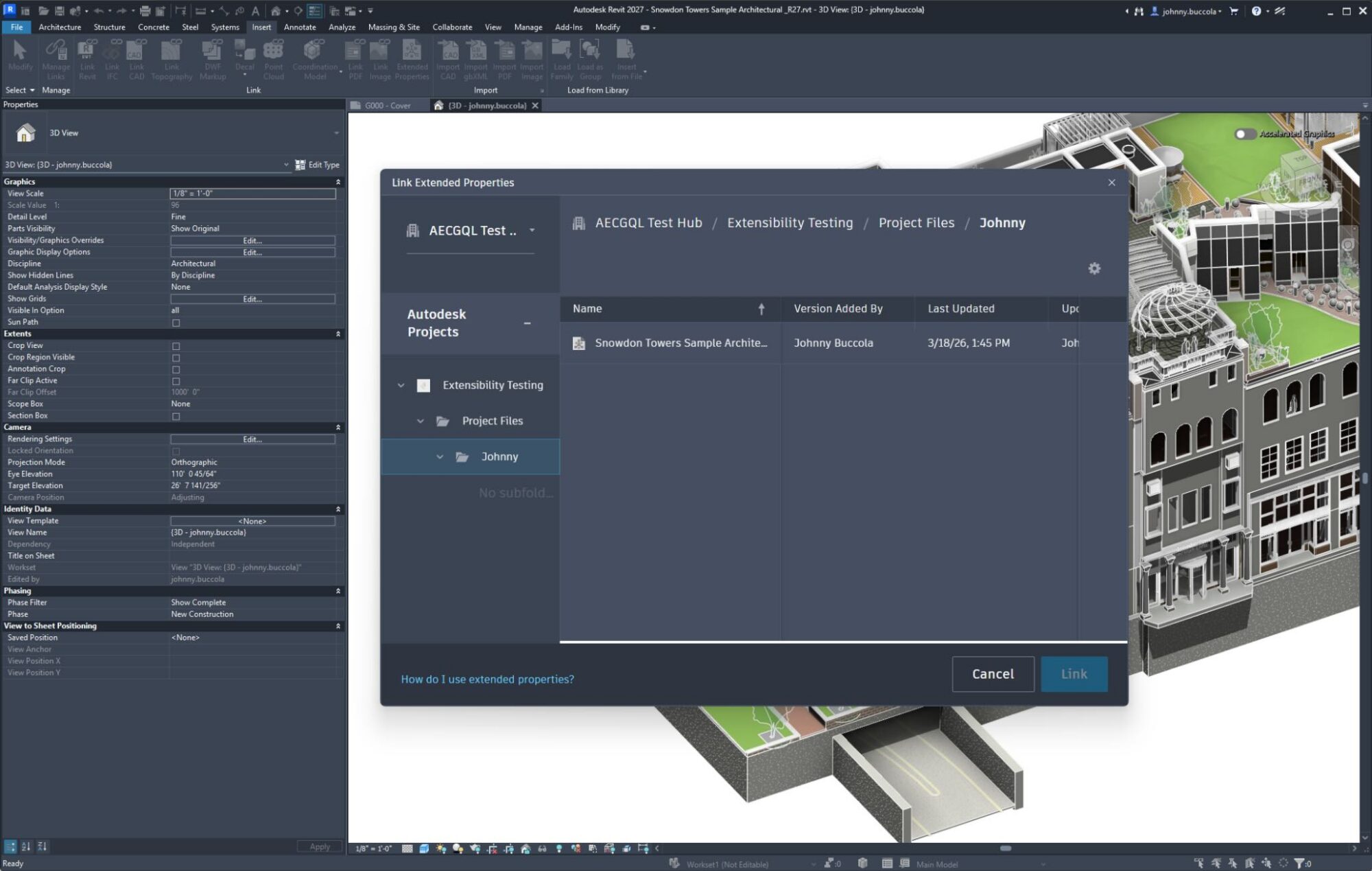
In Revit, Insert > Extended Properties, and browse to the Extended Properties data set that was automatically created in Data Management by Model Coordination.
That's it. If you've linked models into Revit before, this will feel second nature. The difference is that this time, it's granular, element-associated data.
Once linked, the Extended Properties appear in Revit's Properties panel under a dedicated section. For many users, simply seeing the values there is enough.
More likely, though, the next step is building a schedule with the linked properties — cleverly disguised as native parameters — to check in on completeness, track progress, or validate scope.
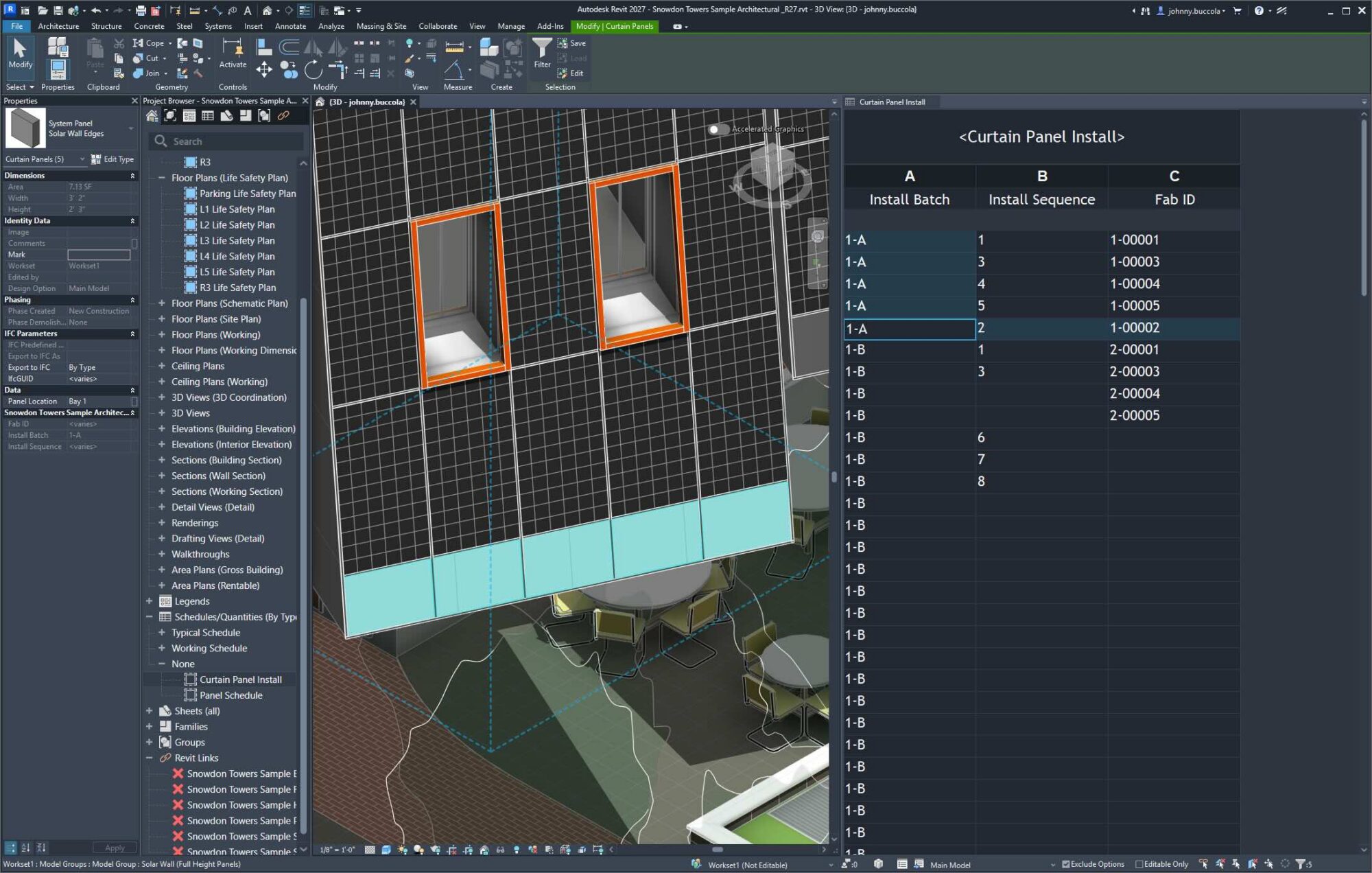
No context switching needed.
Current limitation: Extended Properties cannot yet be used in annotations or filters. This capability is coming soon.
Most BIM workflows don't break because teams can't add valuable information.
They break because the same data gets recreated over and over again, in slightly different places, by slightly different people.
Extended Properties don't magically solve every workflow challenge, and they may require a shift in how teams think about model ownership. But they do remove one of the biggest sources of friction: they let people contribute to the model on their own terms.
Which means:
This post focused on the workflow: how teams can democratize BIM data by working in the tools they already use.
But Extended Properties are backed by the Data Extensibility APIs, which open the door to programmatic integrations. These days, building an integration can be as simple as a prompt and a pointer to the documentation:
"Build me a dashboard that tracks the progress of my project using Data Extensibility APIs."
"Integrate with my ERP system to assign part numbers as they are generated."
If you're interested in what this enables from a development and integration perspective, we'll be sharing a deeper dive into the APIs and how teams are starting to build on top of them.
👉 From Files to Data: Unlocking Data-Driven AEC Workflows with the AEC Data Model API