
Over the past year, I've been thinking a lot about the original promise of AI: simplicity. The idea was that you could ask a question in plain language and get an answer based on real information and context, without needing to understand what was happening behind the scenes. But somewhere along the way, things started to get more complicated. We're now talking about AI agents, skills, workflows, MCP servers, and increasingly sophisticated ways to connect different tools and systems. For some this is exciting, but for others this can also make AI feel more complicated than it needs to be. That's where the Autodesk Assistant comes in. It brings the simplicity back into using AI to help your construction projects.
But there's one thing I've learned through the last few years of working with AI: the magic is in the prompting. Having access to information is one thing. Knowing how to ask for what you actually need is another.
At Autodesk University 2026, I presented From Prompts to Project Outcomes: Using Autodesk Assistant in Forma with Kristina Youngblut, BIM Manager at CIMA+. We explored how Autodesk Assistant can help teams work with project information more effectively, and how you can get more meaningful results just by tweaking the way you write your prompts.

Most of us are already using AI in some capacity. Maybe it helps you write an email, summarize meeting notes, or troubleshoot an issue. But are you relying on it every day to find answers across your project? Usually not.
The challenge isn't necessarily that AI isn't smart enough. It's that our projects are incredibly complex. Between specifications, submittals, RFIs, issues, schedules, and countless other documents, we're dealing with thousands, sometimes millions, of pieces of information spread across different workflows. Nobody can manually search through all of it or remember where everything lives, and finding the right information is only half the battle. We also need to understand what it means in the context of our project and how to act on it.
There's also the question of security. When we're using AI to work with project data, we need to think carefully about where that information goes, who can access it, and whether we're working within the appropriate project environment. In our industry, protecting project information isn't optional. We need solutions that allow us to work with that information while respecting the permissions and security requirements already in place.
This is where the way we access and interact with AI becomes important. Instead of extracting data, moving it into separate tools, and trying to reconstruct the context ourselves, what if we could ask questions directly within our project environment? What if AI could help us make sense of the information already there, in the context of the work we're trying to accomplish?
That brings us to Autodesk Assistant in Forma. It’s an embedded, AI-native virtual agent in Forma that lets you use natural language to surface insights and analyze project data. You can use it across project data including specifications, RFIs, submittals, issues, meetings, schedules, and change orders, as well as for product help.
The important part is that Autodesk Assistant works on a per-project basis. When you initialize it for a project, it starts processing and indexing the information within that environment so it can understand the relationship of various project elements. After all, project information is connected. An RFI can relate to a submittal. A meeting decision can lead to a change order, and a specification can be referenced across multiple documents.
That context makes Autodesk Assistant particularly useful because it lets the AI go beyond generic answers. Autodesk Assistant connects the dots across your specific project and surfaces the most relevant information.
Similar to other AI-powered tools, Autodesk Assistant works via prompting. And in order to get useful answers, you need to tell it what you’re looking for.
That being said, not all prompts are created equal. If you want to get the most value out of Autodesk Assistant, you need to give it enough context and direction so it can provide the best output.
So, how do you generate a good prompt? To answer that, let’s first look at what a general, average prompt looks like. Most people prompt AI by describing what they need and how they want the answer presented.
For example, you can tell Autodesk Assistant something like: Compare available specifications, identify which ones were referenced and where, flag anything that might be missing, and put everything into a table.
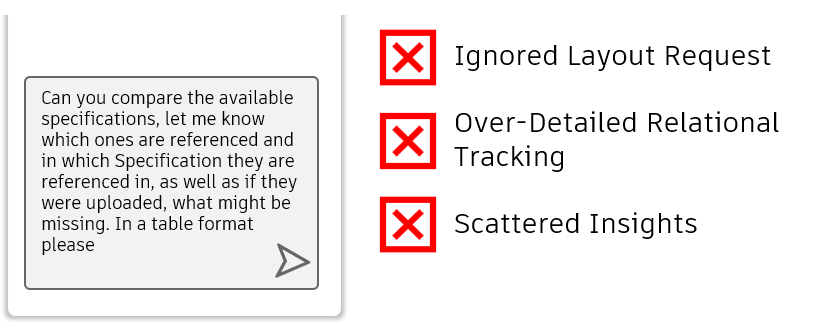
On the surface, that sounds like a perfectly reasonable request. But depending on the project, you may find that the output is difficult to make sense of. When your prompt is too general or broad, the assistant might generate a massive, unorganized table with relationships crammed into cells and missing specifications duplicated across rows and columns.
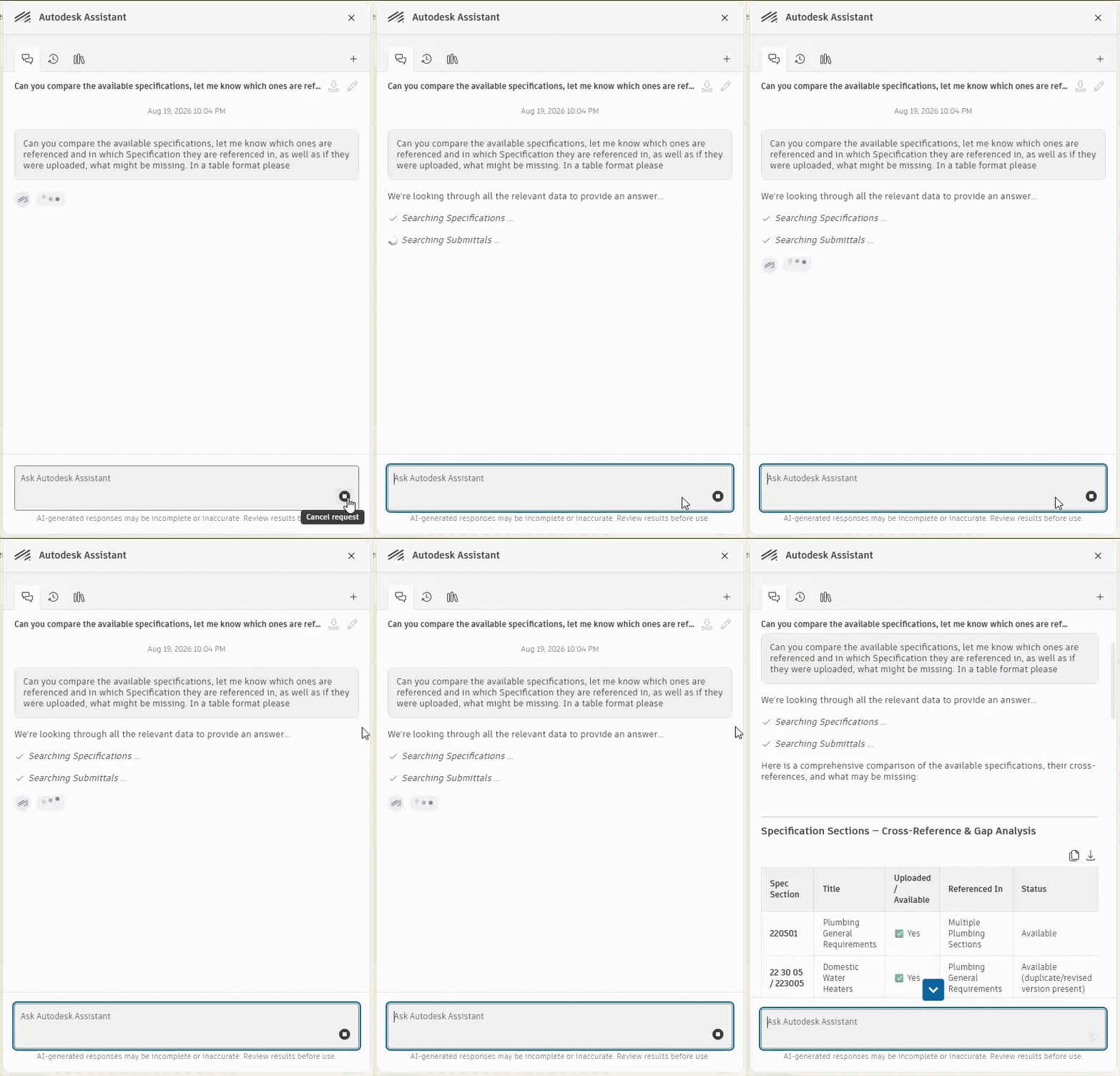
This is the sneaky thing about a sub-optimal prompt: it can work, just not in a particularly useful way.
To level up your AI prompts, we recommend using the CRAFT framework, which stands for Context, Role, Action, Filters, and Tasks. It’s a simple way to take what’s in your head and turn it into clear instructions for the assistant.
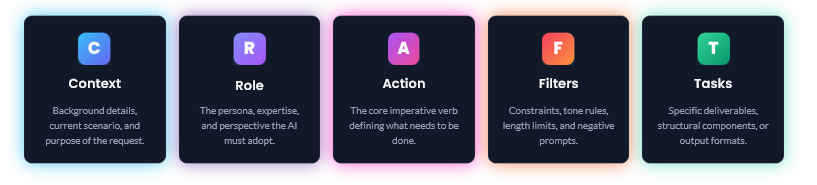
Let us re-write that “bad prompt” using the CRAFT framework:
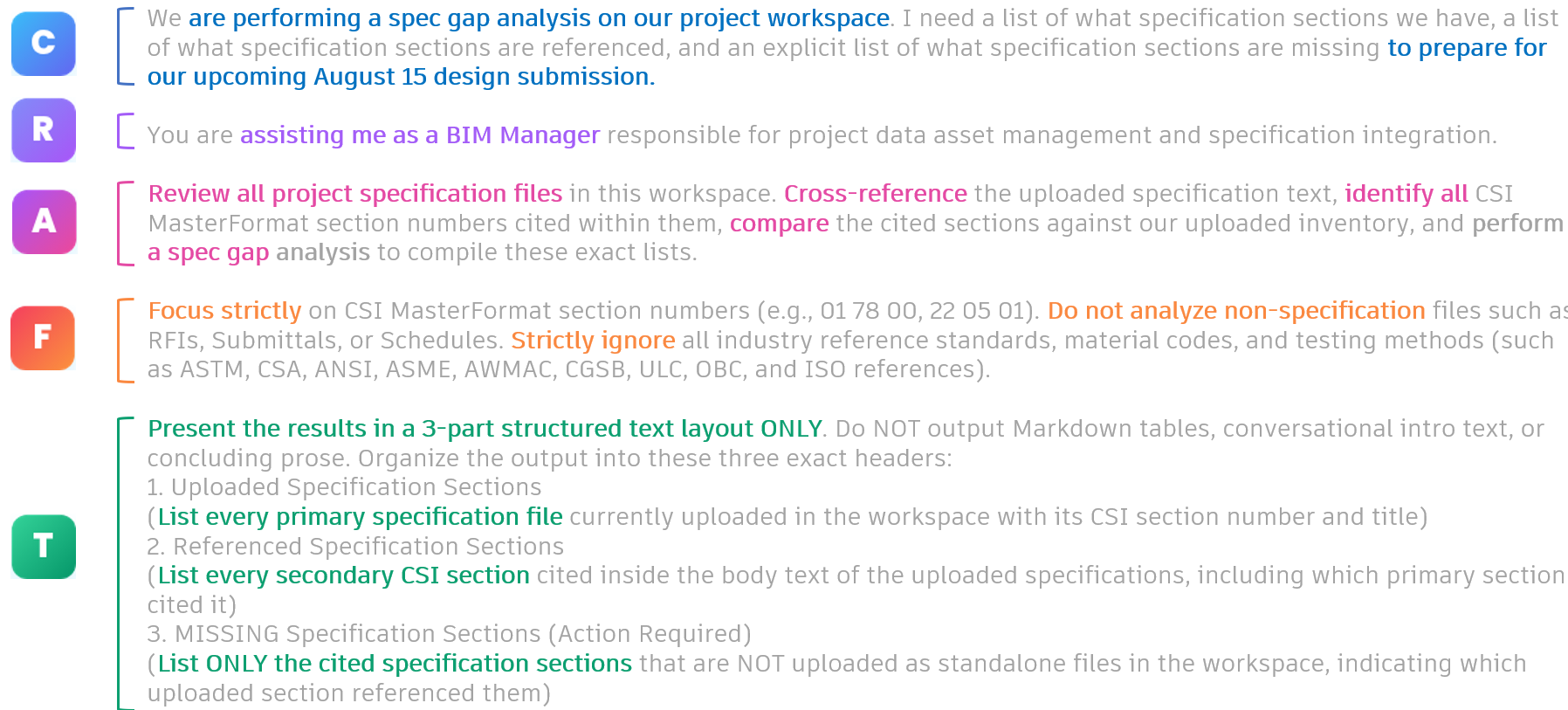
For our spec gap analysis, the context was that we were preparing for an upcoming design submission and needed to identify missing specification sections. For the role, we told Autodesk Assistant to assist us as a BIM manager responsible for project data assets and specification integration.
Then came the action: review all project specification files, cross-reference the text, identify cited CSI MasterFormat sections, compare those against the specifications we had uploaded, and flag any gaps.
Next, we provided the filter, and told the assistant to focus strictly on CSI MasterFormat section numbers while ignoring RFIs, submittals, schedules, testing standards, and other irrelevant references.
Finally, the task defined exactly what the output should look like: three structured lists covering uploaded specification sections, referenced sections, and missing sections that required action.
Prompting Autodesk Assistant in this way enabled the tool to zero in on the right project data, filter out irrelevant information, and return a clean, actionable list of what was uploaded, what was referenced, and what was missing.
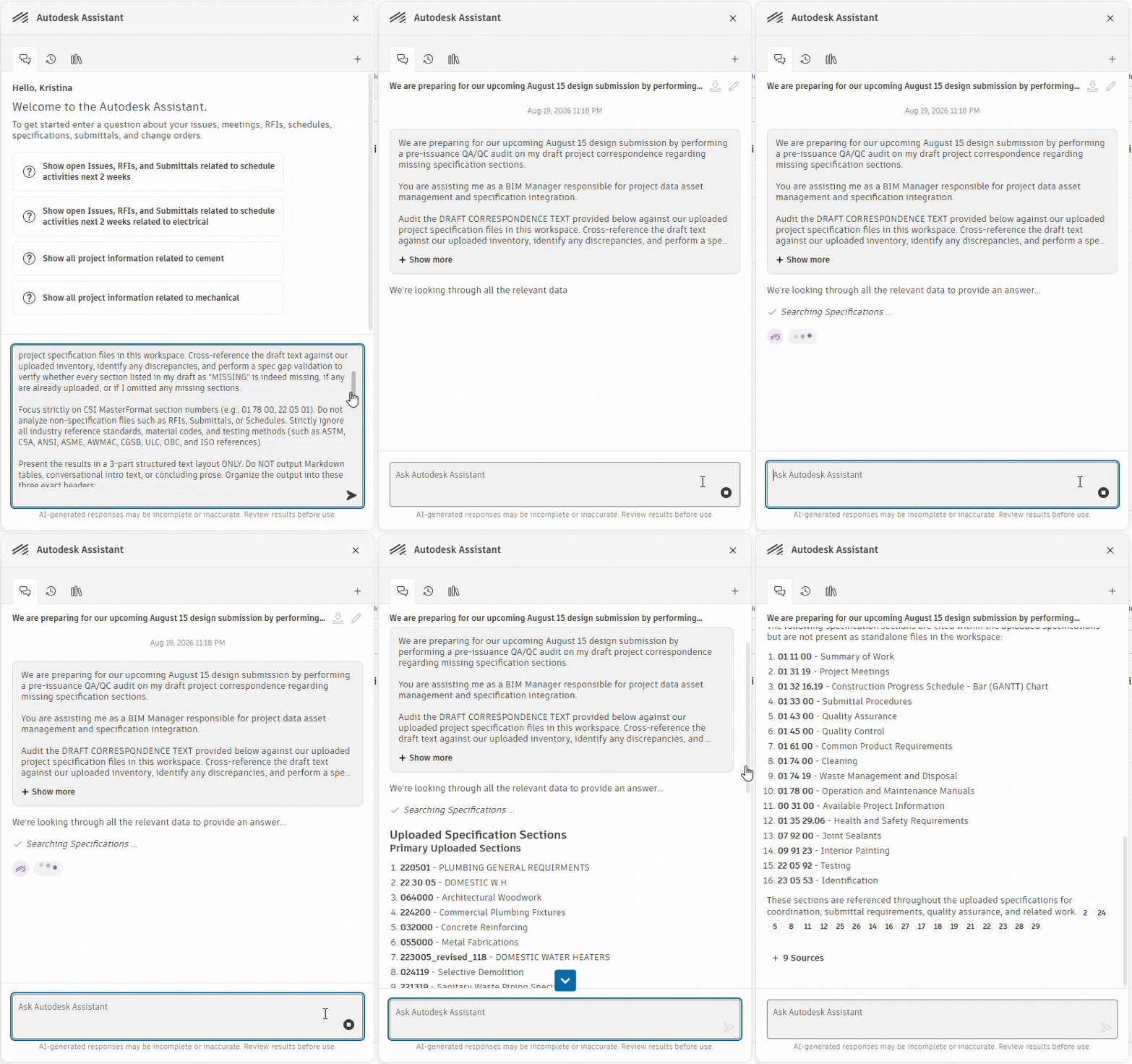
Good prompting is about setting the assistant up to deliver the results you actually need. When you give Autodesk Assistant clear context and boundaries, you can turn project data into something you can act on.
One example is validation. When prompted in the right way, Autodesk Assistant can scan specification files, cross-reference cited codes against what’s been uploaded, and flag missing sections. With the right filters, it can focus on specification files while bypassing submittals, testing codes, and other information you don’t need.
Another use case we demonstrated was issue management. On a project with hundreds or thousands of issues, simply asking, “Show me all of my overdue issues,” could leave us with another mountain of information to sort through.
Instead, we used CRAFT to tell Autodesk Assistant we were approaching a design submission, asked it to focus only on open and overdue issues, and instructed it to group them, identify who they were assigned to, and calculate the results. We also specified the output: a table followed by a prioritized action plan.
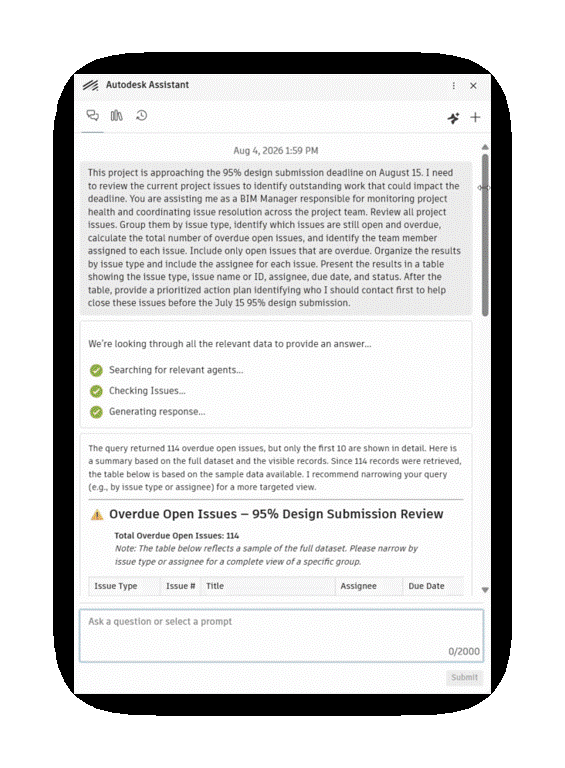
It takes a little more effort upfront, but it saves time on the backend. Instead of just finding project information, we can use that information to decide what to do next.
As useful as Autodesk Assistant can be, it’s important to be realistic about what it can and can’t do today.
First, there’s availability. Autodesk Assistant in Forma isn’t something every customer can turn on. Autodesk Assistant is available to customers with Enterprise Business Agreements and Account Unlimited agreements. Capabilities can also depend on project permissions, so what I can access as a project admin may differ from what another team member sees.
There are functional limitations, too. For example, you can’t ask the assistant to turn your project data into any chart or visualization you want. It also can’t take actions within your project—and that’s a good thing, because there’s no way that you can mess up our project unknowingly.
It’s also worth remembering that Autodesk Assistant is constantly evolving, so be sure to stay on top new capabilities and see how you can put them to work on your projects. Use what it can do today, understand its limitations, but keep watching for what’s next.
Autodesk Assistant isn’t here to take control of your project. It’s here to help you make better use of the information already in it. And because it operates in a read-only environment, you can start experimenting without worrying about accidentally changing your project data.
Our advice? Start small. Pick a project, initialize Autodesk Assistant, and try it. Give CRAFT a shot, see what you learn, and find one workflow where it can start doing some of the heavy lifting for you.