Get help with Account management
Account management for admins
Manage user role policy
The user role policy lets you designate users as either an external user or a user.
An external user is someone outside your organization, such as a contractor or vendor, who needs access to Autodesk products or services. Previously referred to as a guest user, this role ensures secure collaboration without exposing sensitive internal resources.
You can decide which policy applies to your external users, either the default settings in user management or by rules based on domain names. This helps you control whether someone is treated as an external user or a standard user, making it simpler to manage access securely and transparently.
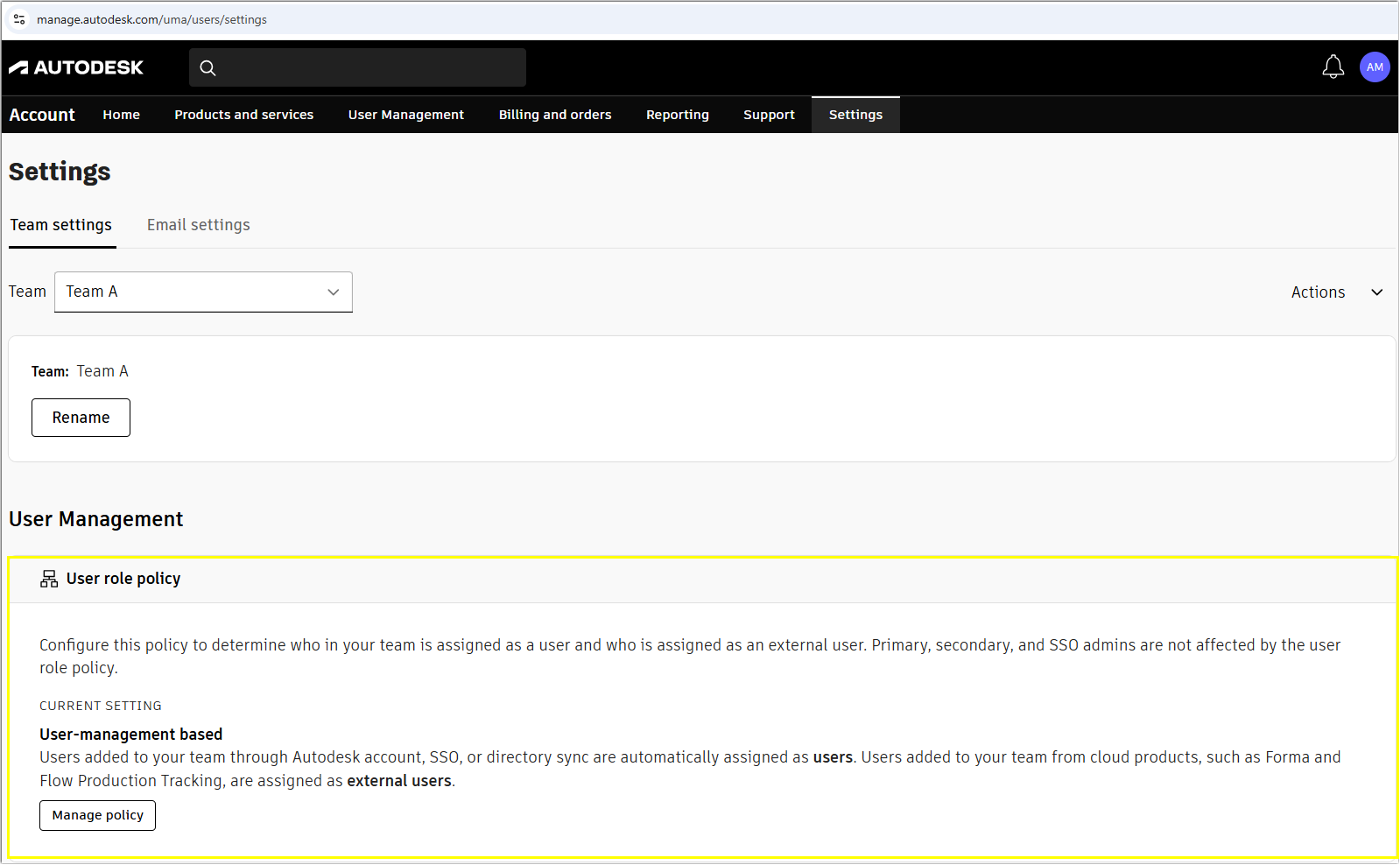
Default user management based external users
When you use the default user management based policy, anyone added to your team through an Autodesk cloud collaboration product, like Autodesk Forma Design Collaboration (formerly BIM Collaborate Pro), Forma Build (formerly Autodesk Build), or Forma Takeoff (formerly Takeoff), is automatically set as an external user in the Autodesk account.
Domain based external users
If you choose to use domain based rules, you can set up a list of approved email domains for your team. This lets you automatically manage who is considered a standard or external user. Anyone added with an email from an approved domain will be assigned as a standard user, while users with emails from other domains will automatically be set as external users.
To change the role of the users who don’t align with your domain based policy, see View user role policy exceptions.
Note: Include your organization's domain for single sign-on (SSO) or directory sync in your domain based rules. This ensures that team members using SSO are automatically recognized as standard users.
To add domains
Go to settings > team settings in your Autodesk account.
Select the team you want to apply the policy to.
Go to user role policy and select manage policy.
Select domain based.
Here you can add new domains. Use add new to add as many domains as you need.
Select apply changes.
Confirm your policy update.
Your user role policy is now changed to domain based. New users added to the team will have their roles assigned based on their domain. Primary, secondary, and single sign-on (SSO) admins will not be affected by the domain rule.
Note: If you set up a domain rule, existing users on your team will keep their existing roles. If any existing users don’t meet the domain policy, they’ll be marked as exceptions. See View user role policy exceptions.
To remove domains
You can remove domains at any time. When removing domains, at least one must remain.
Go to settings > team settings in your Autodesk account.
Select the team in which you want to remove domains from your user role policy.
Go to user role policy and select manage policy.
Review your domains for user role and select remove for the domains you want to remove from your policy.
Confirm domain removal by selecting remove.
The domain is removed from your user role policy. New users added to the team with this domain will be added as external users.
Note: Existing users with the removed domain will be marked as exceptions. See view user role policy exceptions.
View user role policy exceptions
You can review and change users who don’t align with your domain based policy. Compare current role with expected role.
Go to settings > team settings in your Autodesk account.
Select the team in which you want to see user role exceptions.
Go to user role policy and select view exceptions.
You can filter users to see all roles, or just those with the standard user role or the external user role.
![[Base]-user-role-policy-domain-based-original-size](https://images.ctfassets.net/v7wr16nrr0mz/4q6UNlZIG1B7zn0zlqgGfA/eb773e6c867f29459c997d2d8bb38df0/User-role-policy-domain-based.png?fm=webp)
To change user roles for exceptions
Go to settings > team settings in your Autodesk account.
Select the team in which you want to see user role exceptions.
Go to user role policy and select view exceptions.
Select the user you want to change role. You can also select multiple users at once.
Select change roles on the top right of user list.
Choose the new role you want to assign to the user based on your domain rule or pick another available role.
Save your changes.
Note: When you select several users at once, you’ll need to assign them the same new role.
Exceptions to the user role policy
You’ll see alerts in your account whenever a user doesn’t follow your domain based rules.
User details alert: This user’s role is currently an exception to the user role policy
You’ll see a warning sign in a user’s details if their role doesn’t follow your domain based rules. This means the domain based rule is on, and the user is an exception. To change a user’s role, click change role or go to your team settings to see all your user role exceptions.
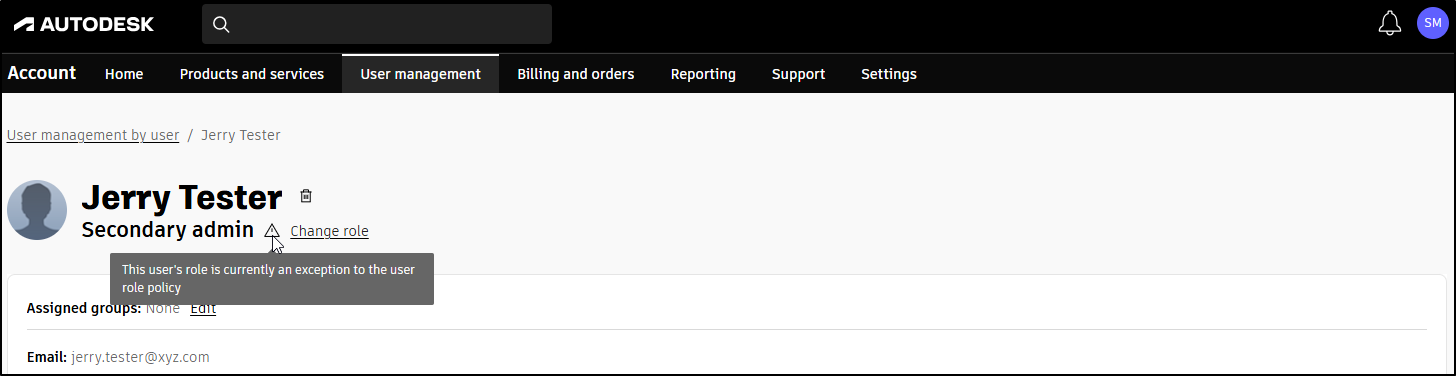
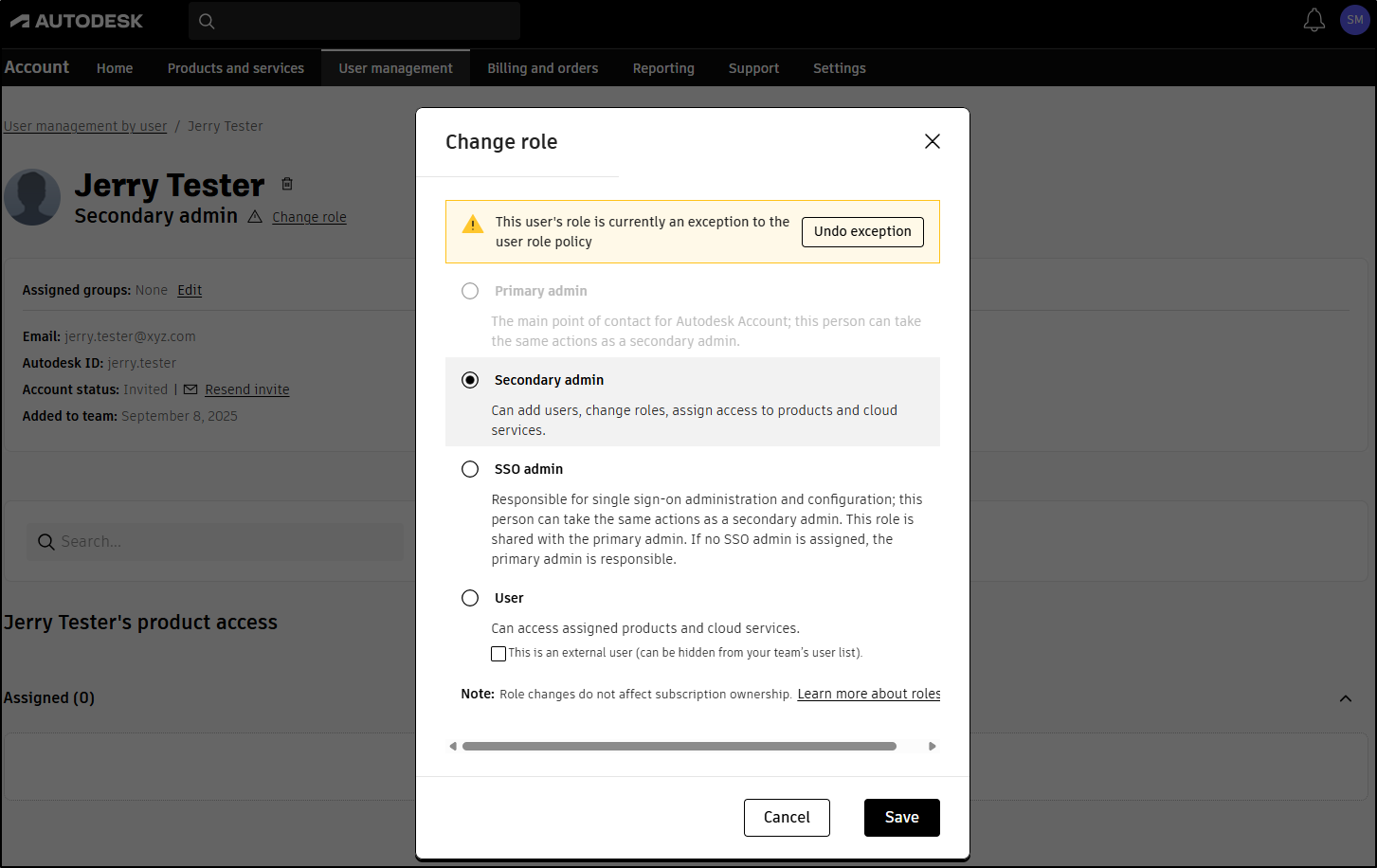
Change role alert: This user’s role is currently an exception from the user role policy
When you change a user's role to match your domain rule, you'll see a message letting you know their role is currently an exception. If you want this user to follow your domain rules, select Undo exception.
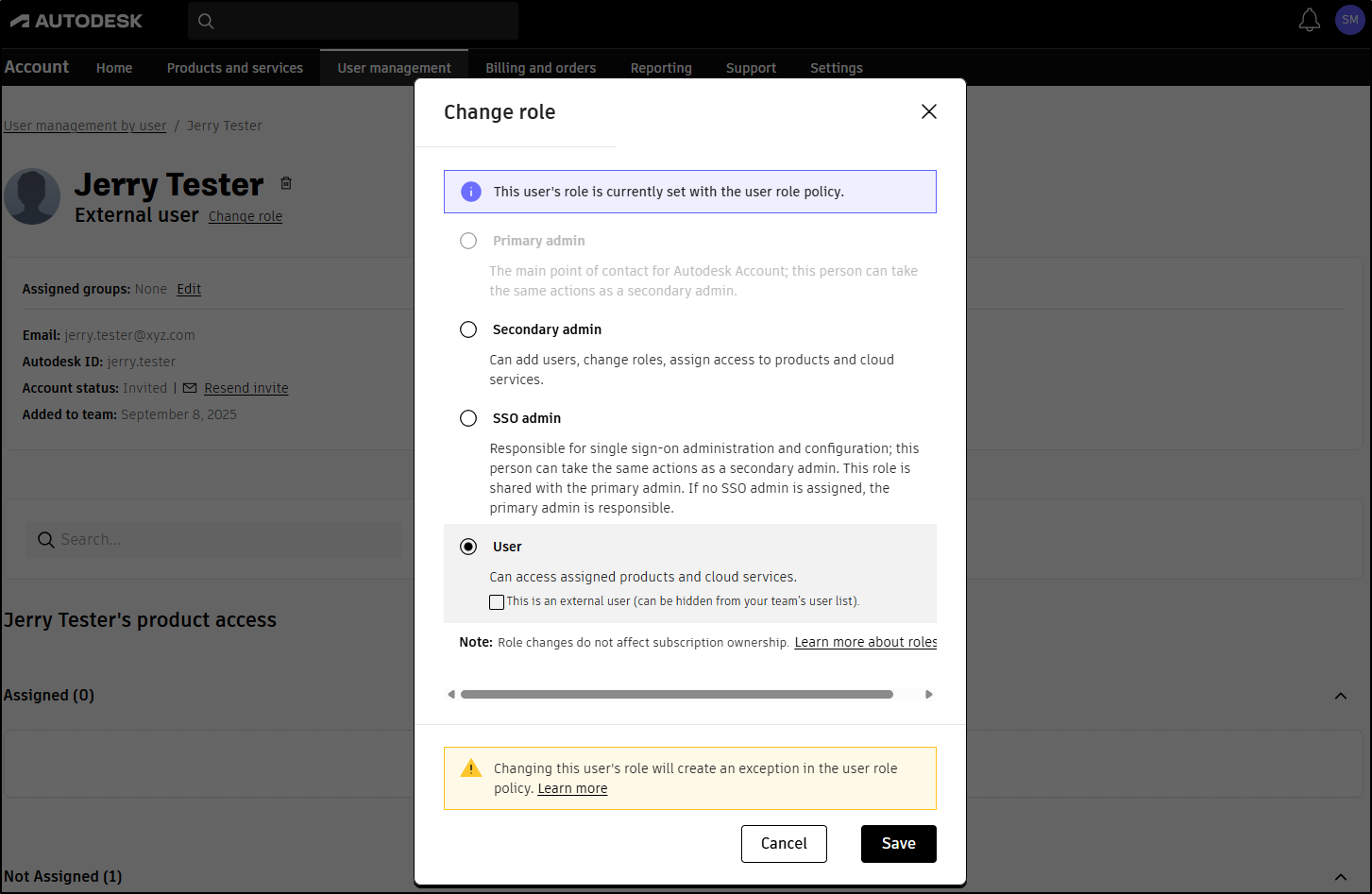
Change role alert: Changing this user’s role will create an exception in the user role policy.
If you change a user’s role that follows your domain rules, you’ll see a message saying this update will create an exception. Change the role if you don’t want the user to follow your domain policy. To remove the exception, go to the user’s details or your team settings to view all exceptions.
Need help? Ask the Autodesk Assistant!
The Assistant can help you find answers or contact an agent.
What level of support do you have?
Different subscription plans provide distinct categories of support. Find out the level of support for your plan.
View levels of support