 Gabby Winkey
 Joseph Bogg
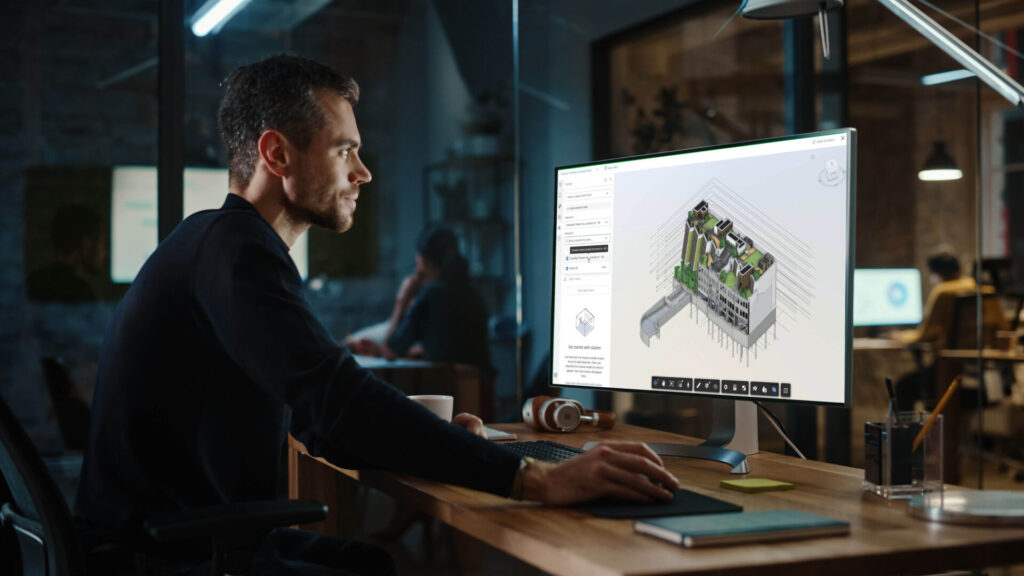
Coordinating models across teams is one of the most important—and often most challenging—parts of digital project delivery. With multiple disciplines, complex geometries, and fast-moving design updates, keeping everyone aligned can quickly become a full-time job.
Model Coordination in Autodesk Construction Cloud (ACC) simplifies this process by bringing aggregated models, clash detection, and issue tracking into a single cloud connected environment. Whether you’re reviewing early design models or preparing for constructability review, these tools help teams find and resolve conflicts faster while staying focused on what matters.
In this post, we’ll explore how to set up, refine, and get the most from your model coordination process. Each step builds on the last to help teams coordinate efficiently, communicate clearly, and deliver with confidence.
- Start smart by building a strong coordination foundation
- Fine-tune clash detection settings for better accuracy
- Review models in context with aggregated views and filters
- Take action and keep everyone aligned through issue tracking
- Continuously refine your setup for better collaboration
Now, let’s start with the first step—building a strong coordination foundation to set your project up for success.
1. Start Smart: Build a Strong Coordination Foundation
Before jumping into clash detection, take time to set up your Coordination Space the right way. Think of it as your coordination home base—the environment where every review cycle begins.
In ACC, your Coordination Space defines which folders and files are included in coordination, what file types are supported, and how disciplines connect. A clean setup keeps your data focused and reduces unnecessary noise.
If you’re coordinating architectural, structural, MEP, and civil models, start by opting in only the shared folders where your Revit and Civil 3D files are. Include the file types you need for coordination—like RVT and DWG—and skip anything extra such as archived models or exports.
Finally, make content curation part of your routine. As teams upload new models and views, review what’s active in your Coordination Space so everyone is working from the same data.
Starting with a clean, intentional setup builds trust in your coordination process and sets the stage for better results later.
2. Fine-Tune Your Clash Detection Set-up
Once your Coordination Space is in good shape, fine-tune your clash detection set-up so you’re focusing on meaningful results instead of wading through hundreds of false positives.
Opt models or objects out of clash using clash settings. Opt out models that aren’t ready for clash review, like incomplete interiors or landscaping, or apply object exclusions to filter out objects that don’t affect coordination or are less of a priority – like furniture, flex ducts or signage. You can always opt them back in later.
Large projects benefit from filtering clashes by model or level. Breaking reviews into manageable chunks, like one floor or system at a time, keeps coordination productive instead of overwhelming.
In ACC, you can control tolerance and grouping preferences to match your project’s needs. For instance, if a duct is only a few millimeters off a beam, you may not need it flagged as a clash. Setting the right tolerance helps you focus on real issues that impact constructability. Multi-Property Clash Grouping then allows teams to organize clashes by multiple model properties at once—such as system type, level, and discipline—rather than relying on a single attribute. This approach provides deeper insights into clash patterns, supports tailored grouping strategies aligned with project-specific coordination practices, and makes it easier to manage large volumes of clashes in complex models. By grouping related issues together, teams can run more targeted review sessions and streamline issue and non-issue management.
Clash Checks also now enables users to save and reuse customized clash detection configurations. This includes content, tolerance, and grouping, eliminating repetitive setup and ensuring faster, more consistent coordination workflows. By standardizing clash detection, teams can reduce clicks and quickly access the right information. These reusable checks can be tailored to specific disciplines and project phases, helping maintain quality and efficiency throughout the coordination process.
When you’re ready to assign work, use Batch Issue Creation to turn multiple clashes into issues with just a few clicks. Each issue includes key details and can be updated or reassigned later.
These refinements turn coordination into an efficient, repeatable process. You’re not just detecting clashes—you’re managing resolution with focus and control.
3. Review in Context: Aggregate, Visualize, and Customize Views
Coordination gets powerful when teams can see the bigger picture. ACC makes it easy to bring all models together and view them in context.
Start by aggregating content from different disciplines—architecture, structure, MEP, even civil—into a single federated model. Seeing how systems fit together helps teams identify conflicts that isolated models might miss.
Then, create custom views to focus your reviews. Maybe one view highlights the mechanical room, another the patient wing, and another the exterior envelope. Having pre-set views saves time and keeps coordination meetings focused.
Filters help refine what you see by isolating elements like floors, systems, or materials.
Use color coding to distinguish disciplines or highlight clashes by severity. Visual cues like this make reviews easier to follow and help everyone understand ownership at a glance.
Finally, save viewpoints that capture important perspectives or areas of concern. A single viewpoint showing a duct conflict above a ceiling can communicate more clearly than a dozen notes.
These visualization tools turn model coordination from a task into a shared experience — one that brings clarity and context to every conversation.
4. Take Action and Keep Everyone Aligned
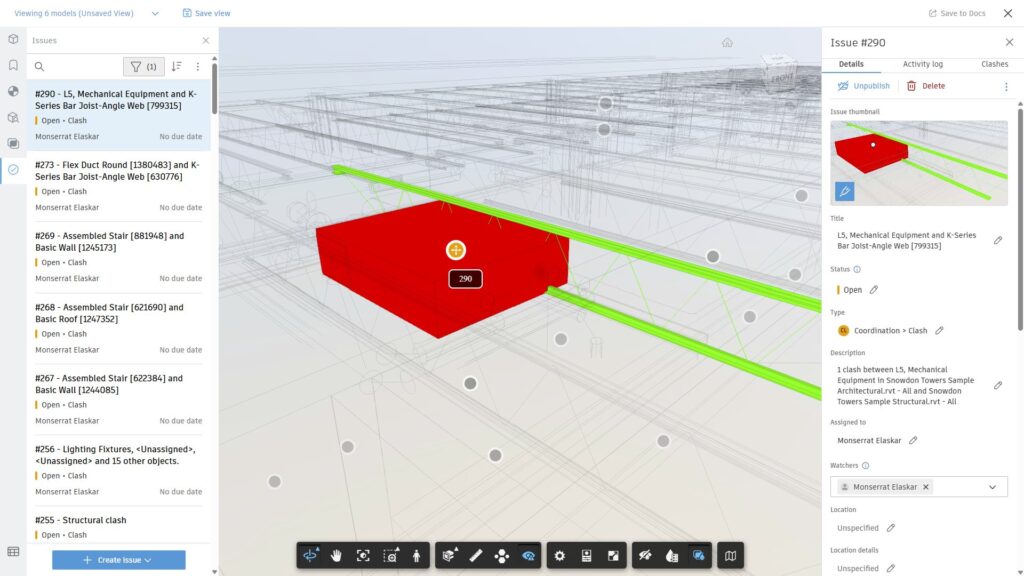
Identifying clashes is only half the job. The real value comes when teams take action—and stay aligned while doing it.
In ACC, you can create issues directly from clashes and assign them to the right person or company. Each issue is linked to its exact location in the model and includes a thumbnail for quick reference. When the assigned designer opens it, they can see the problem immediately—no screenshots or long explanations needed.
As issues are resolved, saving results to Autodesk Docs keeps everything organized. Reports, issue logs, and viewpoints become part of your permanent project record, providing transparency and accountability.
This connected workflow bridges the gap between design and coordination. Everyone works from the same information, decisions are captured automatically, and the project stays on track.
5. Elevate Collaboration Through Continuous Improvement
Coordination isn’t a one-time task—it’s a process that evolves as your project matures.
As designs develop, refine your filters, model sets, and views to match what matters most. Early coordination may focus on major systems, while later reviews might target finishes or equipment placement.
Regularly updating your Coordination Space keeps the process relevant and efficient. It prevents teams from rechecking outdated models and encourages continuous collaboration across design stages.
More importantly, it builds a culture of improvement. When coordination becomes a consistent part of how teams work—not just a step in the process—it leads to better communication, cleaner models, and fewer surprises in the field.
Coordination Should Always Be a Connected Workflow
Model Coordination in Autodesk Construction Cloud is about more than finding clashes—it’s about connecting people, data, and decisions.
When you start with an organized Coordination Space, fine-tune your settings, review in context, act quickly, and refine often, coordination becomes a collaborative rhythm that drives better outcomes for everyone involved.
It’s not just about detecting problems; it’s about delivering projects with confidence.
Explore more best practices for Model Coordination in Autodesk Construction Cloud and see how connected teams deliver smarter, faster, and with fewer rework cycles.
