 Shane Bluemel

Over the course of this year, we have been reviewing customer feedback and evaluating how you interact and use model-based assets. We identified several opportunities, and as a result, we want to highlight the major changes and explain some of the new concepts we have introduced.
Interface Improvements
We have made some changes to how we display information throughout the model mapping functionality, making the existing process easier to understand.
Clearer Interface
You may have already noticed that the user interface for configuring and importing model-based assets has been significantly changed. The major changes here include:
- Changing the wording so that our terminology is consistent and clear.
- The layout of windows and text better aligns with patterns used across the rest of ACC.
- The operator rules are available when searching for model properties have been expanded to align with those available in other ACC tools.
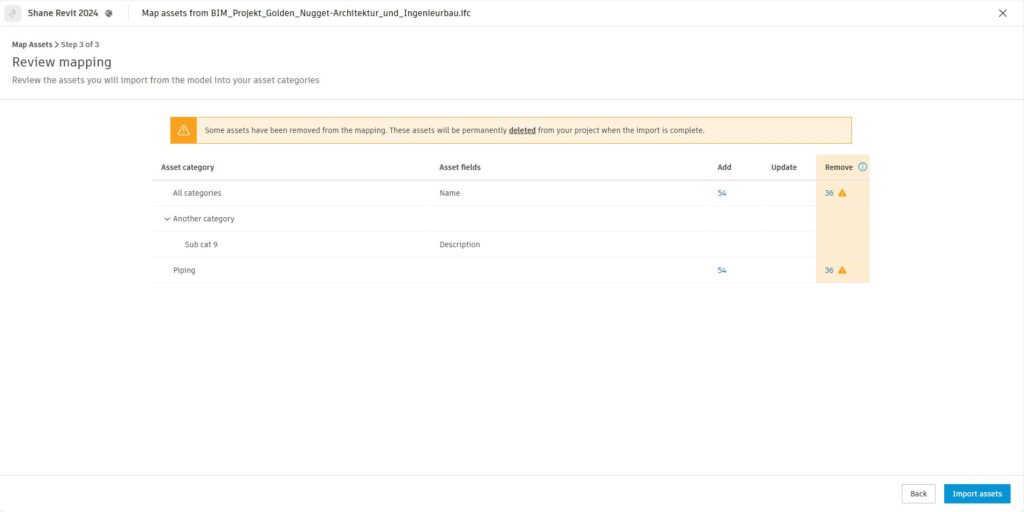
- The impact of updates to model files and changes to mapping rules are more clearly displayed, especially when this involves deleting assets (see below).
Examples
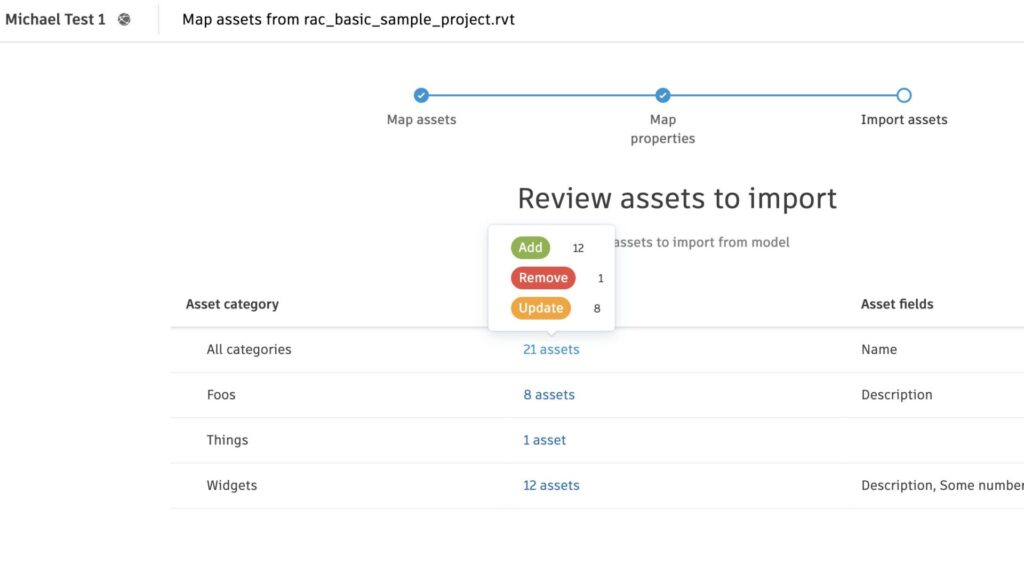
Before the improvements:
Details of the changes made were only visible by hovering over the number of assets changed.
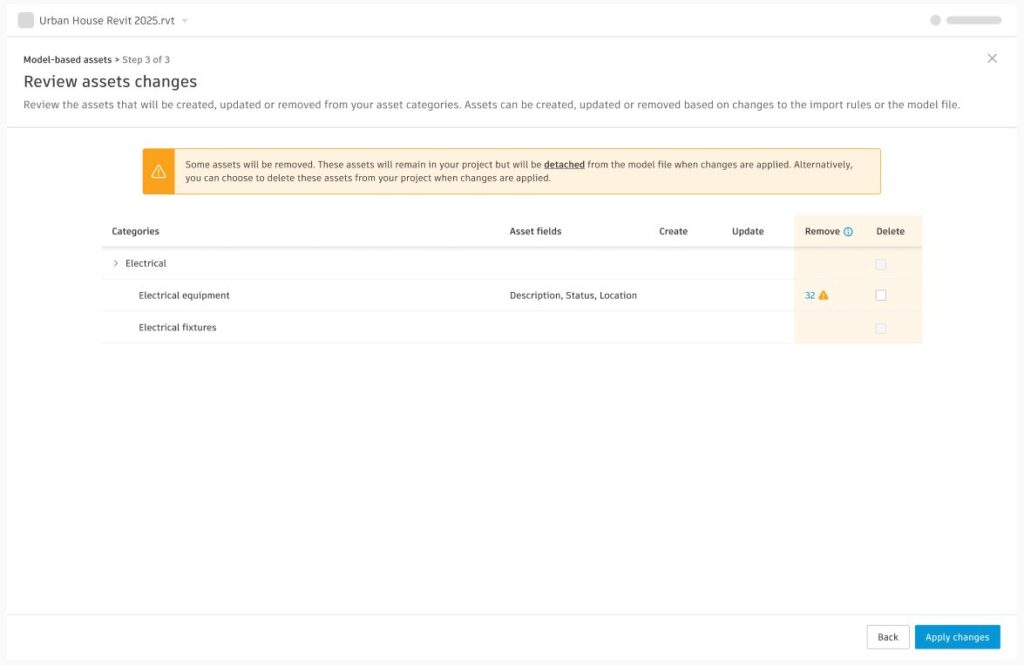
After the changes:
Changes are clearly displayed and you are warned if assets are going to be removed.
Model Update Guidance
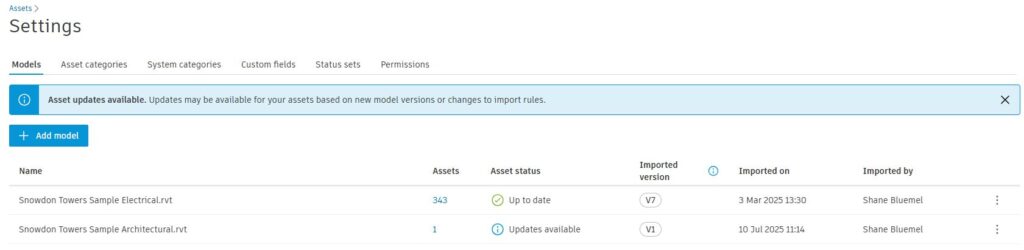
When a new version of a model file is uploaded to ACC, it was not always clear what action, if any, needed to be taken within Assets. We have improved the Models page in settings to make this clearer by adding the Asset status column to the table. We are now also clearly identifying the model version that was last imported so that users can make more informed decisions around when to update their assets. The Asset status column will also show that updates are available if an administrator has changed the model import rules and exited part way through the process (i.e., they have not fully completed the import, leaving updates pending).
Stable Identifier Warnings
Assets use the element ID of the element in the model file to associate an asset to a specific element. This allows us to track the element in the viewer and show it when you select the associated asset. For this to work correctly, the element ID must stay the same between model versions. If the element ID changes then the connection between the asset and element is broken and we have no way to find the correct element. Some third-party products do not guarantee that model objects will have the same element ID between save or export operations. When uploading a new version of these files, the assets model mapping flow will detect that some elements have been removed and some new elements have been added – the existing assets will be removed and recreated to reflect these changes (rather than updating the assets which is what you may expect).
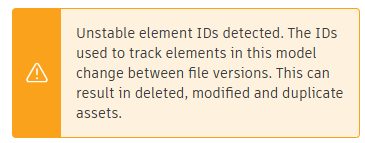
To try and increase awareness around this, we are now identifying the files where element IDs can change between model versions and display a warning message. Combined with the user interface changes above we believe that you will be better informed about the changes to your assets when updating such model files.
Behavior Changes
We have also made changes to the behavior of the Assets tool in areas where we thought it was important to provide a better experience.
Detached Assets
A detached asset is an asset that was imported from the model file but is now no longer connected to that model file. There are several ways that this can happen:
- The asset was imported from a model file that does not support stable element identifiers, or the model file was updated, and the elements can no longer be found (see Stable Identifier Warnings above).
- The model file was removed from Assets or deleted from ACC.
- The import rules used to import the asset have been changed and the element associated with this asset is no longer considered to be an asset.
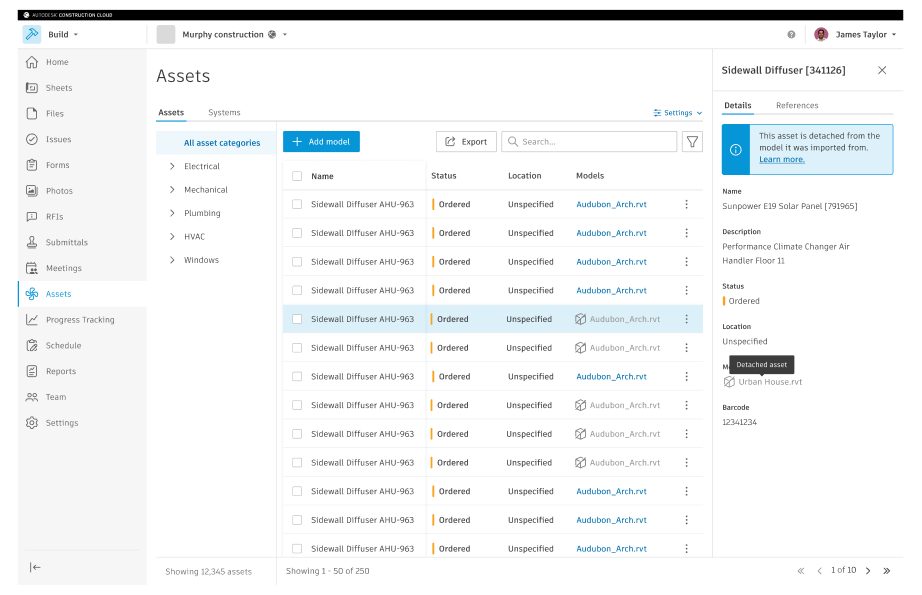
Previously we did not recognize detached assets as a formal state in Assets, making them difficult to manage and control. We have now introduced better support for them, allowing you to make decisions and understand their behavior better.
Firstly, we have changed the assets list to show when an asset has become detached from the model. This is now visible from the Models column in the list and the asset details panel:
Secondly, we will no longer display detached assets when reviewing the assets in an open model. This behavior will now be consistent for both web and mobile.
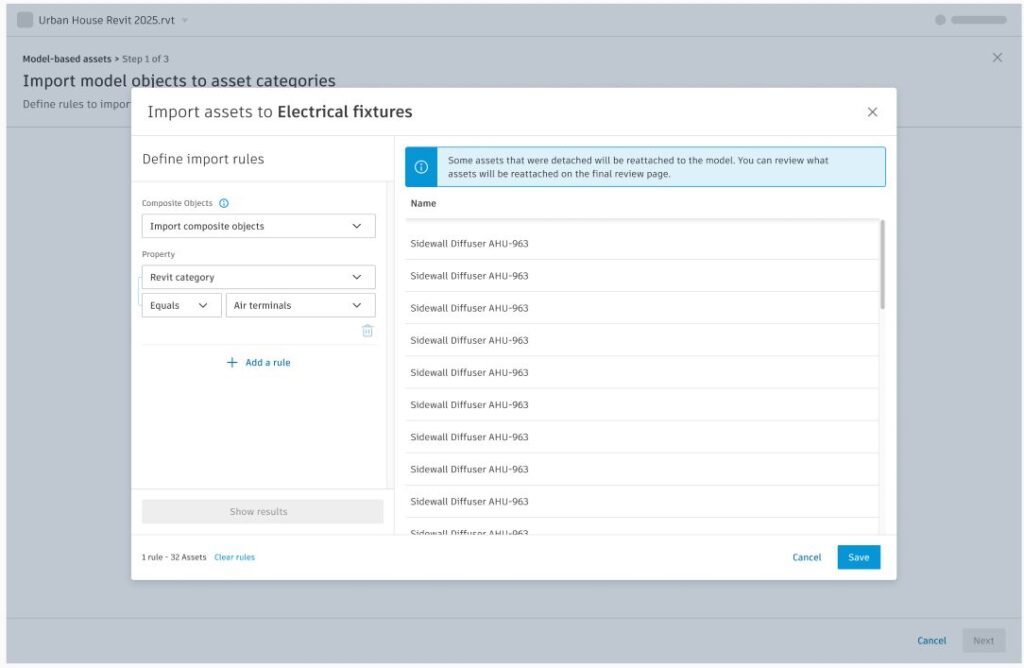
Finally, we have provided options to allow administrators to decide what happens when model mapping rules are restored, and whether assets become detached or deleted when changing rules or updating model versions. Note this is a change from our previous experience; assets were always deleted if they were not found in the update. Now, by default, we are not deleting any assets during import, allowing you to view the details of the previous asset to avoid any disruption to your project data.
Looking Forward
We want to thank you for your feedback, and we’re excited about the changes we’ve made to improve model-based asset workflows. We are always looking to improve, so make sure to post your ideas in ACC Ideas. We look forward to hearing from you soon!